

 English
 Español
 中文
Installing ggLeap for Multi-User environments (Active Directory)
هذه المقالة غير متوفرة بعد باللغة العربية. نعرضها باللغة الإنجليزية.
Installing ggLeap for Active Directory (AD)
This guide explains how to access and configure advanced Active Directory (AD) settings during the ggLeap installation process.
By default, these options are hidden to ensure a streamlined setup for standard users.
Prerequisites
Before beginning, ensure you have the following:
- Administrator Access: You must run the installer with administrative privileges.
- Installer Executable: Download the latest version of the ggLeap installer (e.g.,
ggLeap-Installer-3.0.x.exe).
Enabling AD Configuration Settings
To reveal the hidden configuration menu, you must launch the installer via the Command Prompt (CMD) using specific flags.
1. Open Command Prompt
Press the Windows Key, type cmd, right-click it, and select Run as Administrator.
2. Run with Command Line Switches
Navigate to your download folder and run the installer using the --ad switch.
You can also use specific flags to pre-toggle settings:
| Switch | Descriptio |
|---|---|
--ad |
Main Switch. Reveals the AD configuration screen. |
--shell {all | new} |
Sets Windows shell to ggLeap for all or new users. |
--addeveryonetoadmin |
Adds all users to the local Administrators group. |
--disableautologon |
Disables the Windows automatic logon feature. |
Example Command:
ggLeap-Installer-3.0.1394.1396.exe --ad
Configuration Steps
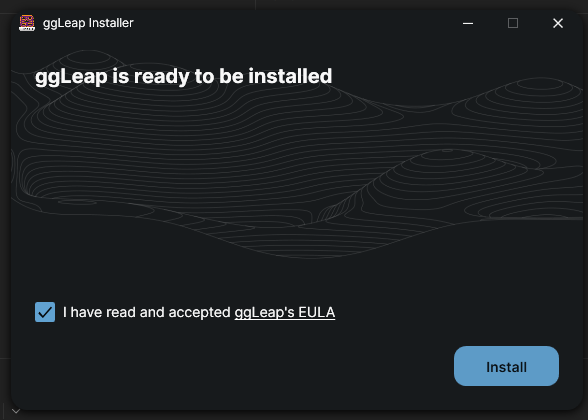
Step 1: Welcome Screen
When launched normally or via CMD, you will first see the standard readiness screen.
Step 2: Advanced AD Configuration
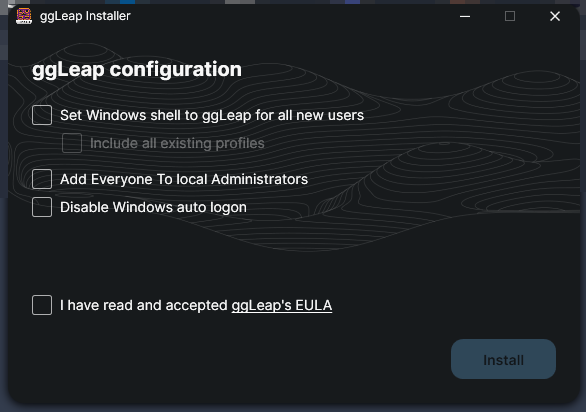
Once the installer detects the --ad switch (or related keys), it will reveal the ggLeap configuration screen.
Here you can toggle the following:
- Set Windows shell to ggLeap: Choose to include all existing profiles or just new ones.
- Add Everyone To local Administrators: Grants admin rights to all local users.
- Disable Windows auto logon: Prevents the OS from bypassing the login screen.
Step 3: Completion
- Review and check the box: "I have read and accepted ggLeap's EULA."
- Click Install.
Troubleshooting
- Settings not appearing? Double-check that you are using a double dash (e.g.,
--ad) and that there is a space between the filename and the switch. - Permissions Error: Ensure the Command Prompt was launched with "Run as Administrator," otherwise the installer may fail to modify system shell settings or registry keys.
Need more help? Contact our technical support team for assistance with large-scale AD deployments.