

 Español
 中文
 العربية
ggRock Site Preparation Guide
Preparing your site for a ggRock server takes careful planning of both hardware and network infrastructure to ensure optimal performance and reliability. Below are the key requirements.
Electrical
Uninterruptible Power Supply (UPS)
- Use a dedicated UPS for the ggRock server to protect against power interruptions.
- Recommended model: CyberPower OR1500LCDRT2U.
Redundant Power Supplies
- Equip the server with multiple power supply units for redundancy.
- Connect each power supply to separate batteries within the UPS, or to different UPS units.
Physical Network
Server-to-Switch Connection
- Establish at least a 10 Gigabit connection between the ggRock server and the primary switch.
- For larger deployments, consider 25 or 40 Gigabit connections to accommodate higher data throughput.
Switch Interconnections
- Ensure any supporting switches also have at least a 10 Gigabit connection, especially between primary and secondary switches.
Client Network Connection
- Each client machine should have at least a 1 Gigabit connection to maintain efficient data transfer.
Network Interfaces
- Use SFP+ connectors — these are commonly used for 10G connections on ggRock servers and compatible switches.
- Avoid using traditional 1 Gigabit ports on the server except for testing purposes, as they noticeably increase boot and program load times for clients.
Network Configuration
Network Segmentation
- Ideally, place the ggRock server and client PCs on the same network segment for optimal performance.
- ggRock supports operation across multiple subnets. For versions newer than
1.1.3.1, configure this in the ggRock web UI under Settings → Network → Multiple Networks Support. - Refer to 🌐 [Advanced] PXE Boot Across Subnets for more information on multi-network setups.
DHCP Server
- Operate a DHCP server independent of ggRock.
- ggRock functions as a proxyDHCP server and cannot serve as the main DHCP server.
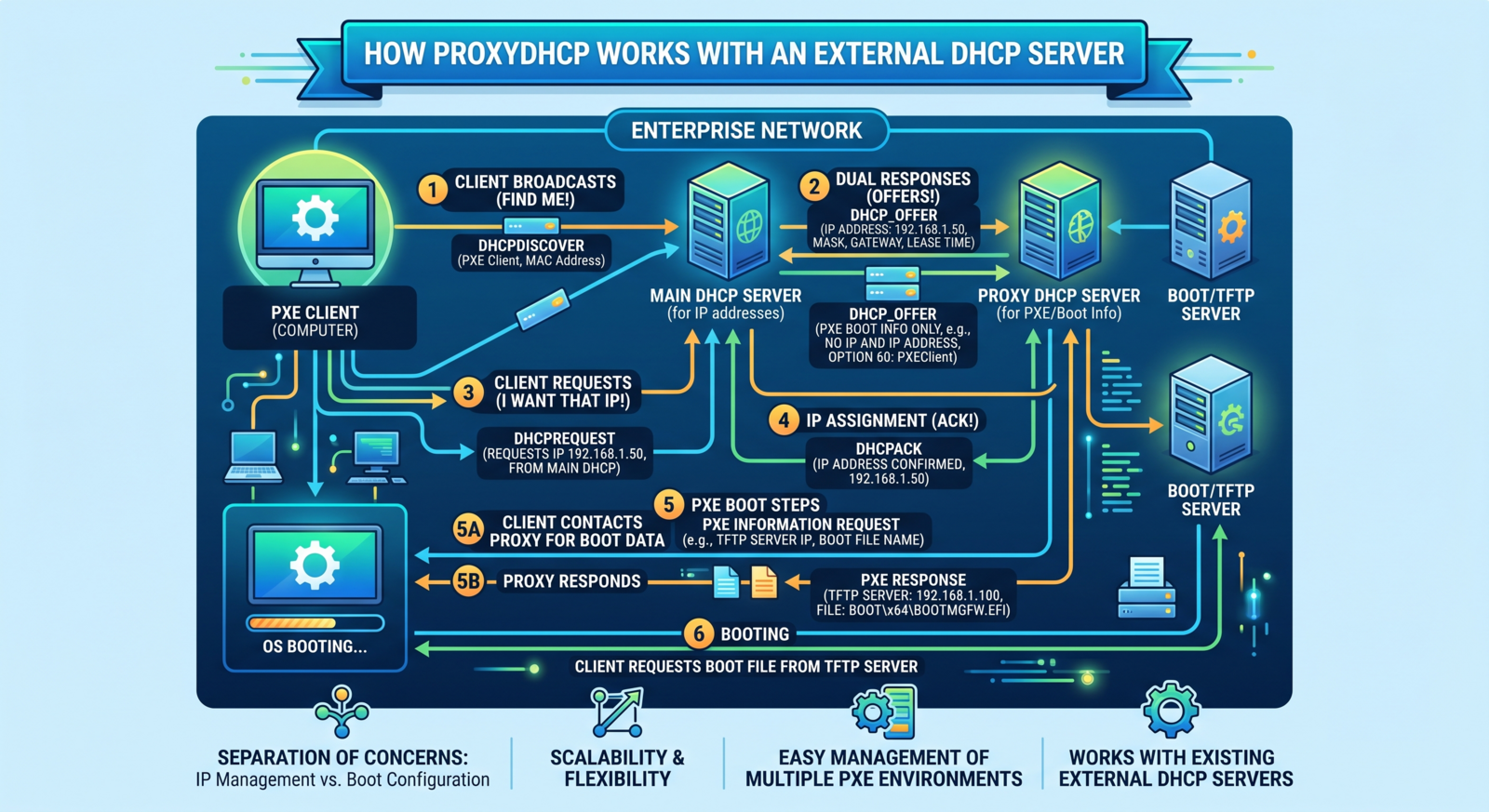
PXE Server
- Ensure ggRock is the only PXE server on a given network segment.
- If multiple PXE responders are present, enable only one at a time per network segment.
- Layer 3 switches may require the IP helper address of every PXE responder in the helper address list to route PXE / iSCSI / DHCPDISCOVER traffic properly.
Settings to Disable
- Flow Control
- DHCP options 60 and 66–68
- DHCP snooping / Rogue DHCP Server Detection
- Spanning Tree Protocol (STP) — optional, but STP has been known to cause network boot timeout issues.
Windows Licensing
For Windows licensing options and compliance strategies, see our ggRock Windows Licensing FAQ.
Optional but Strongly Recommended
DHCP Reservations
- Set MAC address-based IP assignments to prevent potential DHCP pool exhaustion.
Public IP Addressing
- Assign a 1:1 public address for each client PC and the ggRock server.
- This helps prevent issues with game launchers (such as Epic Games) that may block multiple login attempts from a single public address.
Managed Services Client Requirements
Inbound Access
To perform daily game and monthly operating system maintenance, the Managed Services team requires inbound access to two HTTPS-secured ports on the ggRock server. Ensure your firewall rules permit this communication.
ggRock ports (inbound):
| Port | Service |
|---|---|
| TCP 443 | ggRock Web Admin |
| TCP 9090 | Debian Control Panel |
Managed Services IP addresses:
34.255.111.14854.228.150.30
Remote Access
For hardware-specific tasks such as driver updates and game configuration, the Managed Services team remotely accesses ggRock gaming systems, primarily using TeamViewer under a corporate license.
Need a hand? For further assistance, or to discuss server configuration and on-site services, reach out to us at sales@ggcircuit.com.