

 English
 中文
 العربية
How to enable the Tournament add-on in ggLeap
Este artículo aún no está disponible en español. Se muestra en inglés.
The Tournament add-on — ggCircuit Tournament Hub, powered by our partner TourneyBit — lets you run tournaments and leagues directly from your ggLeap dashboard. This guide shows how to turn it on and what the three consents you are asked for mean.
1. Before you start
You need an employee account that can open Settings → Add-ons in ggLeap. If you don't see Add-ons in the Settings menu, ask the center owner to check your employee permissions.
The add-on is listed in ggLeap as Tournament, while the platform behind it is called TourneyBit — the same feature, so don't let the two names confuse you.
2. Turn the add-on on
- In ggLeap, go to Settings.
- Open Add-ons.
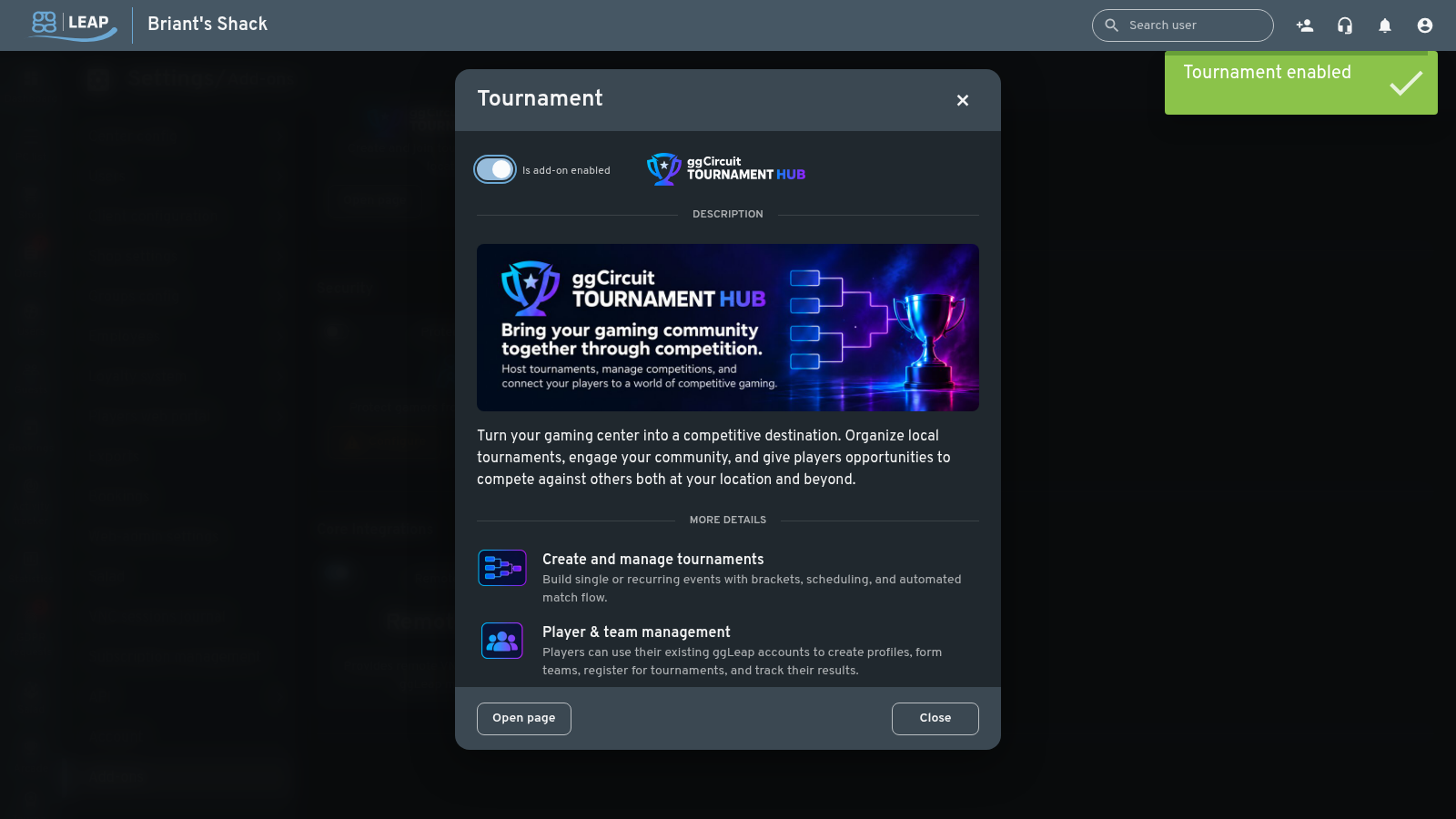
- In the Games section, select the Tournament card. The add-on window opens.
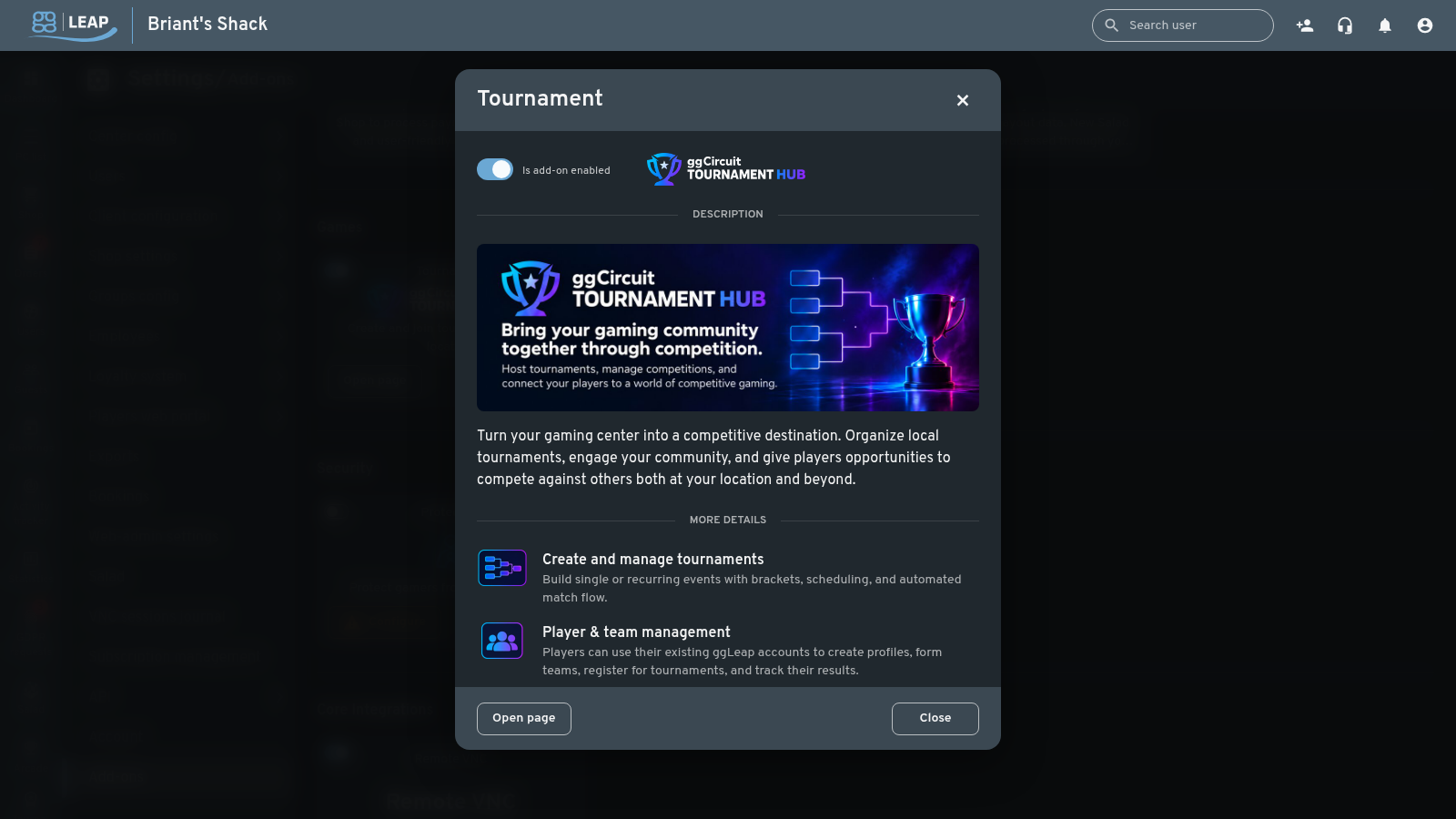
- In the window header, turn on Is add-on enabled.
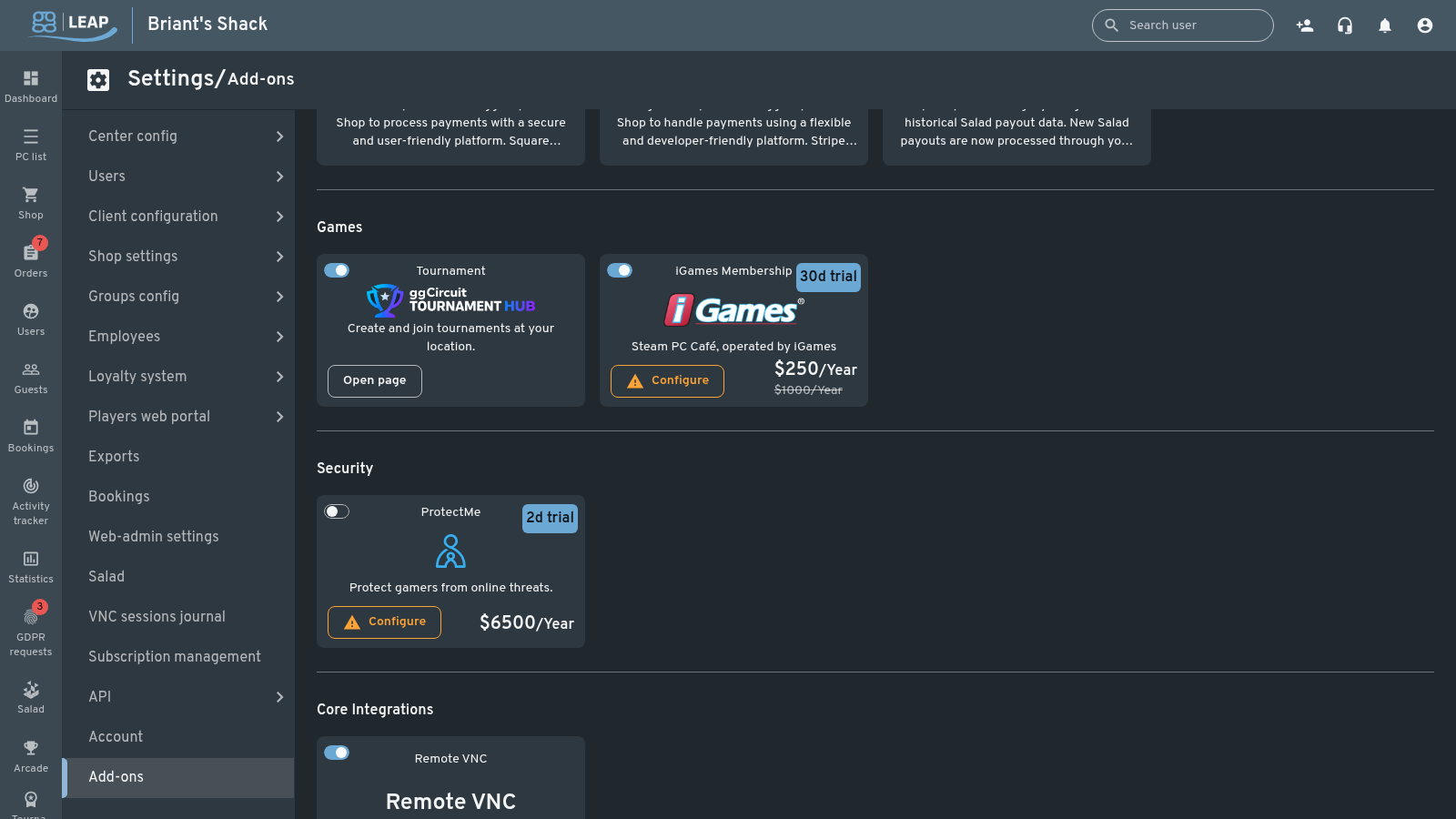
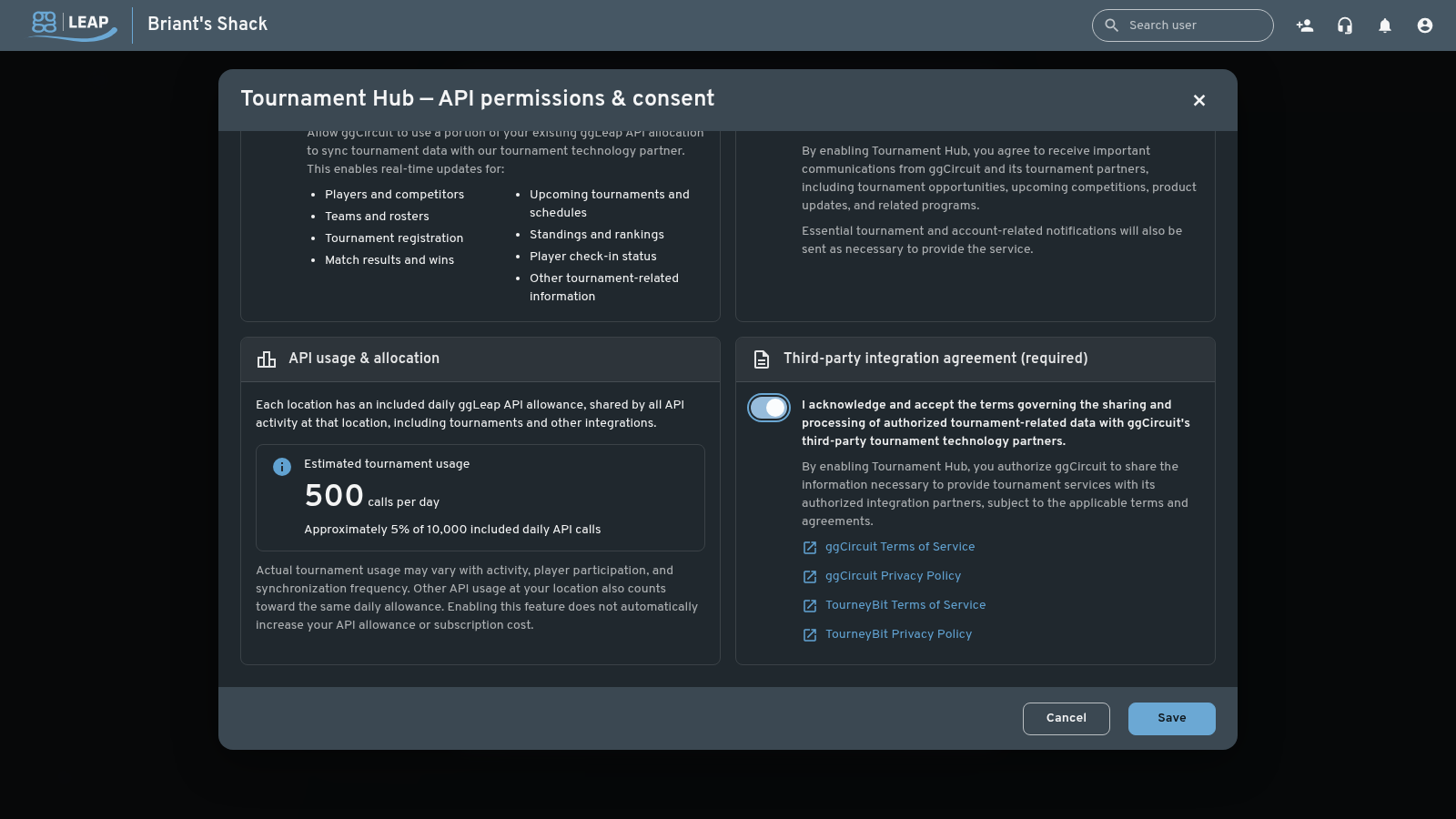
The first time you turn it on, ggLeap opens the Tournament Hub — API permissions & consent dialog. The add-on is not connected to anything until you accept it.
3. Review what the add-on includes
The window is the place to check what you are turning on: a short description of the feature, five items covering what it does (tournaments, players and teams, in-center and regional competition, check-in and score reporting, engagement), and a link to the Tournament Hub page.
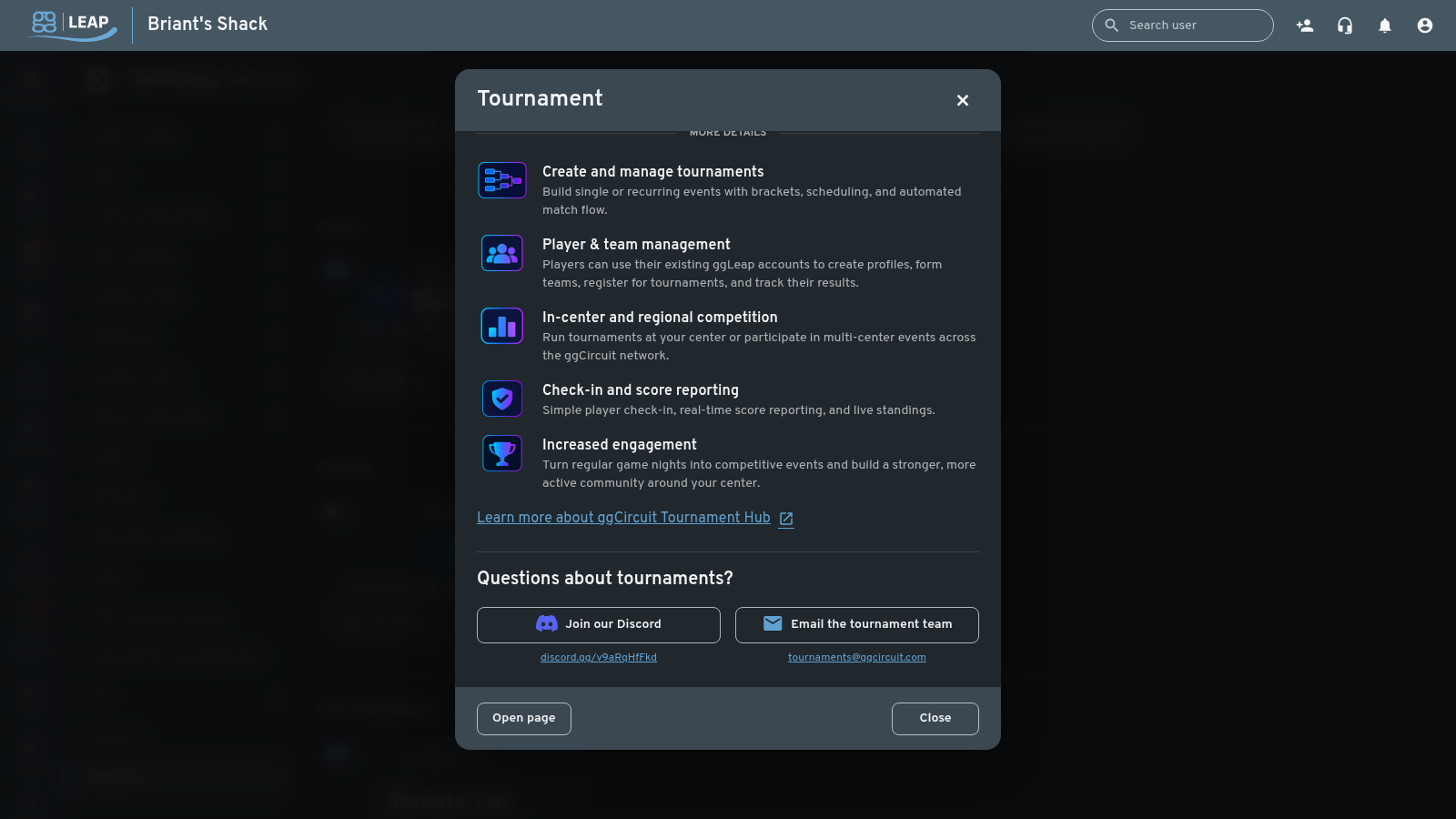
At the bottom of the window you will also find the ways to reach the tournament team: a Discord invite and the team email address.
4. Accept the three required consents
The dialog asks for three separate permissions:
- Allow API access — lets ggCircuit use a portion of your existing ggLeap API allocation to sync tournament data with our tournament technology partner. It covers players and competitors, teams and rosters, tournament registration, match results and wins, upcoming tournaments and schedules, standings and rankings, player check-in status, and other tournament-related information.
- Allow ggCircuit and its tournament partners to email tournament admins and staff — tournament opportunities, upcoming competitions, product updates and related programs. Essential tournament and account notifications are sent regardless of this setting.
- The third-party integration agreement — the terms that govern sharing and processing of tournament-related data with ggCircuit's tournament technology partners. The section links to the ggCircuit Terms of Service, the ggCircuit Privacy Policy, and the TourneyBit Terms of Service and Privacy Policy.
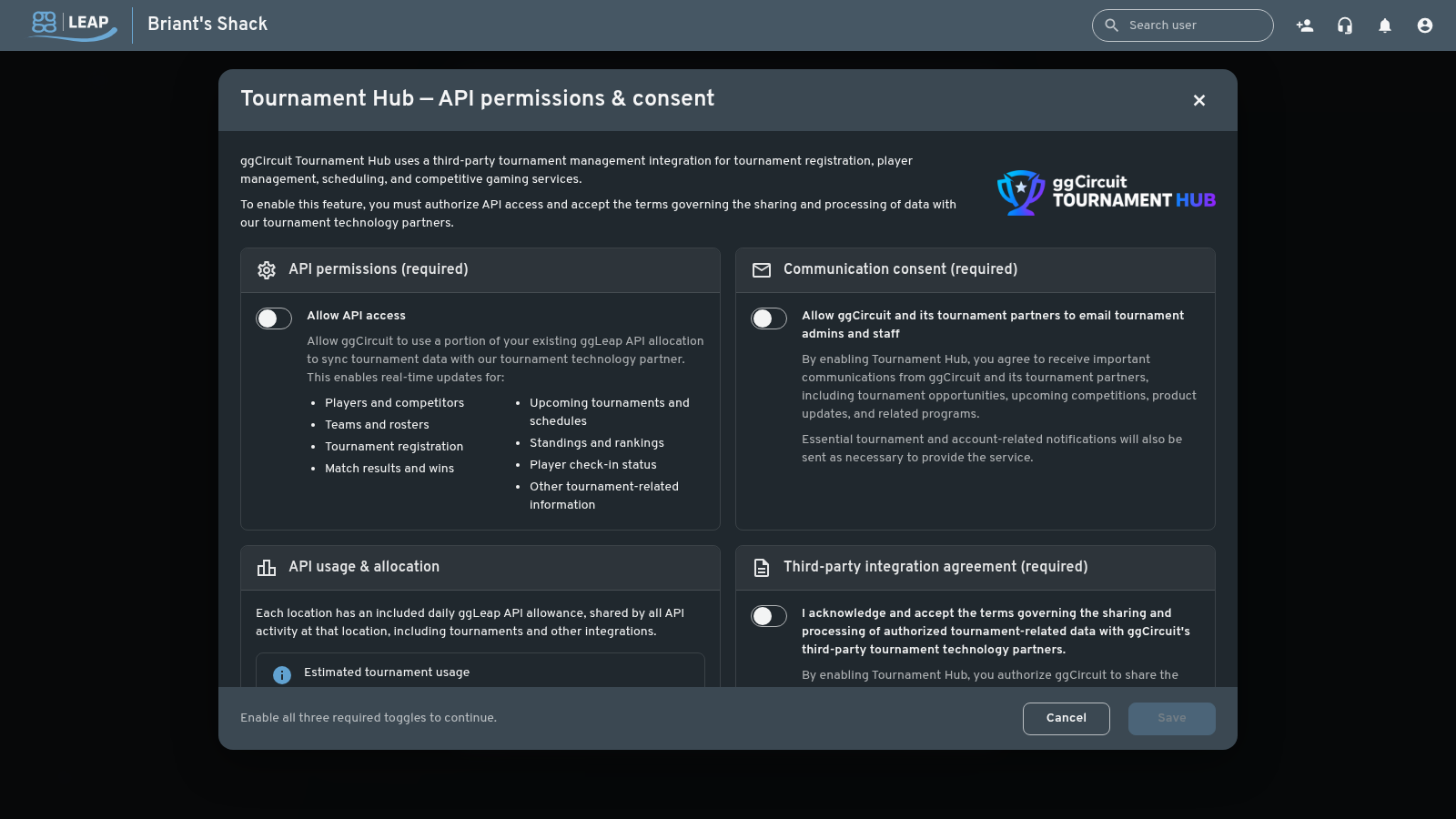
Save stays disabled until all three toggles are on — the footer of the dialog tells you so. Turn on all three, then select Save.
5. What the API access means
Each location has an included daily ggLeap API allowance, shared by all API activity at that location — tournaments and other integrations alike. The dialog estimates tournament usage at 500 calls per day, about 5% of the 10,000 included daily API calls.
Actual usage depends on activity, player participation and sync frequency, and other API usage at your location counts toward the same daily allowance. Enabling the add-on does not by itself increase your API allowance or your subscription cost.
6. Turn the add-on off
Turn off Is add-on enabled and confirm. Turning the add-on off revokes the API access and the accepted terms — if you enable it again later, ggLeap asks for the three consents again.
Questions about tournaments?
- Join the tournament team on Discord: https://discord.gg/v9aRgHfkU
- Email the tournament team: tournaments@ggcircuit.com
- What is the Tournament Feature in ggLeap?
- Running a tournament in ggLeap