

 English
 中文
 العربية
Running a league in ggLeap
Este artículo aún no está disponible en español. Se muestra en inglés.
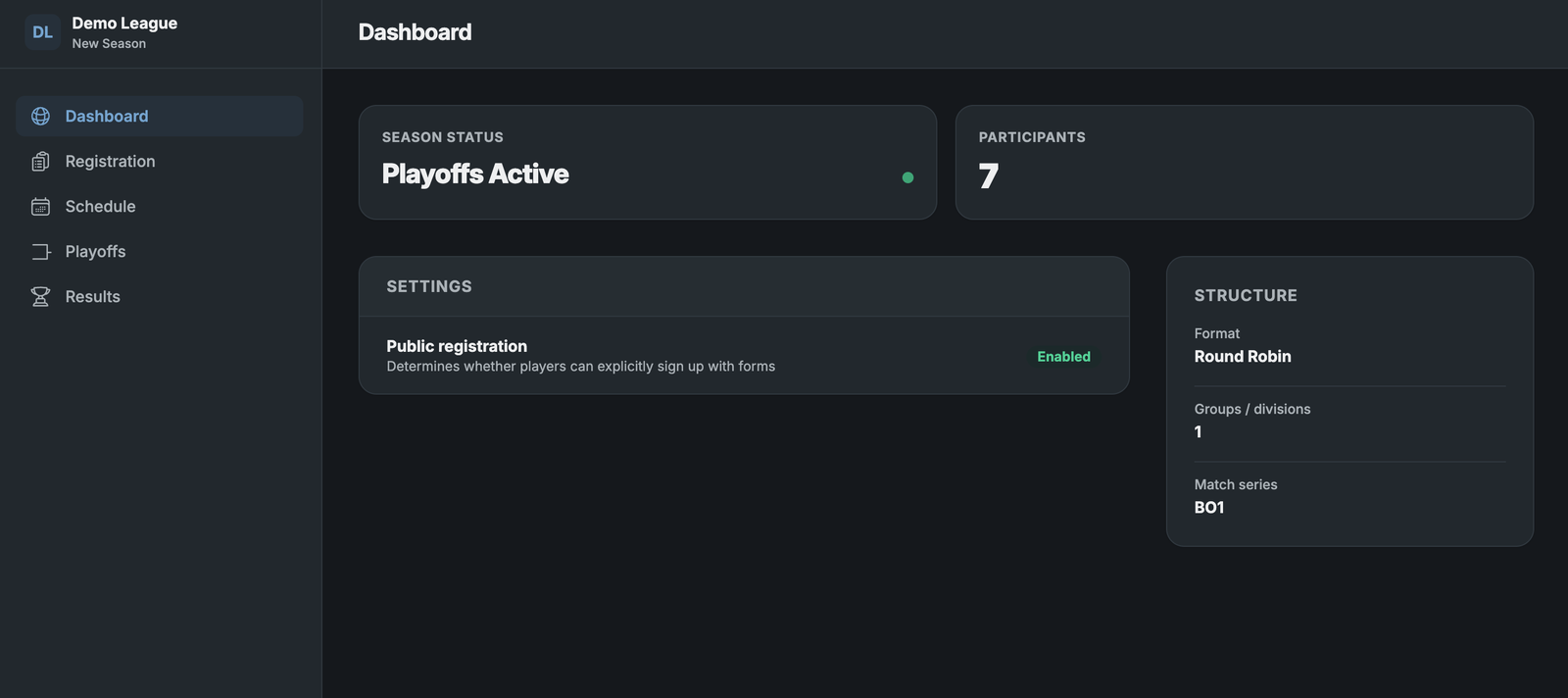
A league is a long-form competition built from seasons: you create the league and a season, register participants, generate a schedule, record results, and run playoffs. This article is for admins and organizers.
Find the Leagues dashboard
- Sign in to ggLeap.
- Scroll down the left sidebar and click Tournaments (below Events, with a medal icon).
- In the Tournaments dashboard, click Leagues in the top right corner.

League terminology
| Term | Meaning |
|---|---|
| League | Top-level container for any number of seasons. Organize by game title, sponsor, or whatever suits your operation |
| Season | Where the competition happens. Organize by time period (Fall 2027), game (Valorant), a combination (Valorant - Fall 2027), or any custom scheme |
| Participants | Register for the season |
| Matches | Occur within the season |
Create a league
- On the leagues dashboard, click Create league.
- Enter the display name (shorter, used in most places) and the official name.
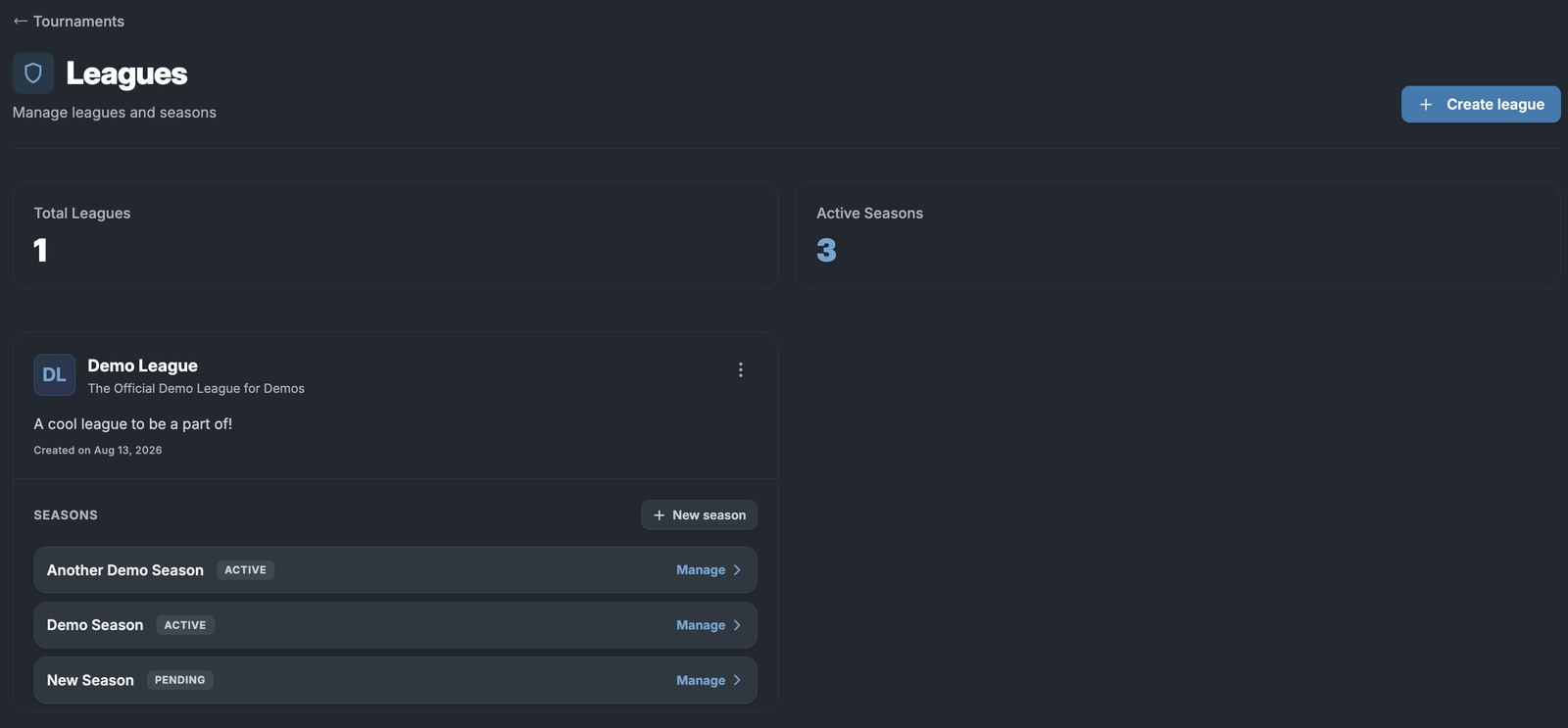
Add a season
- Click New season beneath the league.
- Enter the display name (required) and official name if needed.
- Set the start and end dates. The start date matters most if you plan to use automatic scheduling.
- Set the season structure (below).
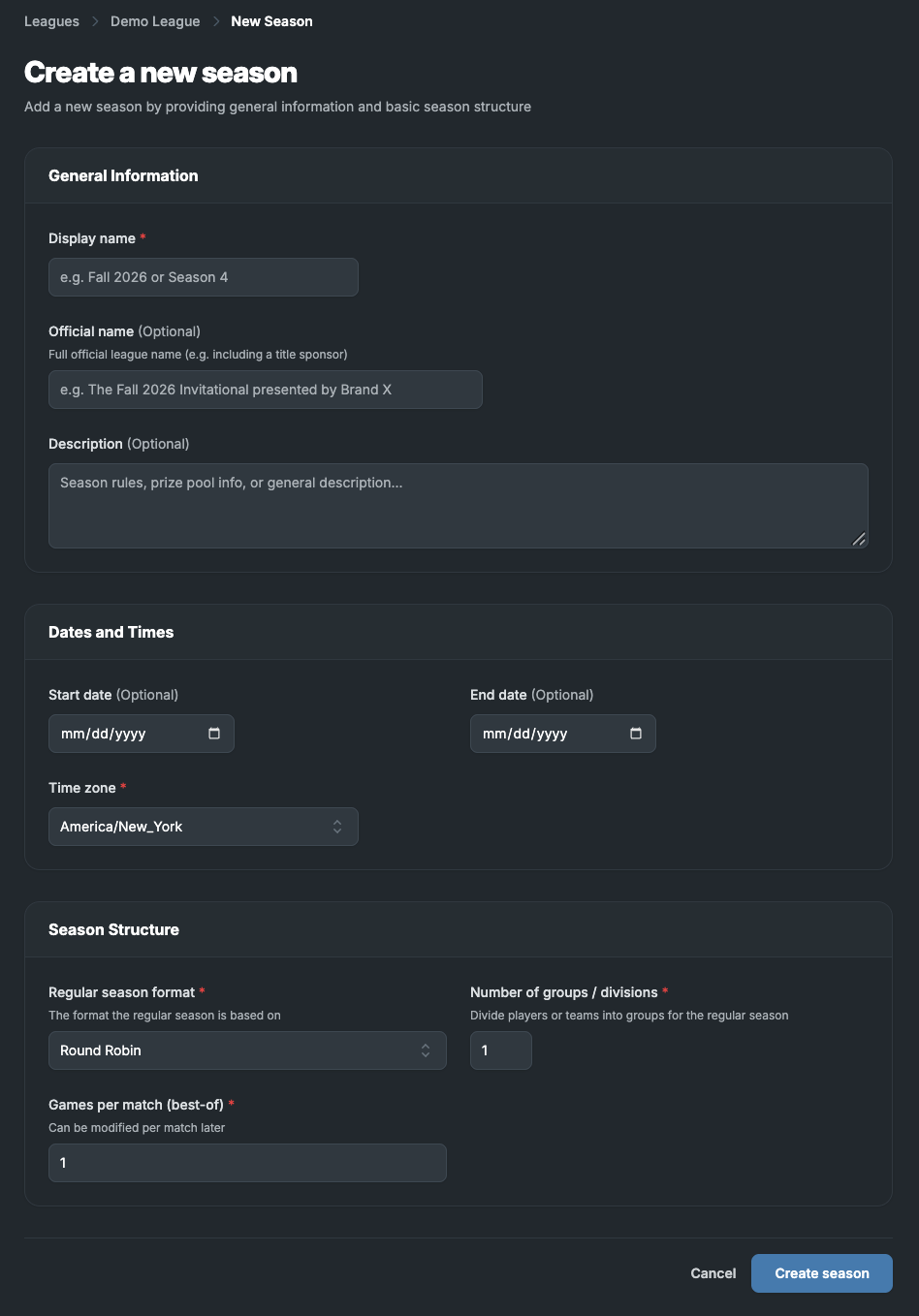
Season structure
| Setting | Details |
|---|---|
| Format | Only two are supported: Round-robin (every team plays each other once in the regular season) and Double round-robin (twice). You can change the format later |
| Groups and divisions | Keeps regular season matches within groups, such as by location or skill level. Manage group members later in the registration view |
| Games per match | Records scores for multiple games in a match series, like tournaments |
Season registration
Add participants by importing them or by enabling a registration form.
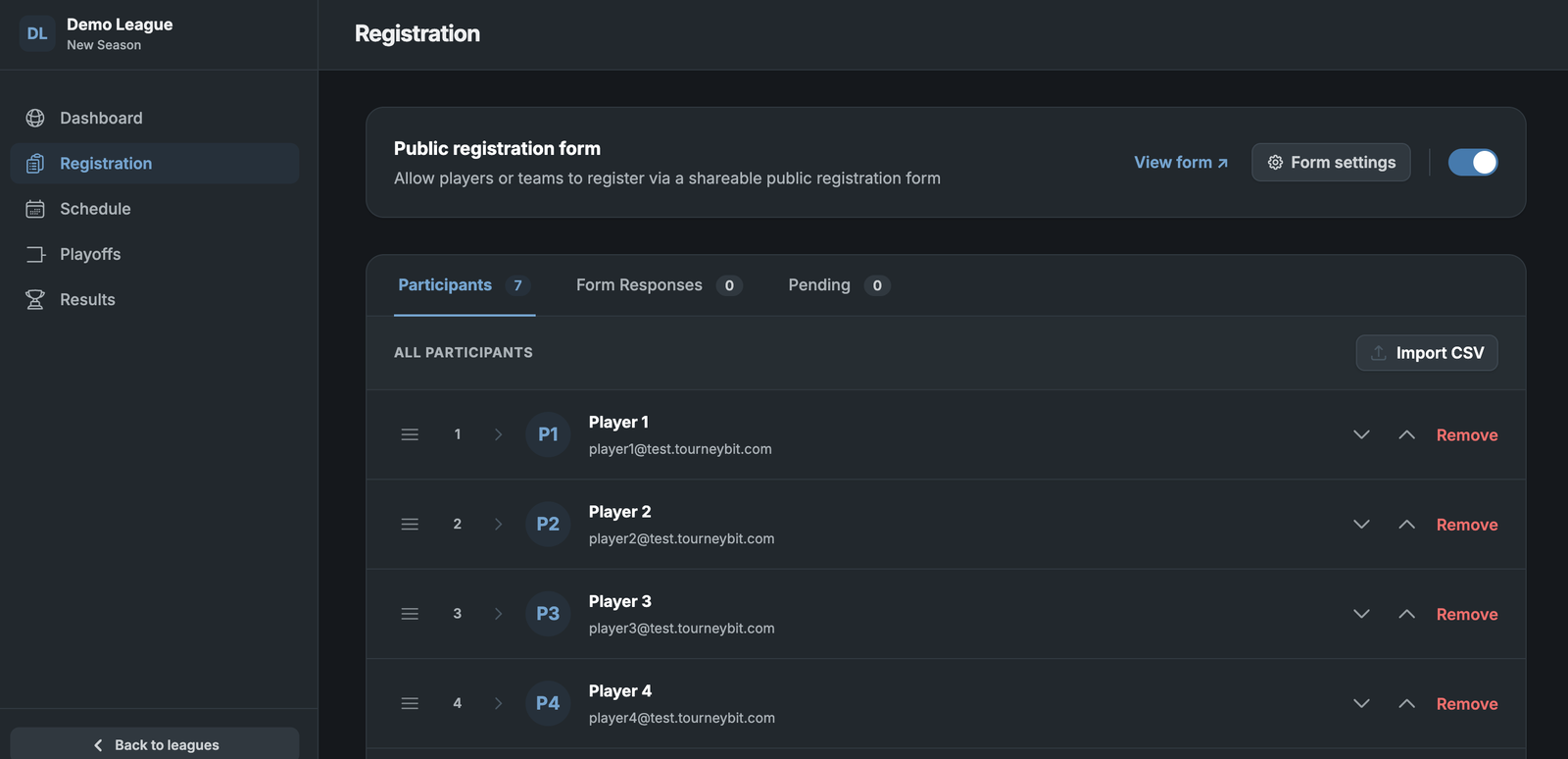
Option 1: Import participants
Go to Registration and click Import CSV.
| Column | Status |
|---|---|
display_name |
Required |
email |
Recommended |
account_url |
Optional; links a player or team account |
| Any other column | Added as a custom field |
Option 2: Public registration form
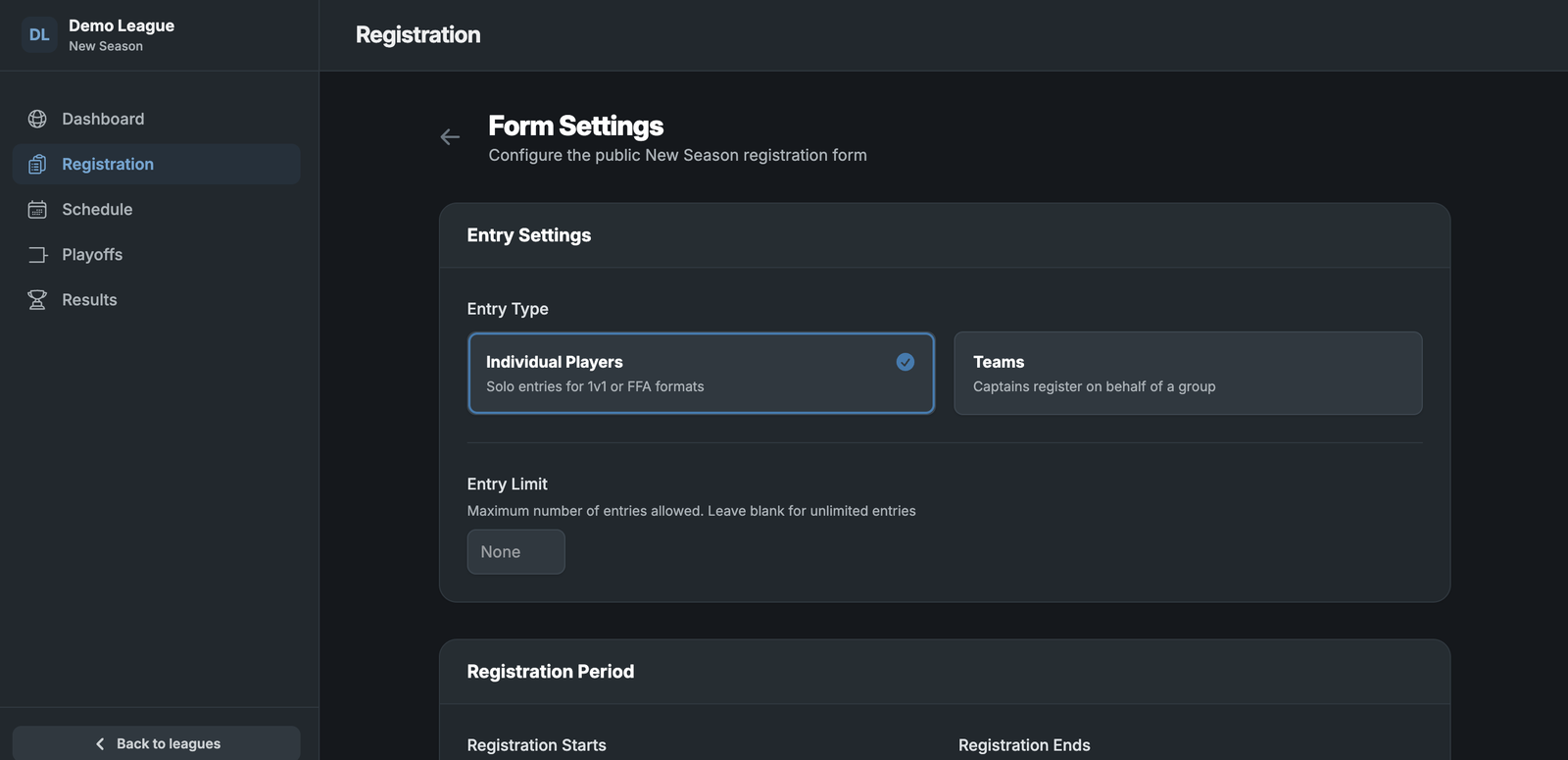
- In Registration, toggle Public registration form on.
- Click Form settings to customize.
| Setting | Details |
|---|---|
| Entry type | Individual Players or Teams. Teams requires a team or team name at signup |
| Entry Limit | Caps the number of form responses |
| Registration period | Allows responses only during a set time window |
| Custom fields | Click Add Field in the data collection section for text fields, dropdowns, or yes/no questions. Use the trash can to remove one. Full name and email are collected by default |
Advanced registration settings
| Setting | What it does |
|---|---|
| Require Sign-in | Blocks guest registration; players must sign in to their player accounts |
| Sign-in methods (after Require Sign-in) | Email magic link (default), ggCircuit OAuth (account tied to your center), Discord OAuth, FACEIT OAuth. To limit registration to existing center accounts, select only ggCircuit OAuth |
| Email domains | Limits registration to listed domains, comma separated (example: example.edu`` example.org). Empty means any email can register |
Add participants from form responses
- Open the Form Responses tab to see responses, including profile links, contact info, and custom field answers.
- Responses not yet added appear in the Pending tab.
- Press Add to make a response an official participant, or the X icon to discard spam.
Schedule matches
Once all participants are added:
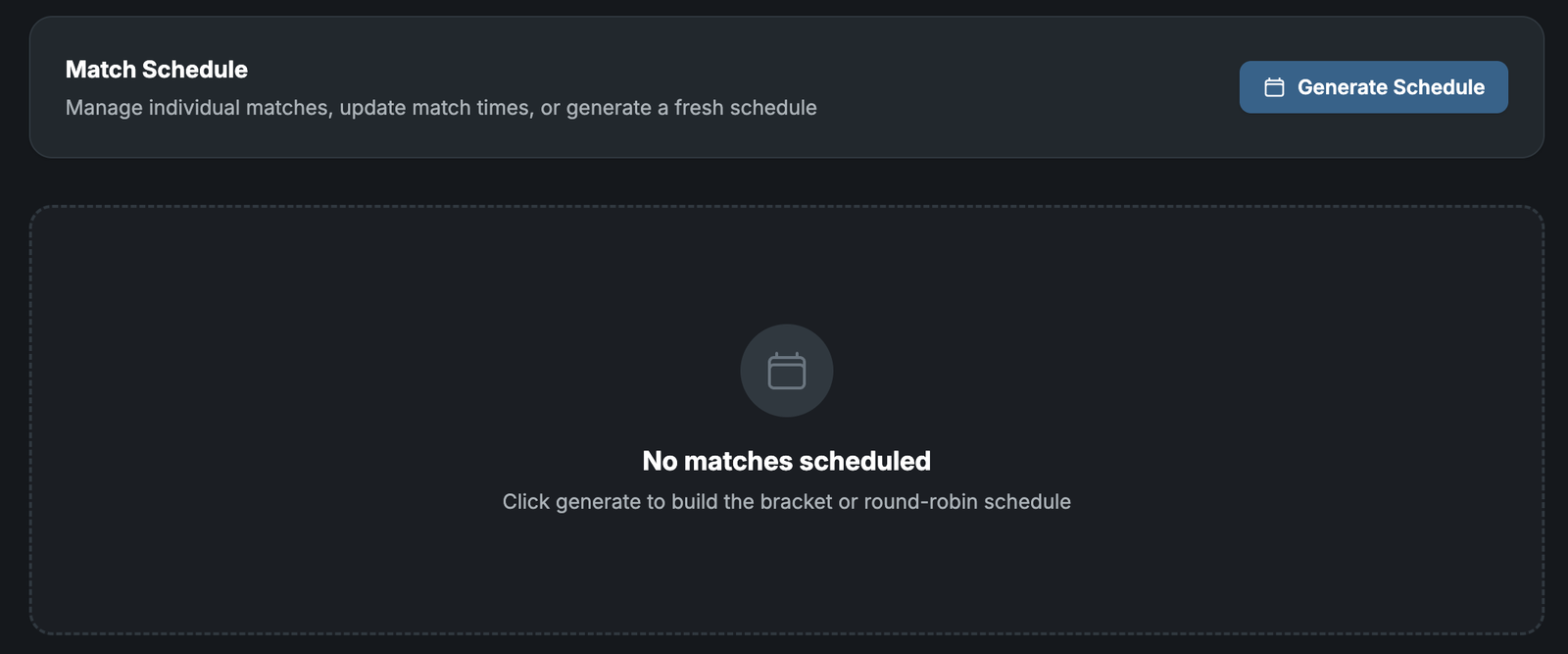
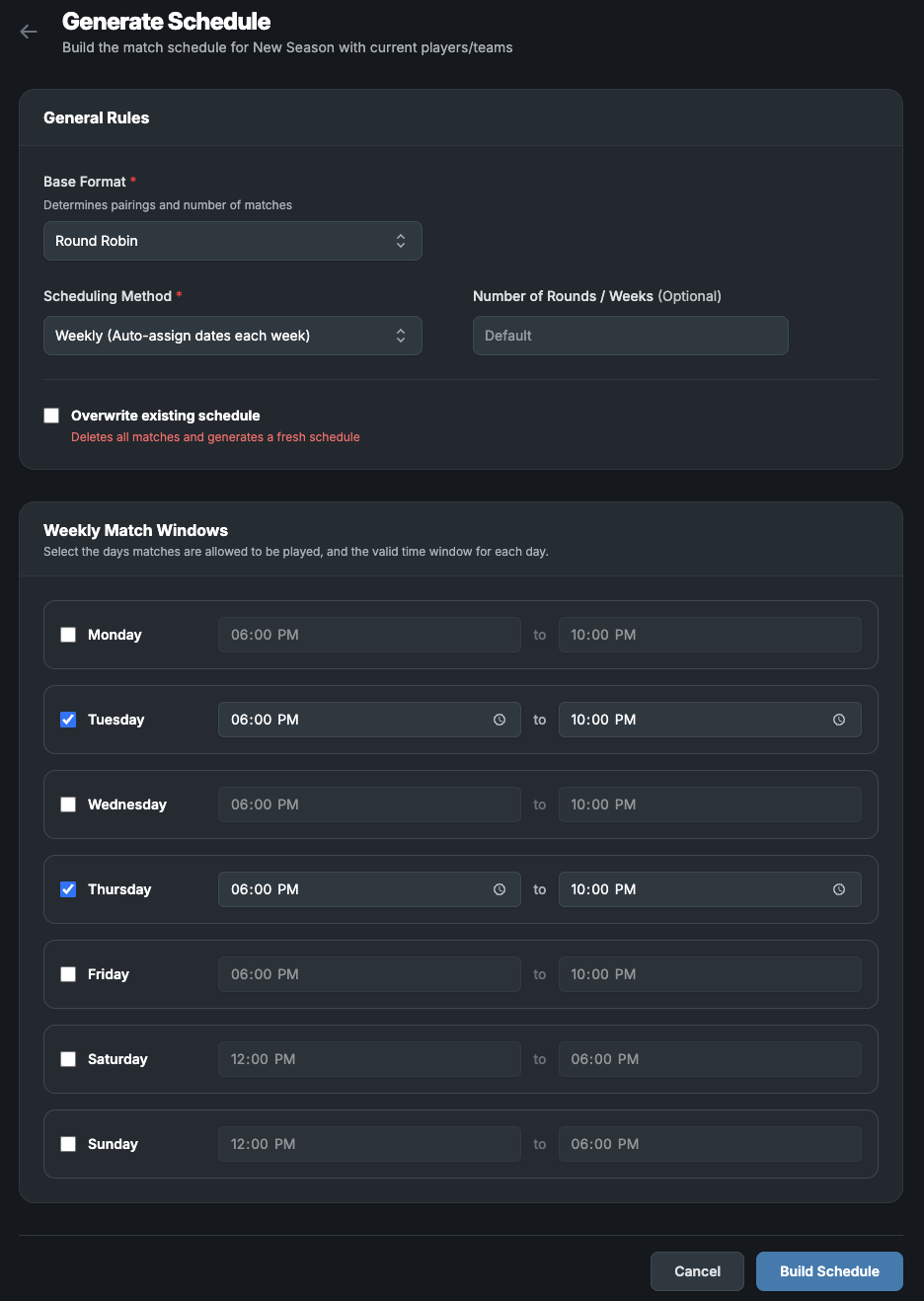
- Open the Schedule tab and click Generate Schedule.
- Confirm or update the base format (it defaults to your season format).
- To set dates and times automatically, set Scheduling Method to Weekly and select the date and time ranges for matches.
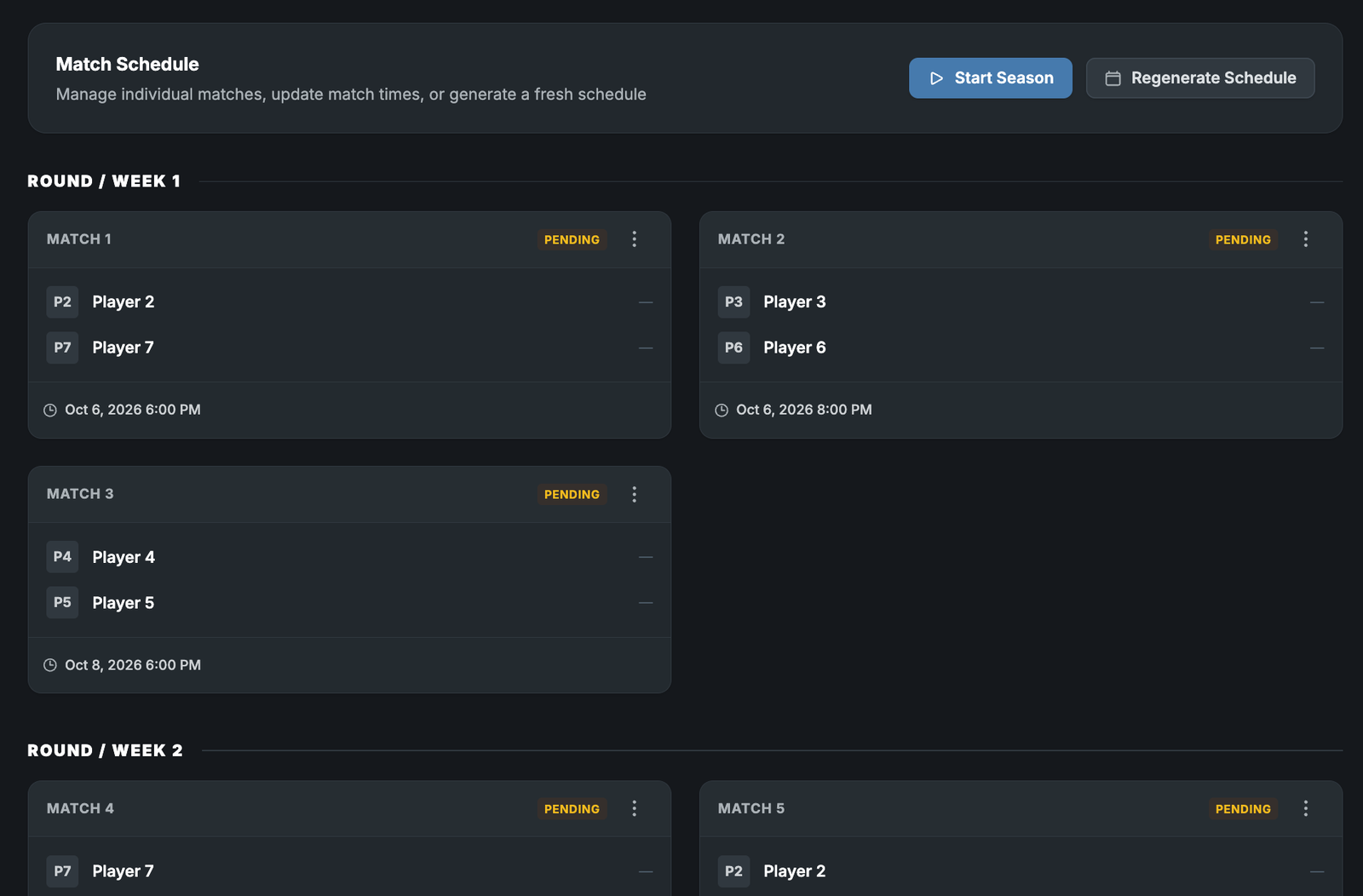
- After generation, change the date or time of individual matches manually if needed.
Run the season
When the schedule is final, click Start Season to move the season to Active.
Record match results
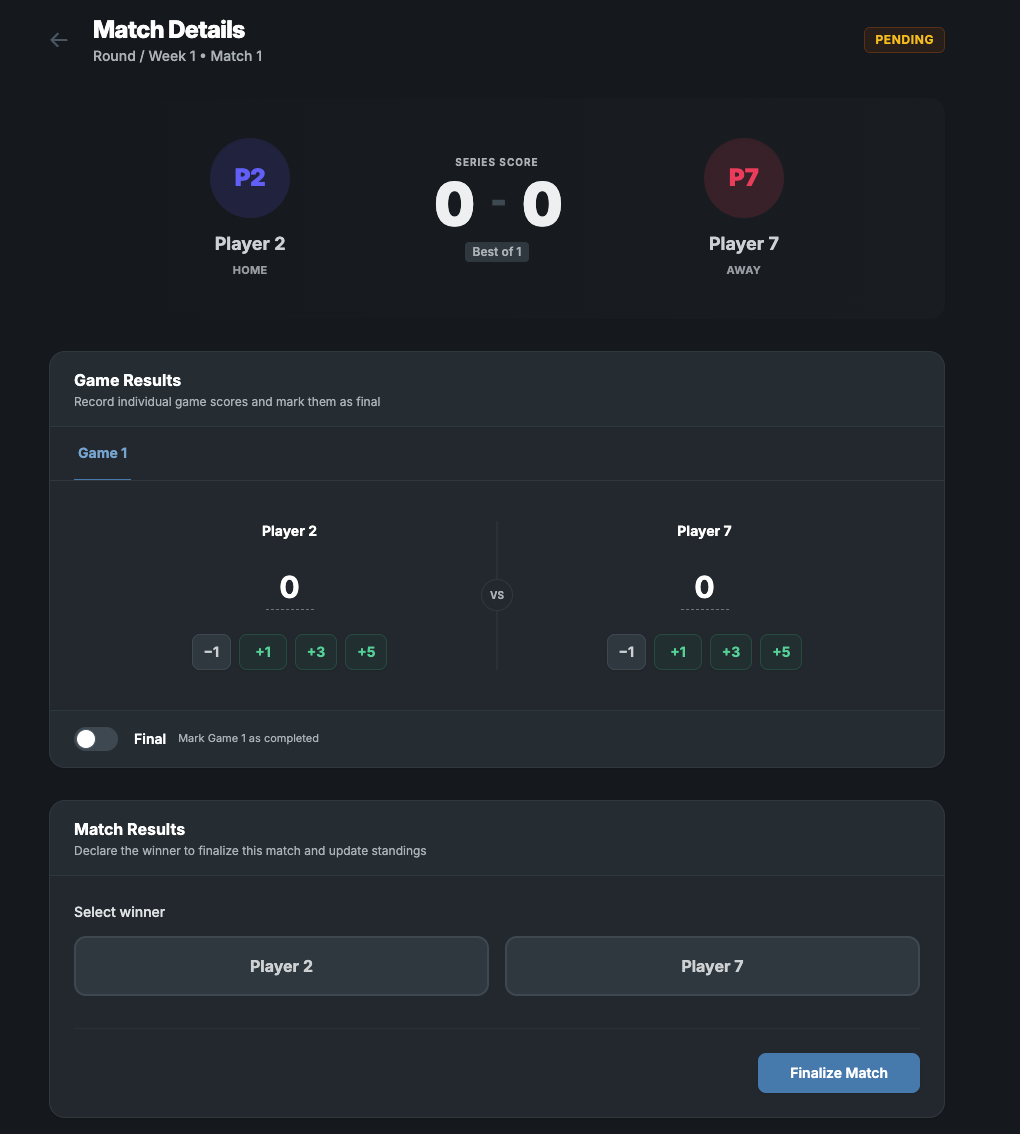
- Click the vertical three-dot icon on the match and select Manage. The view shows as many games as your Games per match setting.
- Use the Game Results container to set scores and winners per game.
- Select a winner in Match results and click Finalize Match.
View standings
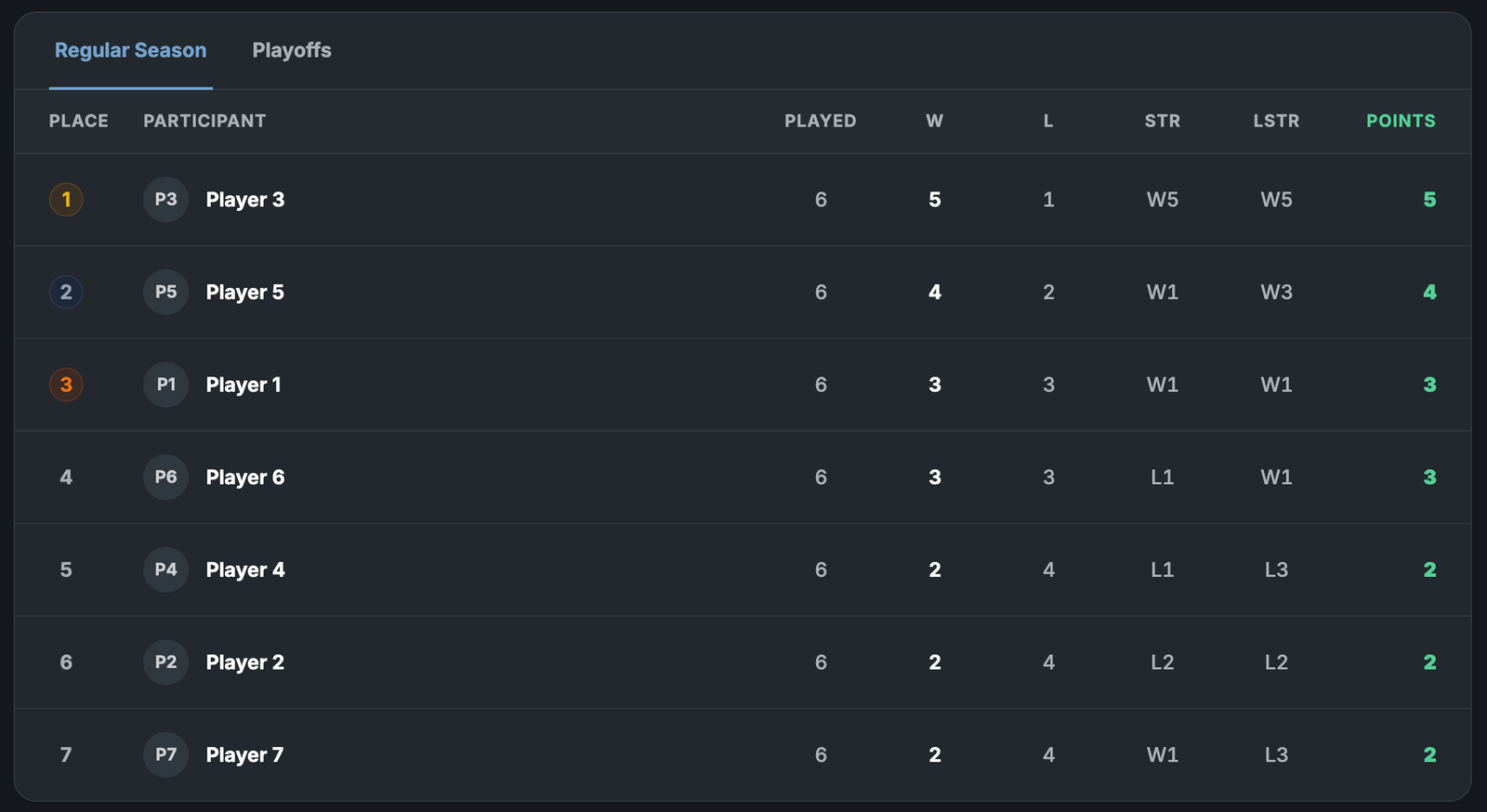
Open the Results section for regular season standings, including streaks and longest streaks.
Finalize the regular season
Set every match to Final before moving to playoffs or any later phase.
Playoffs
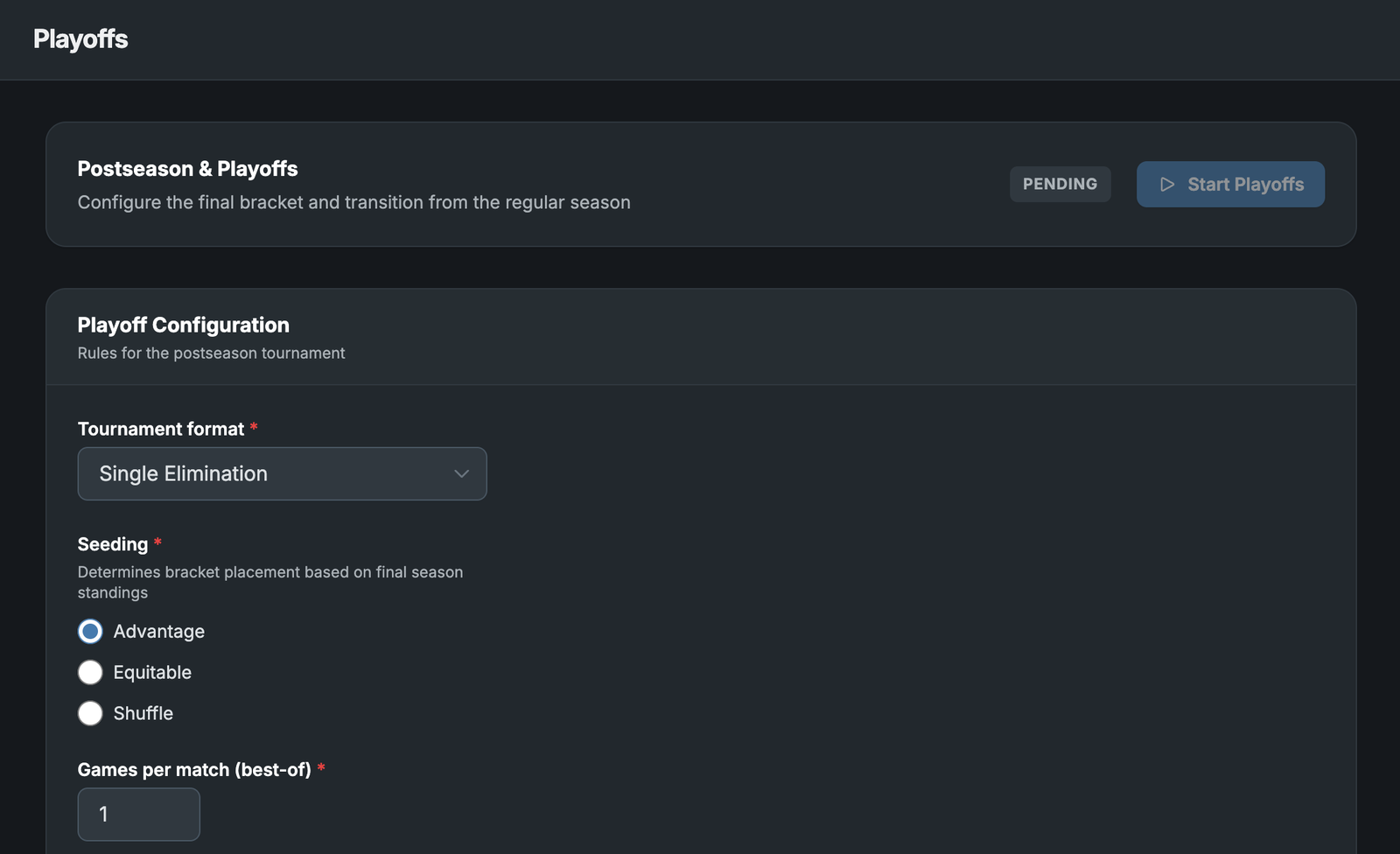
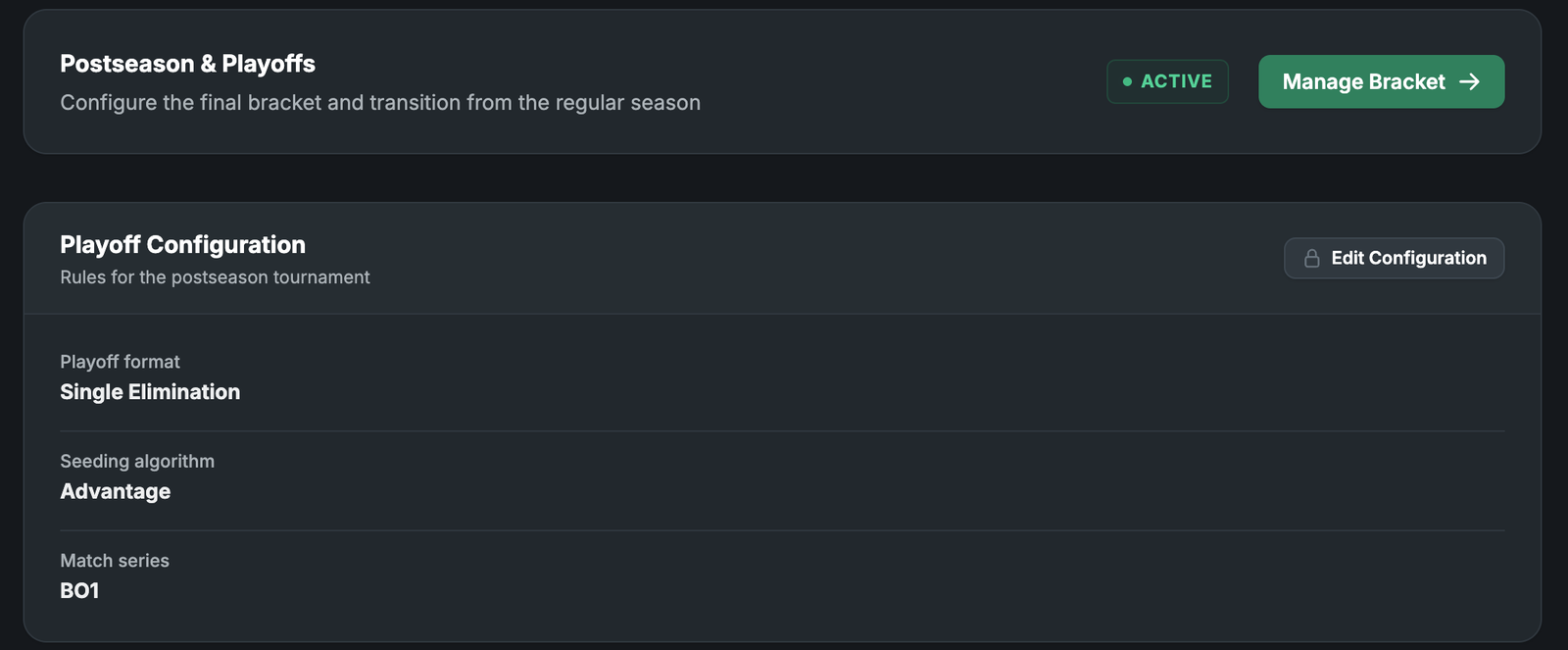
- After the regular season is finalized, open the playoffs section.
- Select the format, the seeding algorithm (for elimination formats), and games per match.
- Click Start Playoffs.
- Click Manage Bracket to run the bracket. See Running a tournament in ggLeap, section Run the tournament, for how to run it.
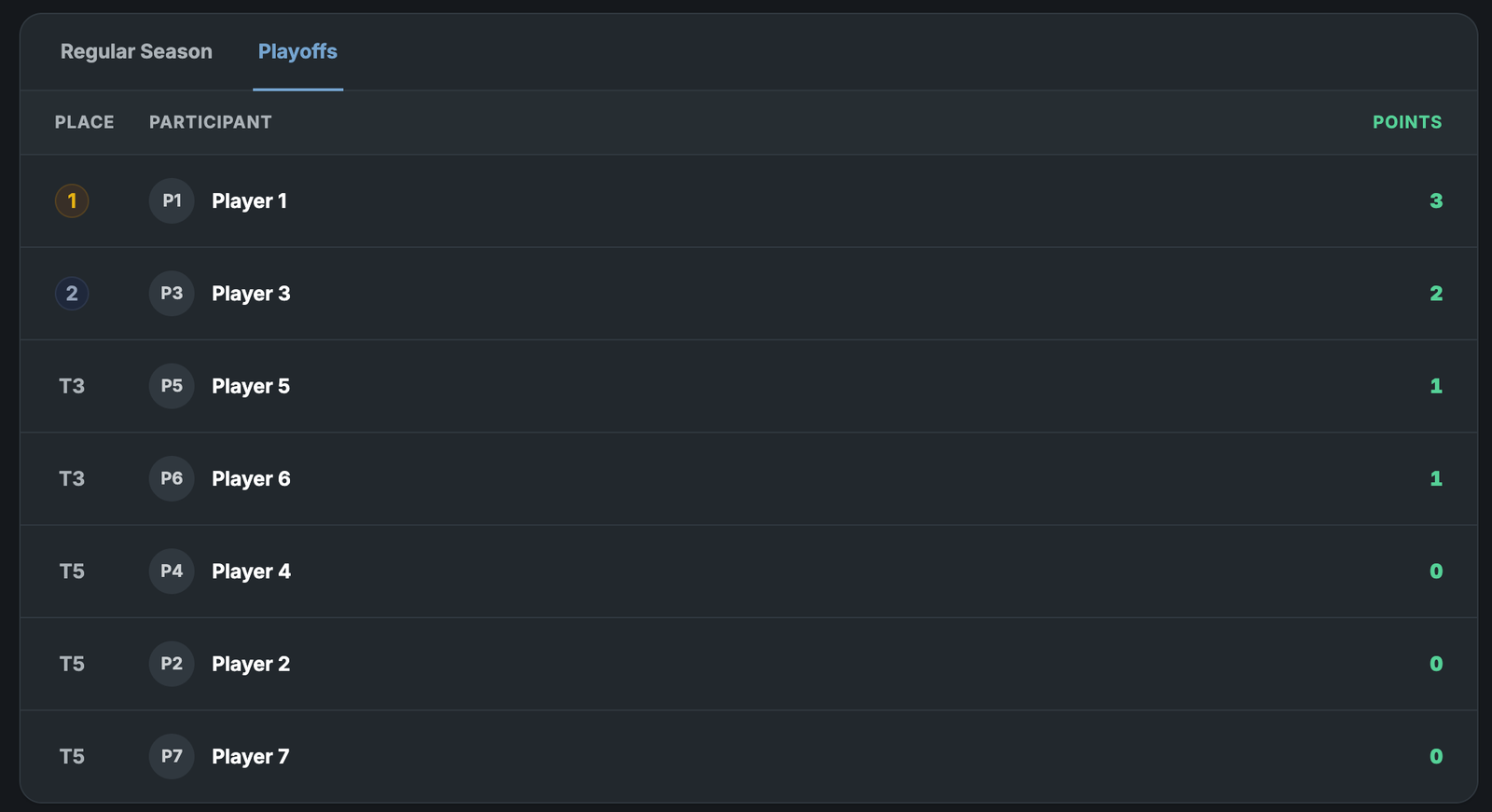
- View results by clicking View details within the playoffs tournament, or in the league Results section once playoffs finish.
Change the playoff format after starting
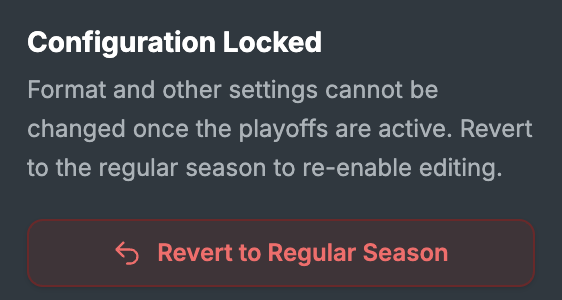
Click Edit Configuration, then Revert to Regular Season, and update the format.
Leagues API
A dedicated API is available for integrating leagues with other platforms. Contact tournament@ggcircuit.com or api@tourneybit.com.