

 Español
 中文
 العربية
Managing player profiles and teams for tournaments in ggLeap
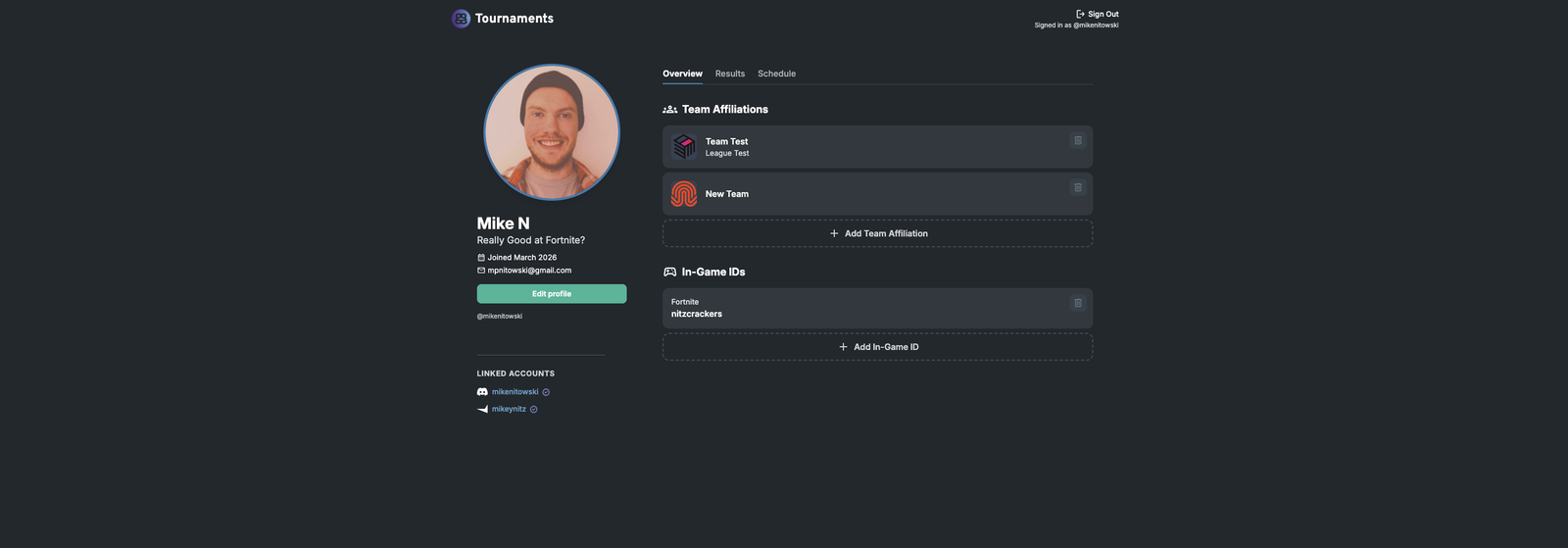
Player Profiles let players and teams register for competitions, manage schedules, and showcase results in the ggLeap Tournament Feature. This article is for players and team captains.
Create a Player Profile
- Go to https://players.ggcircuit.tourneybit.com/sign-up.
- Sign up with an email address or a third-party account.
Sign in
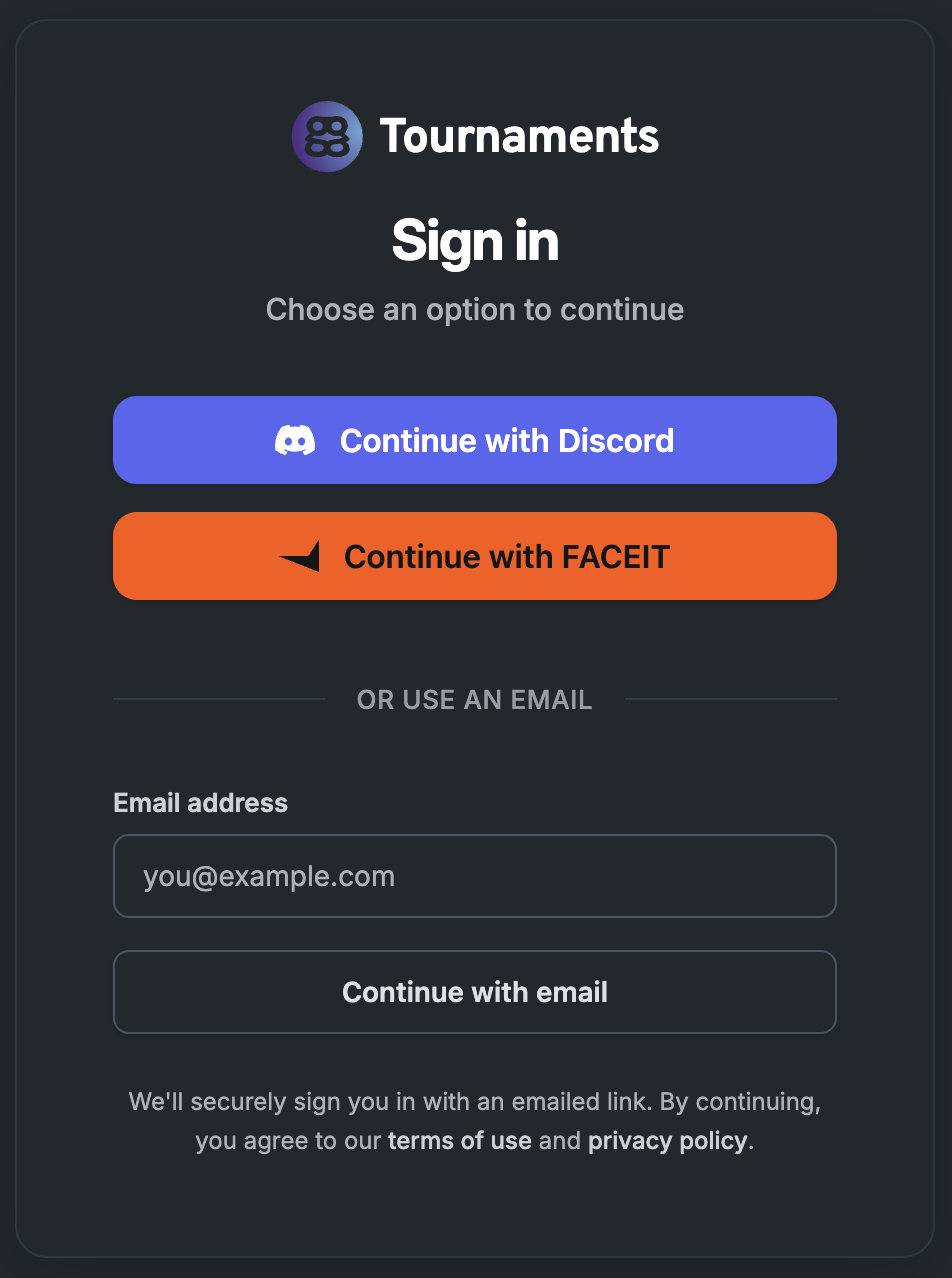
Sign in at https://players.ggcircuit.tourneybit.com/sign-in.
| Method | How it works |
|---|---|
| Discord (third-party) | Sign in with your Discord profile |
| FACEIT (third-party) | Sign in with your FACEIT profile |
| Email address | Enter your email, then click or tap the magic link sent to your inbox |
| ggCircuit | Available only in some registration contexts |
Your profile
Your profile is a public page showing team affiliations, in-game IDs, and tournament results. When signed in, you can also view your schedule and manage your teams.
Profile URL: https://players.ggcircuit.tourneybit.com/@{username}
Customize your profile
| Task | Steps |
|---|---|
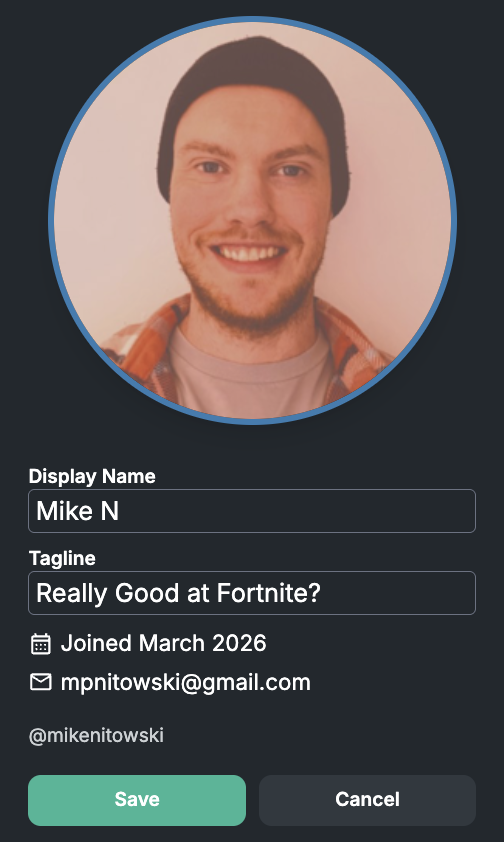
| Edit display name and tagline | Press Edit profile, make changes, then press Save (or Cancel to keep the old info) |
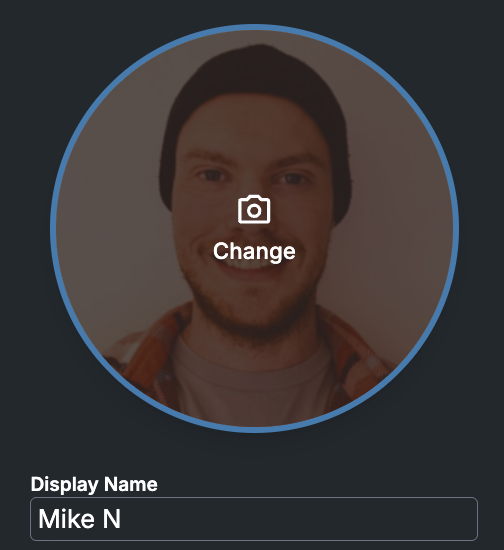
| Change profile picture | Click or tap your picture (or initials) and upload a new one |
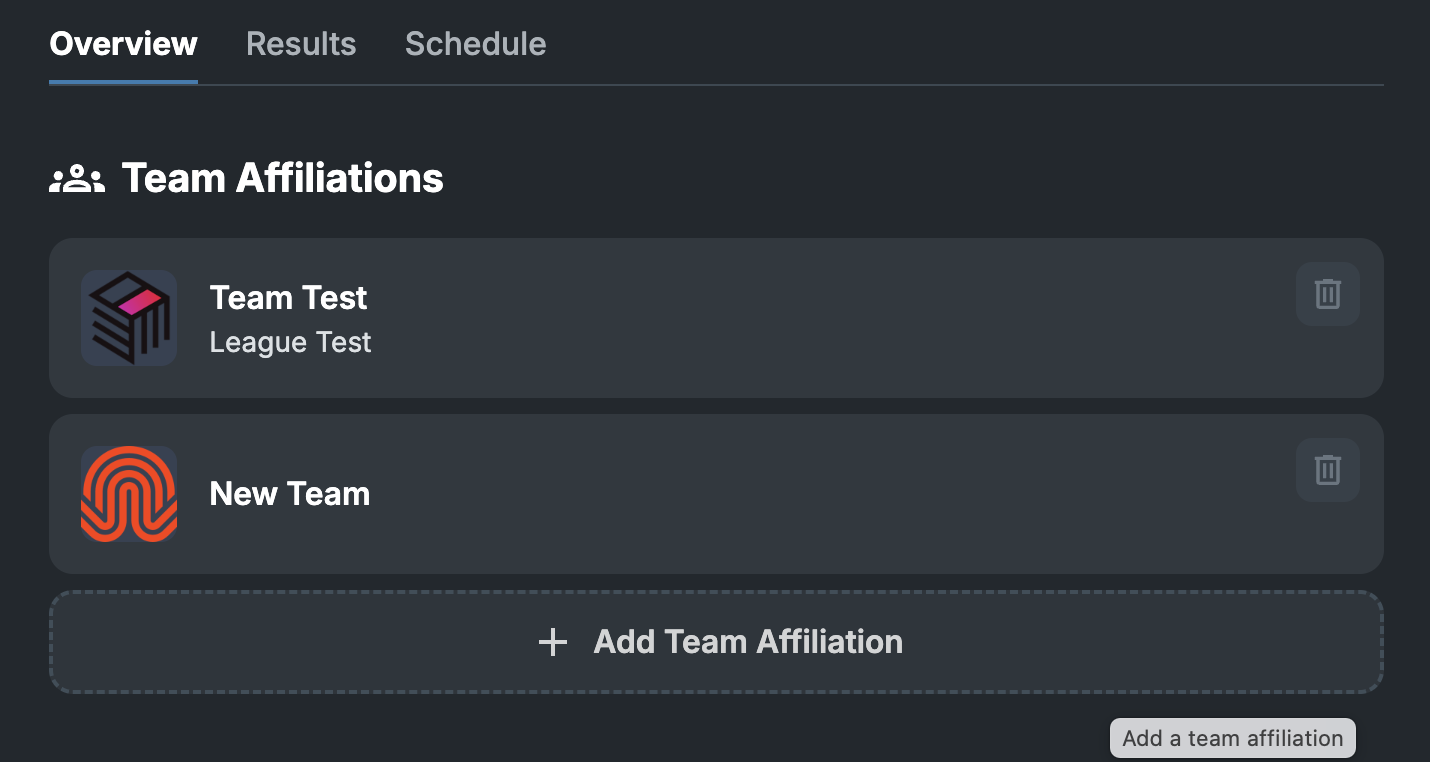
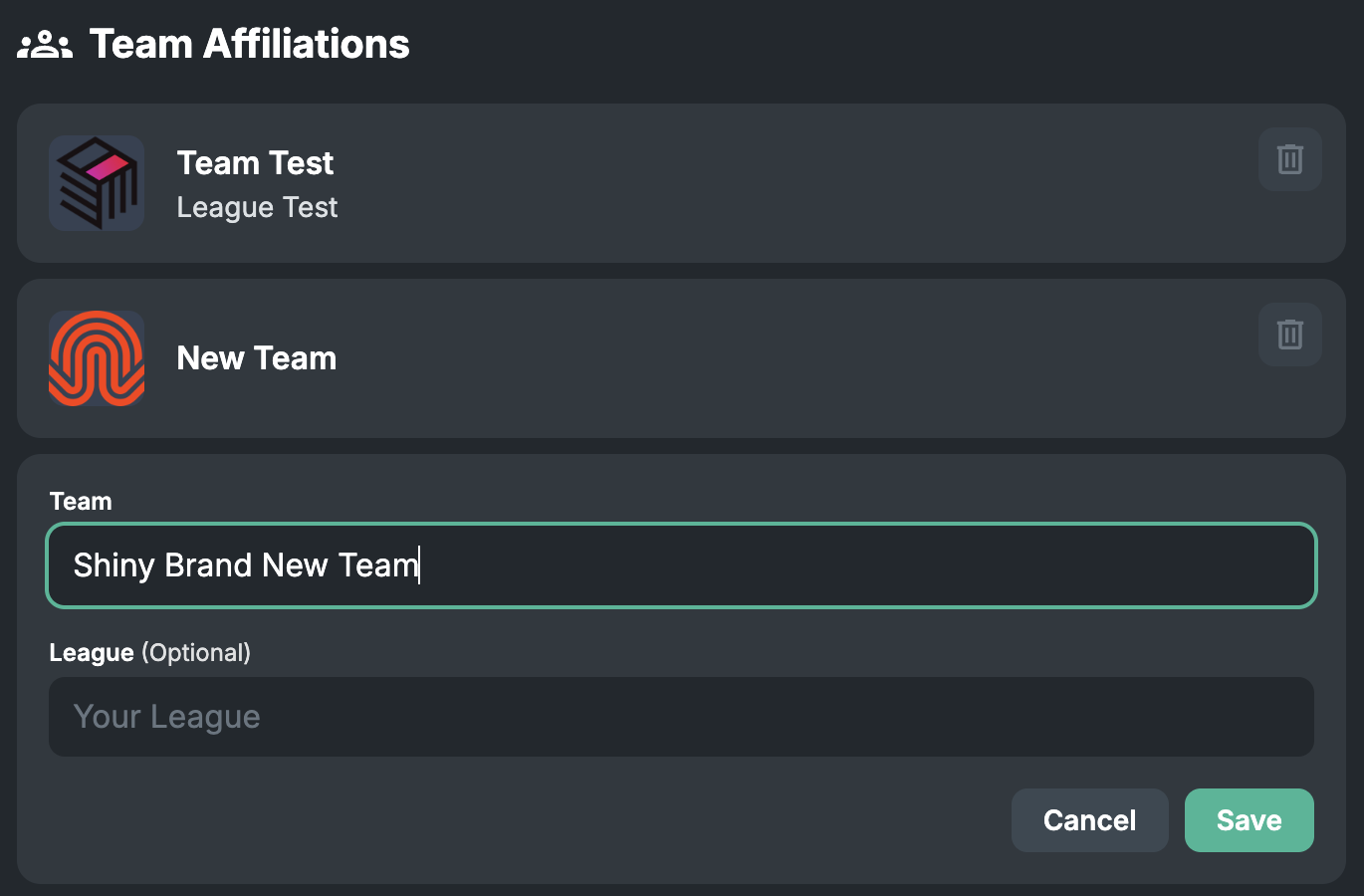
| Add a team | Press + Add Team Affiliation |
| Remove a team affiliation | Press the trash can in the item's corner; it changes to a trash can with an X. Press it again to confirm |
| Add an in-game ID | Press + Add In-Game ID |
| Remove an in-game ID | Press the trash can, then press again to confirm |
Linked accounts
Linked accounts are managed by the system based on how you sign in.
Third-party accounts with the same email address are linked automatically.
Teams
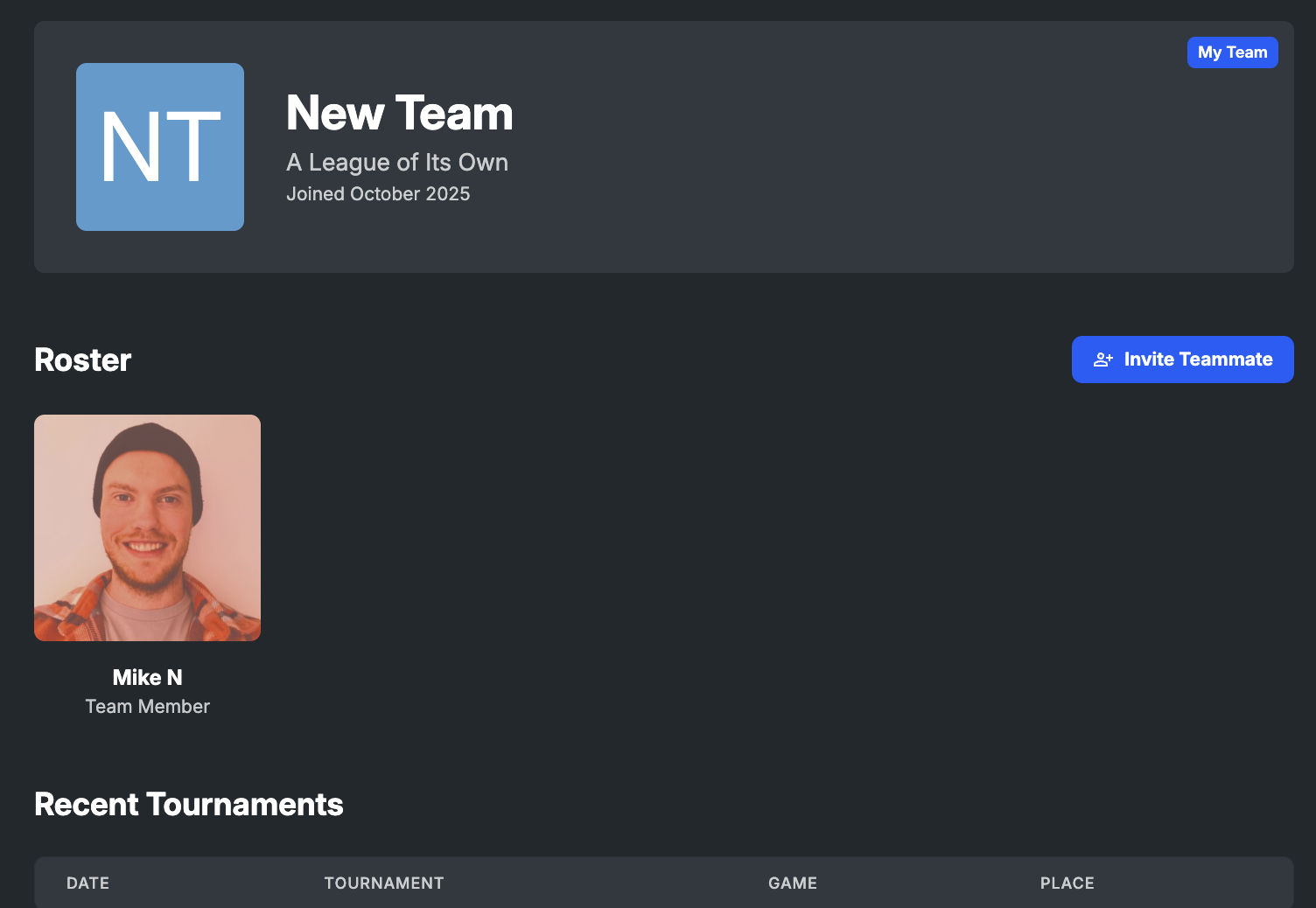
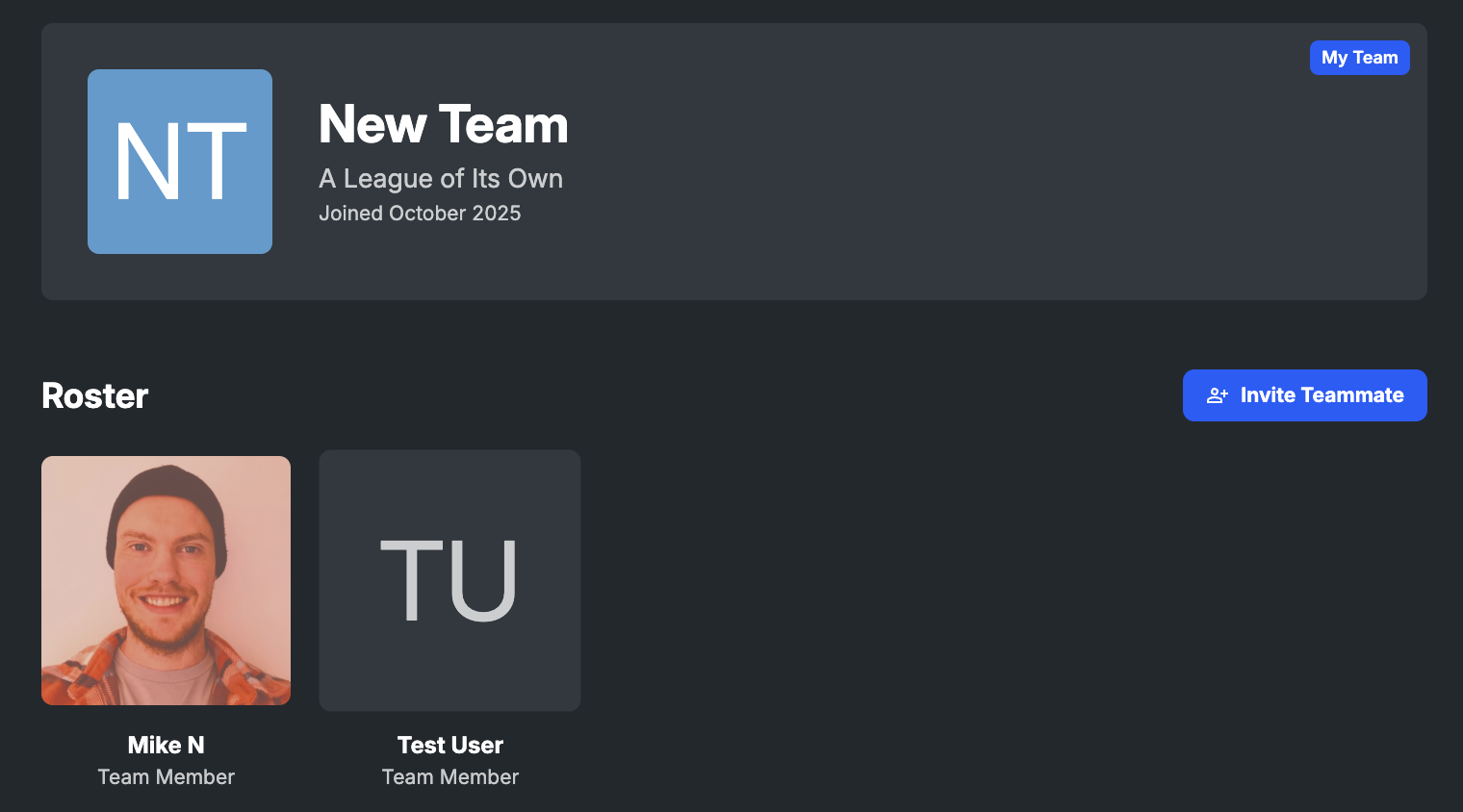
Adding a team affiliation automatically creates a Team Profile. Use it to invite teammates, register for tournaments, view the team schedule, and display team results.
Click or tap a newly created team to open it.
Invite teammates
- Open the team page.
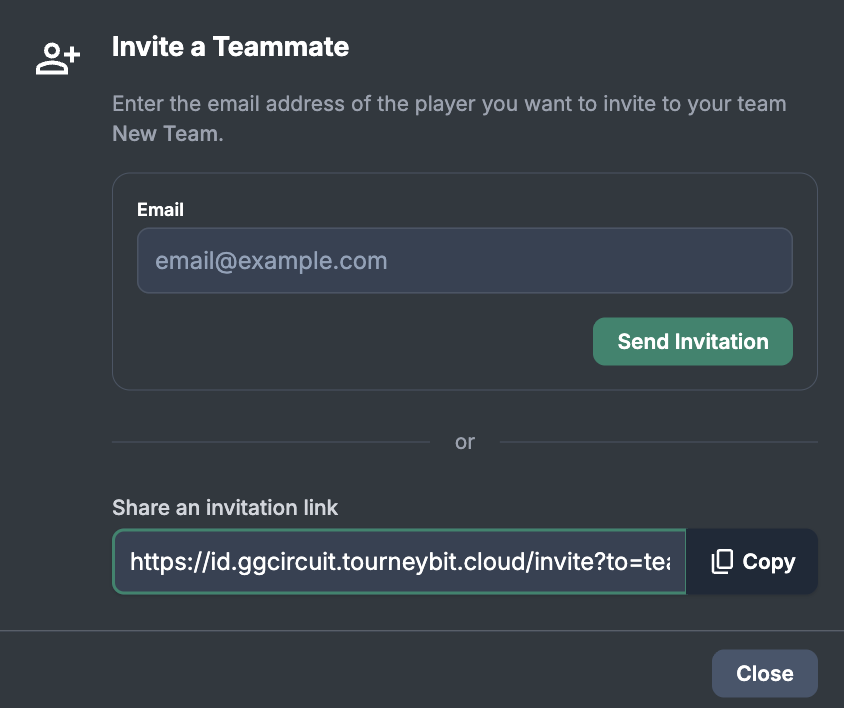
- Press Invite Teammate.
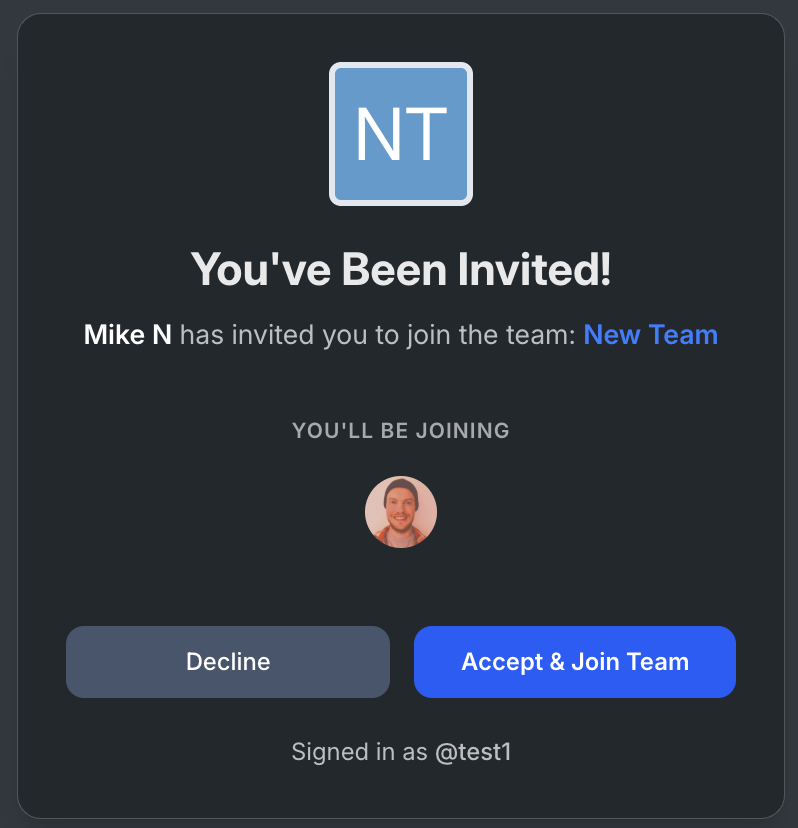
- Send an invitation email, or copy the invite link and share it directly.
- The teammate is added once they accept.
Leave a team
Go to your main profile page and remove the related team affiliation.
Register for a tournament
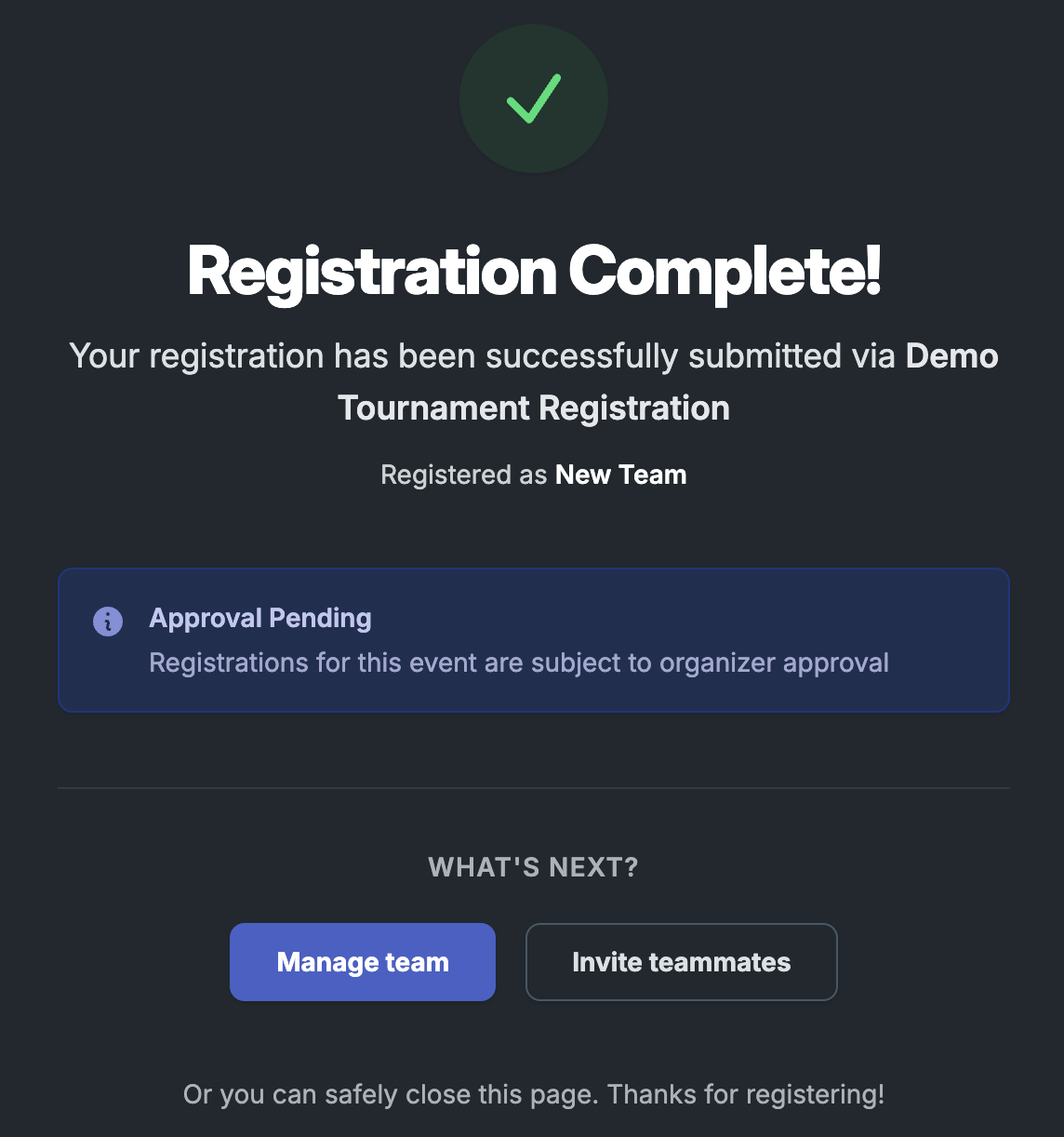
When you join through a QR code, landing page, or direct registration link, you are prompted to sign in to your Player Profile if you are not already.
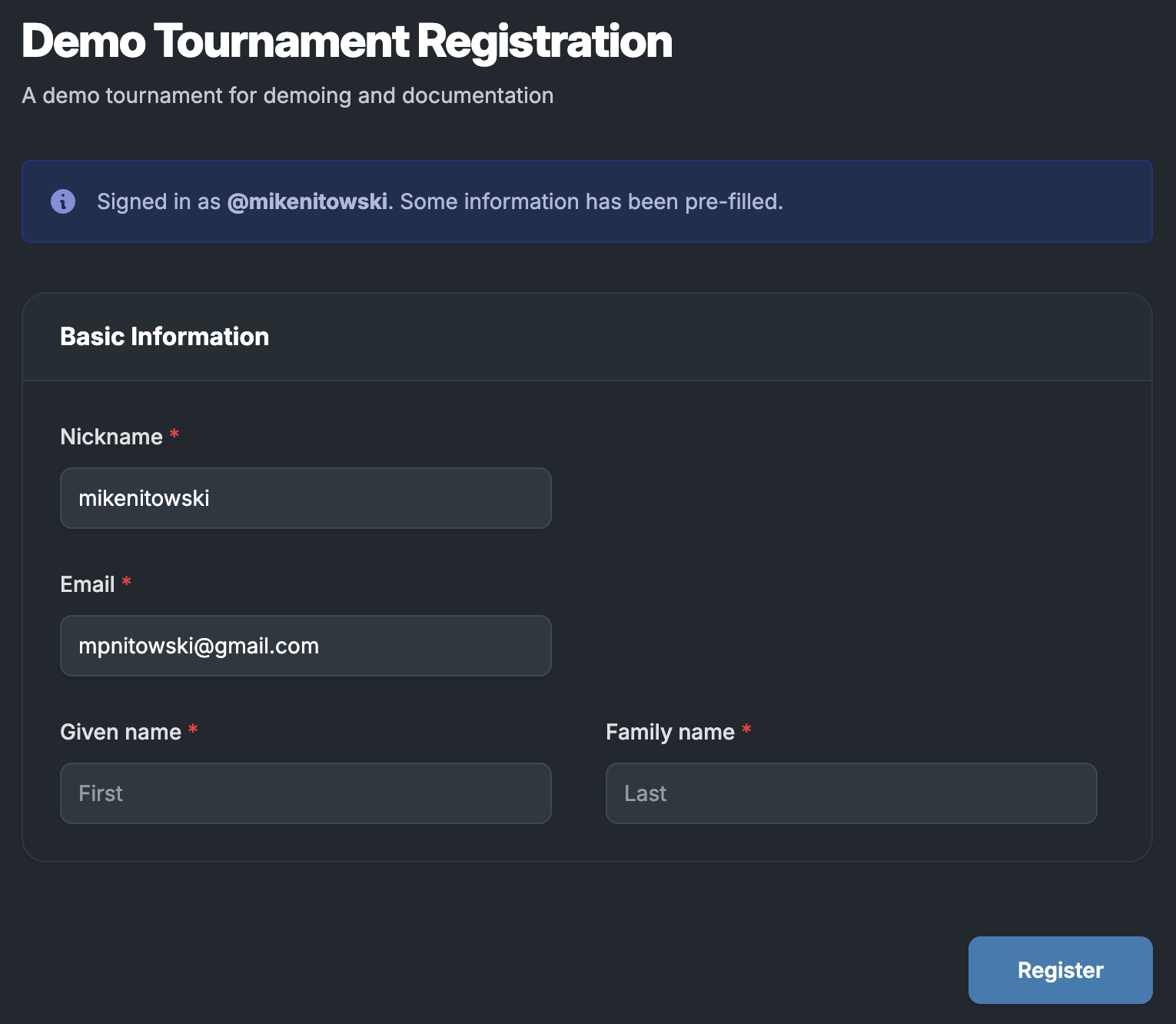
- Sign in. Some profile data pre-fills the registration form; edit it as needed.
- Complete any extra fields the tournament or league requires.
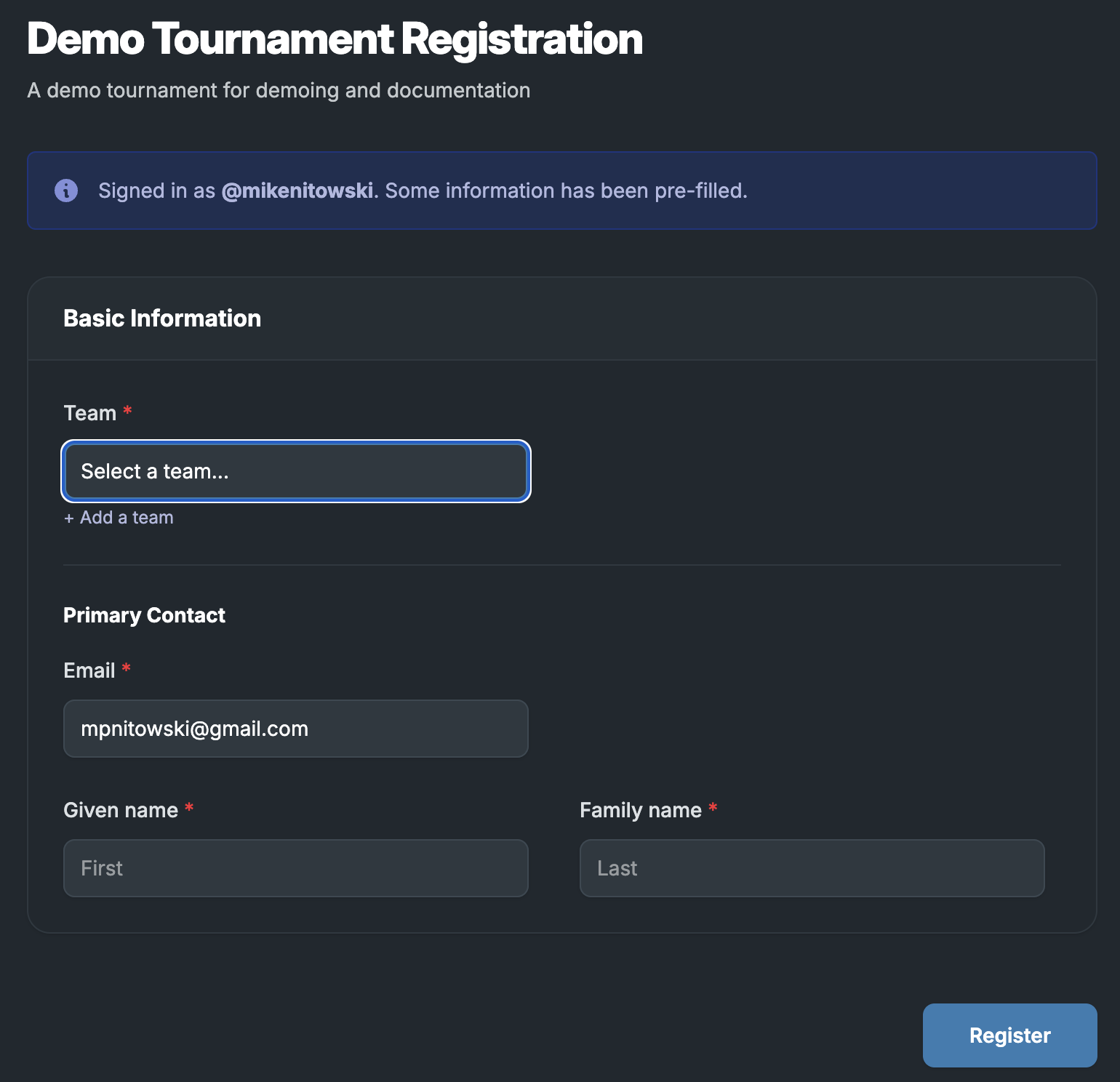
- For team events, select an existing team or add a new one. Depending on the competition, you can create an impromptu team or register an existing team.
- Submit the form.
Player schedule
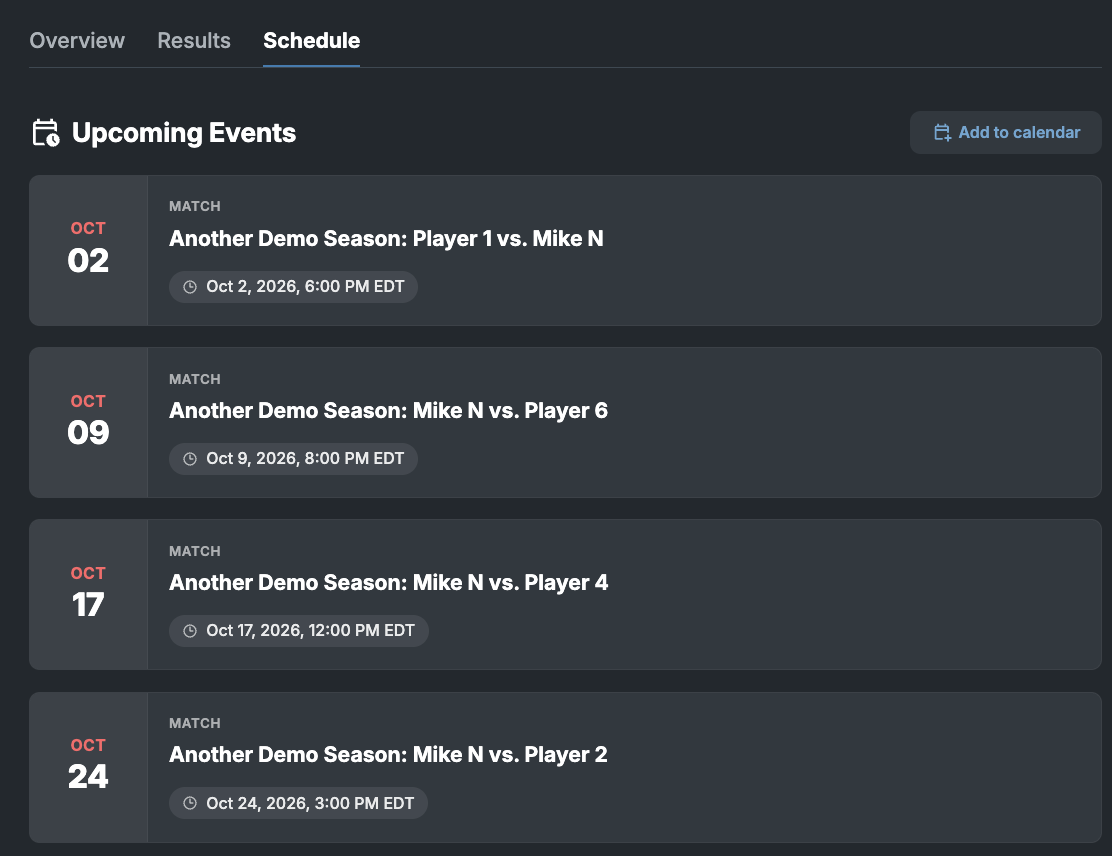
Once an organizer officially adds you to a tournament or match, it appears in the Schedule tab of your profile. You must be signed in to view it.
| Feature | Details |
|---|---|
| Add to calendar | Downloads upcoming events as an iCalendar file for any compatible calendar. It is a static export, so later event updates do not sync |
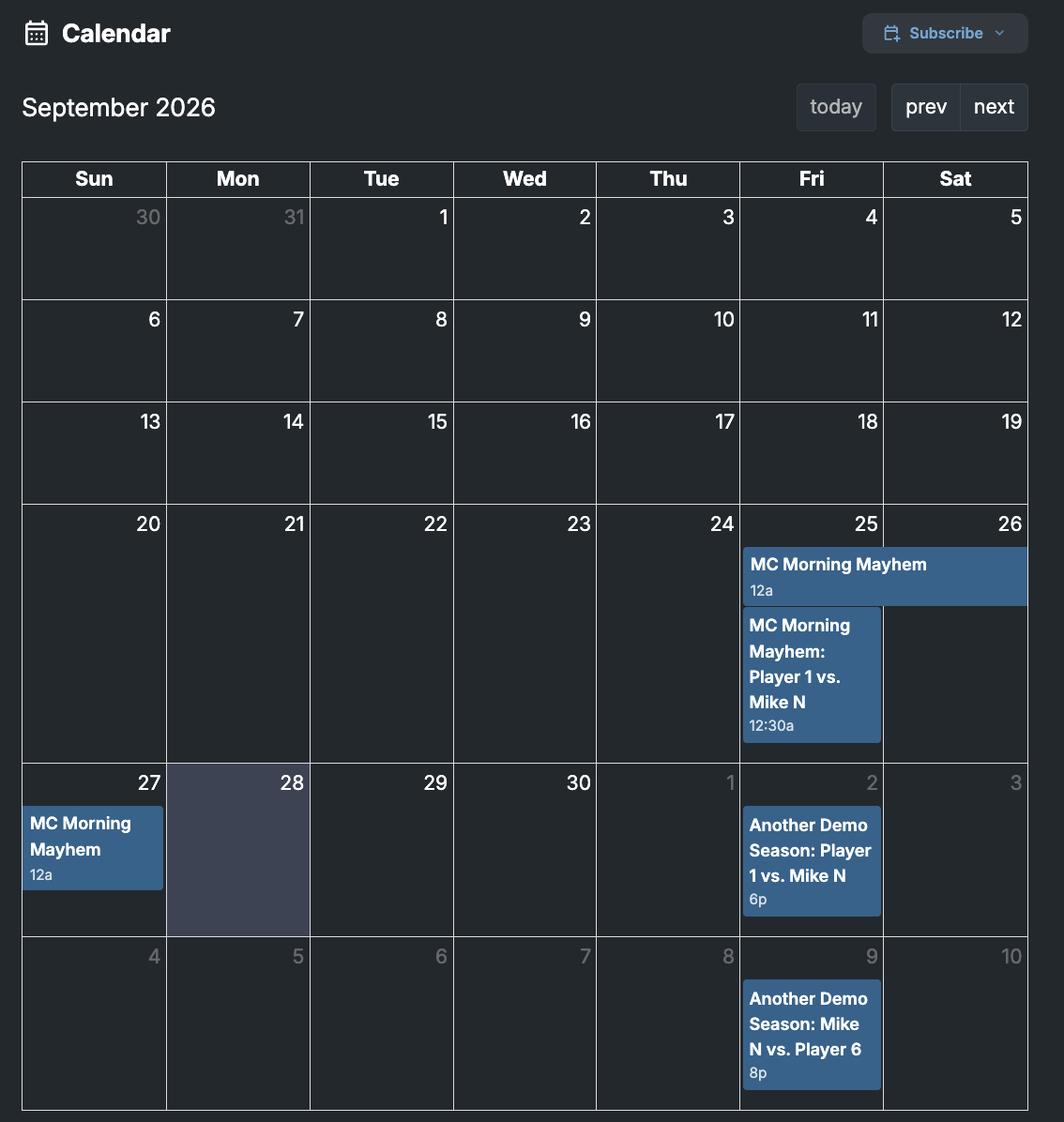
| Calendar sync | In the Calendar section of the Schedule tab, press Subscribe and pick your calendar app. Officially supported: Apple Calendar, Google Calendar, Outlook Calendar |
| Match reminders | For scheduled matches in leagues and multi-day tournaments, a reminder email goes to your Player Profile email within 24 hours of start (typically about 8 hours before) |
Tournament results
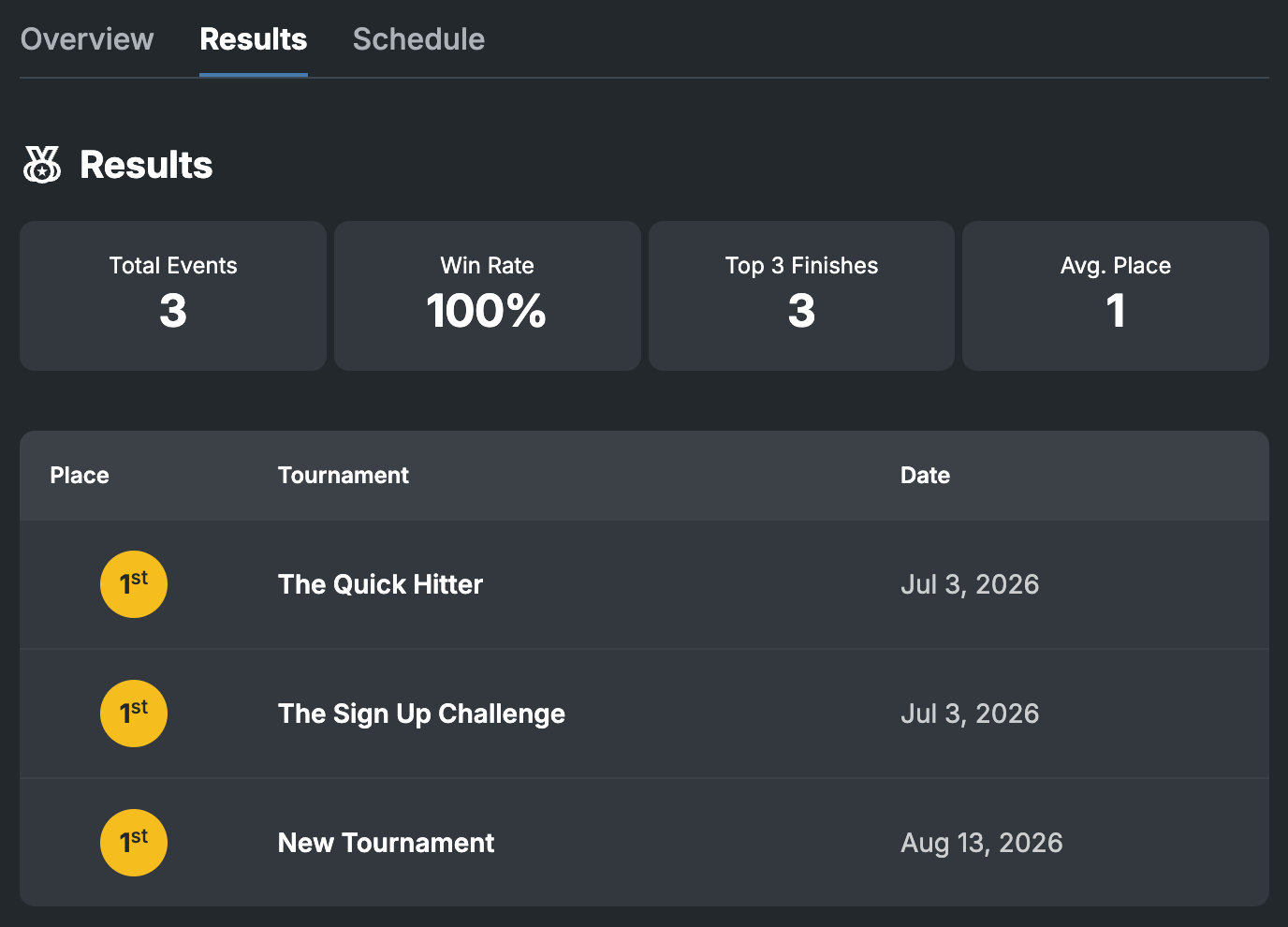
Results post publicly to the Results tab of your profile after the organizer finalizes the tournament.
The tab also shows high-level statistics on your performance over time.
Privacy and data access
| Visibility | Data |
|---|---|
| Always public | Username and profile URL, profile picture (or initials), display name, tagline, month and year joined, teams and team membership, in-game IDs, tournament results, internal user ID and URL |
| Visible only to you (signed in, own profile) | Email address, linked third-party accounts, schedule and calendar |
Request data access or deletion
Email privacy@tourneybit.com and cc privacy@ggcircuit.com. State whether it is an access or deletion request, and include your Player Profile URL.