

 Español
 中文
 العربية
Exports
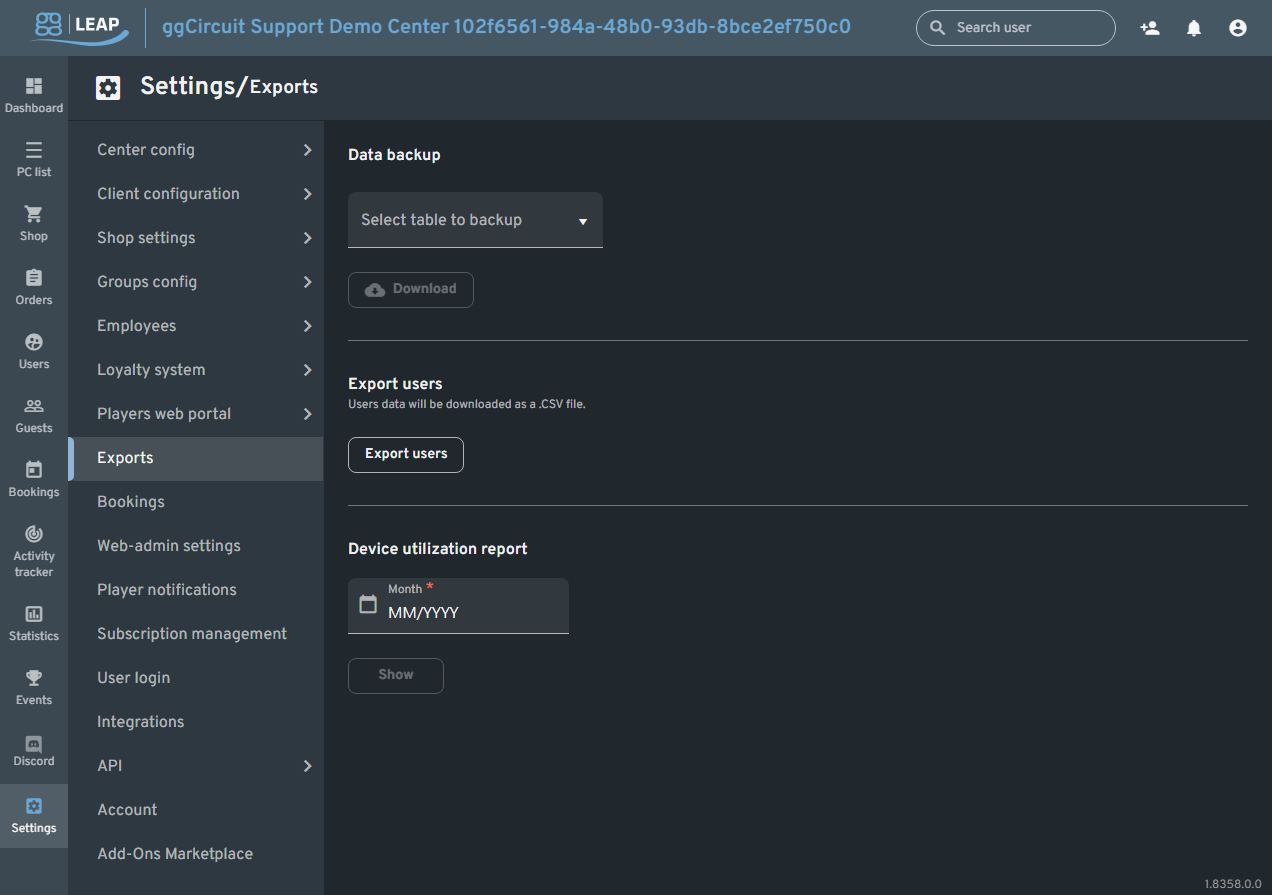
Exports
Location:Settings ▶ Exports
Quickly extract your center’s data for offline analysis, backups, or billing reconciliation.
Data Backup
Under Settings ▶ Exports ▶ Data backup, you can export raw CSV dumps of any core data table. Select one from the dropdown and click Download:
| Table | Contents |
|---|---|
| Games | All game/app definitions, tags, images, and launcher configurations. |
| Consoles | Registered console devices (name, type, group assignments). |
| Employees | Web-admin user accounts, roles, 2FA status, and permission settings. |
| Guest Sessions | Unauthenticated (guest) play sessions with timestamps and durations. |
| Computers | PC definitions, MAC addresses, client versions, and group assignments. |
| Sessions | All authenticated user play sessions, including start/end times and durations. |
| User GamePasses | Records of GamePass grants and redemptions per user, including cadence and pass type. |
| User Time Allocations | One-off free-time awards granted to users (e.g., trial minutes, promotional hours). |
| Users | Registered user profiles, balances, group memberships, age, and consent settings. |
Tip:
- Export Users before a mass import or migration to another system.
- Use Sessions and Guest Sessions exports together to compare anonymous vs. registered usage.
- Automate monthly backups of User GamePasses and User Time Allocations for financial reconciliation.
Export Users
- Export users
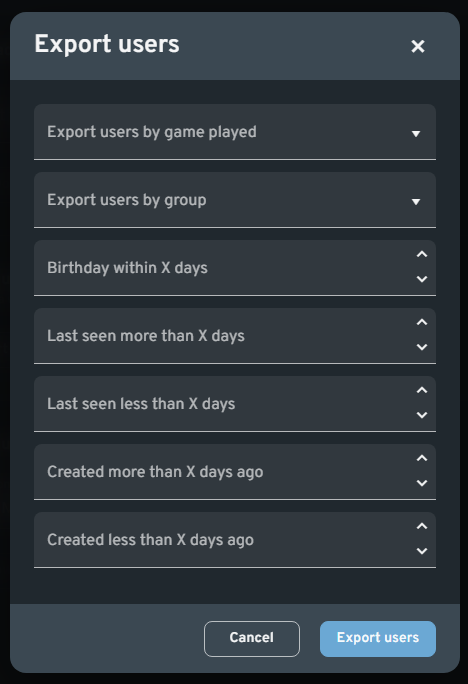
Opens the advanced export dialog, letting you apply one or more filters before downloading a customized CSV.
Export users
- Export users by game played
Select one of your catalogued titles to export only the players who have launched that game. - Export users by group
Choose a User group (Free, VIP, Gold, etc.) to limit the export to members of that tier. - Birthday within X days
Enter a window (e.g. “7”) to find users whose birthday falls within the next X days—useful for targeted promotions. - Last seen more than X days
Filter out inactive accounts by specifying a minimum days-ago threshold since their last login. - Last seen less than X days
Find your most engaged users who have logged in within the past X days. - Created more than X days ago
Identify long-standing accounts by exporting users created before a given age. - Created less than X days ago
Target recent sign-ups by exporting users created within the last X days.
After selecting any combination of filters, click Export users to download your tailored CSV.
Great for bulk imports or marketing campaigns.
Device Utilization Report
- Month
Pick a month (MM/YYYY) to analyze PC/console usage. - Show
Click to generate a utilization report showing per-device uptime, playtime, and idle statistics.
Use this report to identify under-utilized machines, plan maintenance windows, or optimize your layout for peak times.
Pro tip:
- Schedule regular backups of your most critical tables (e.g., Transactions, Sessions).
- Use the Device Utilization Report to spot trends—if certain PCs sit idle, consider moving them to a different zone or repurposing them.