

 Español
 中文
 العربية
PC List - Computers View
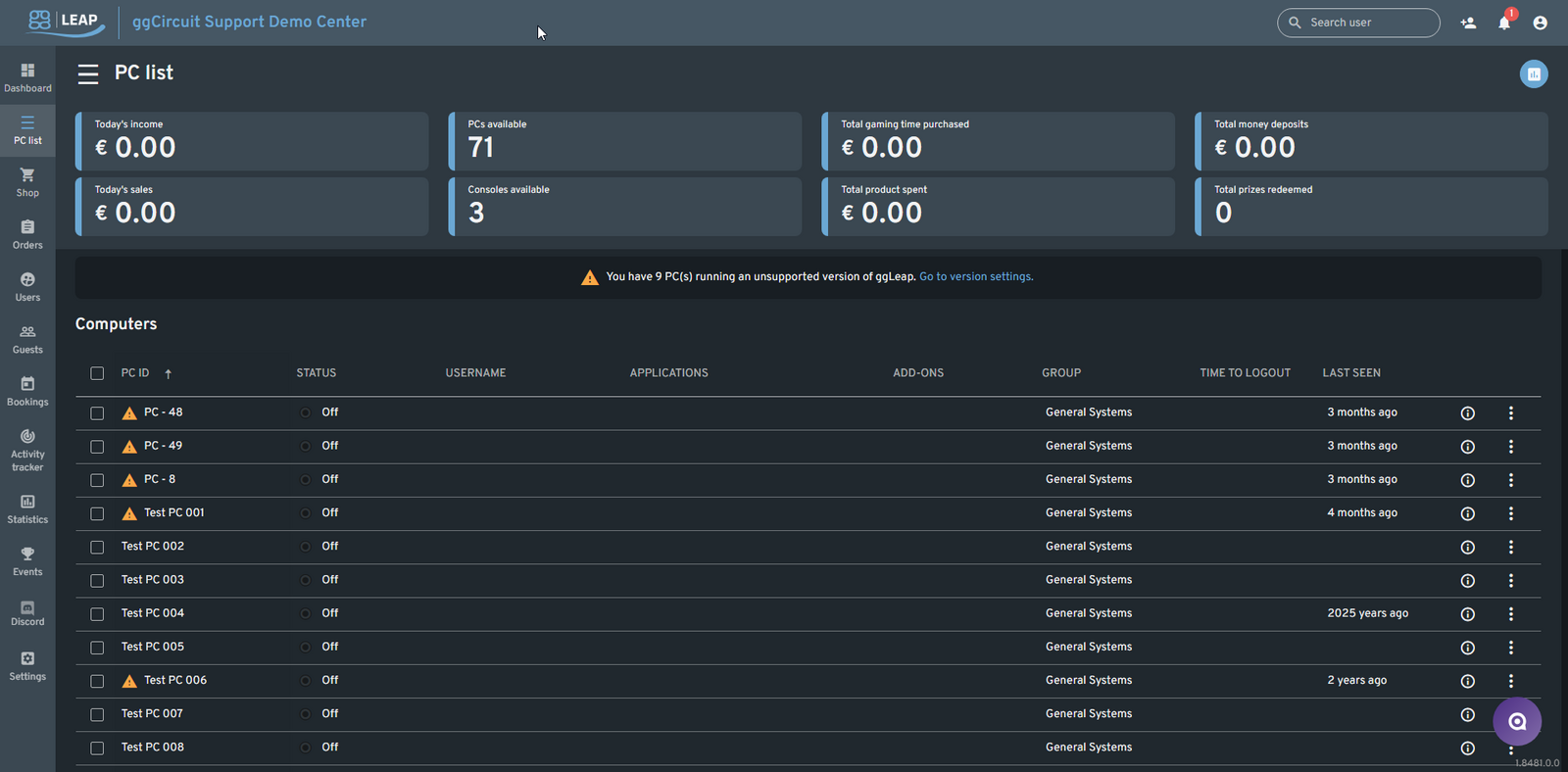
The PC List page in the ggLeap Admin Panel gives staff an at-a-glance overview of all connected PCs and consoles. It enables real-time monitoring, remote control, and troubleshooting for each machine.
📍 Accessing the PC List
From the ggLeap admin sidebar, navigate to PC List.
📊 Top Metrics Overview
At the top of the screen, you’ll find daily center-wide statistics:
| Metric | Description |
|---|---|
| 💰 Today's income | Total revenue from sessions and product sales |
| 🖥️ PCs available | Number of PCs not currently in use |
| 🕹️ Consoles available | Number of available consoles |
| 🎮 Total gaming time purchased | Purchased time from all users |
| 🛍️ Total product spent | Value of in-shop items sold |
| 💸 Total money deposits | Funds added to user accounts |
| 🎁 Total prizes redeemed | Number of redeemed prize items |
⚠️ Version Warning
If any PCs are running an unsupported ggLeap client version, you'll see a banner:
⚠️ "You have X PC(s) running an unsupported version of ggLeap. [Go to version settings]"
Click the link to update affected machines or configure version settings.
🖥️ Computers Table Columns
| Column | Description |
|---|---|
| PC ID | The custom name of the machine. ⚠️ icons indicate outdated client versions. |
| Status | Displays whether the PC is currently On or Off. |
| Username | Shows the currently logged-in user (if any). |
| Applications | Displays applications currently running on the PC (if online). |
| Add-ons | Any extra modules or integrations installed on the machine. |
| Group | Logical group that the PC belongs to (e.g., "General Systems"). |
| Time to Logout | Countdown for logged-in sessions. Empty if no one is logged in. |
| Last Seen | Time since the PC last communicated with ggLeap. Extremely outdated values (e.g., "2025 years ago") usually indicate clock misconfiguration or offline status. |
| Actions | Click the ℹ️ icon or three-dot menu to view more details or perform actions. |
ℹ️ Computer Info Icon
Click the info icon to see:
- Client version — The installed version of the ggLeap client (e.g.,
3.0.1362.0) - MAC address — The network identifier for the system (e.g.,
28C5D2BCD94B)
⚙️ Three-Dot Menu Actions
Clicking the PC name or the 3-dot menu reveals multiple remote control options:
🔐 Log in/out
- Log in – Manually start a session for a user
- Log in guest – Begin a guest session
- Log out – End the current session
- Force log out – Terminate the session immediately
🛠️ Settings
- Rename PC – Change the PC's display name
- Change client version – Assign a specific ggLeap client version (based on version policy)
⚡ Power
- Lock PC – Prevents further user interaction until unlocked
- Restart – Remote reboot
- Shut down – Power off the PC remotely
🧰 Advanced
- Admin mode – Sends the PC into elevated admin mode
- Remote access – Opens a remote desktop session
- Take screenshot – Captures the current screen for review
- Launch remote application – Start a specific app remotely
- Show task manager – Opens task manager for diagnostics
🧼 Other
- Deactivate – Temporarily remove the PC from the active list
- Delete – Permanently delete the PC from the system (requires confirmation)
✅ Best Practices
- Regularly check for unsupported client versions and update via the Settings > Change client version option.
- Use Groups to organize PCs logically by purpose or location.
- Investigate machines with ⚠️, outdated client versions, or long offline periods.