

 Español
 中文
 العربية
PC list - Consoles View
The Consoles section at the bottom of the PC List page allows you to manage and monitor gaming consoles (PlayStation, Xbox, etc.) that are integrated into your ggLeap system. This enables staff to assign sessions, rename consoles, or remove them as needed.
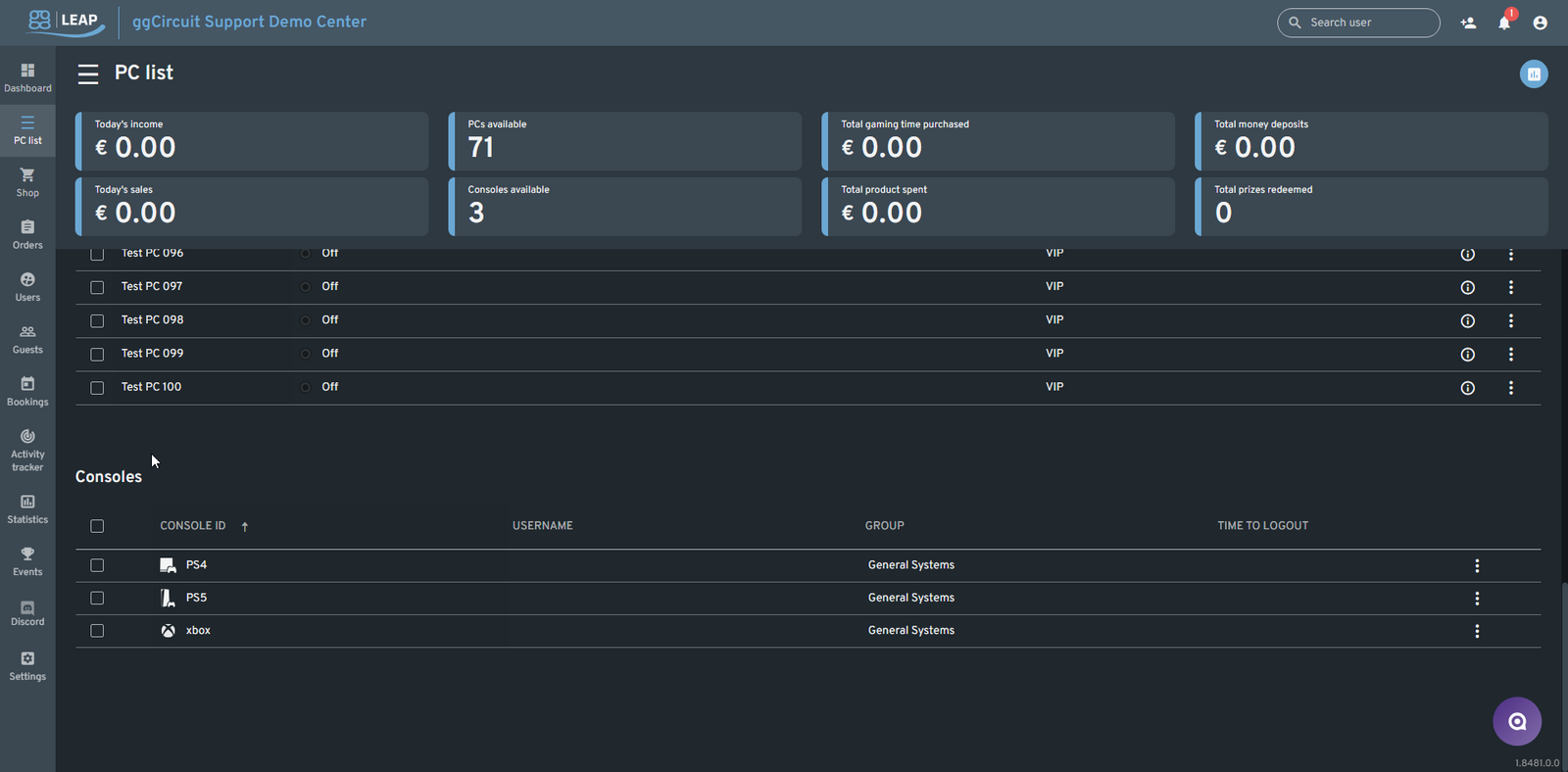
📍 Accessing the Console List
Navigate to PC List from the sidebar. Scroll to the bottom to view the Consoles section, listed after all PC entries.
🎮 Console Table Columns
| Column | Description |
|---|---|
| Console ID | The label or name assigned to the console. Platform icons (e.g., PS4, PS5, Xbox) will appear here. |
| Username | Displays the user currently logged into the console, if any. |
| Group | Shows the assigned group (e.g., General Systems). |
| Time to Logout | Session time remaining, if a user is logged in. |
| Actions | Use the 3-dot menu for console-specific operations like login, rename, or delete. |
📥 Console Action Menu
Clicking the three-dot menu on the right-hand side of each console reveals the following options:
👤 Add User
Manually log in a user account to the console.
🧑🦯 Add Guest
Start a guest session on the console.
📝 Rename Console
Change the name or label of the console (e.g., from xbox to Xbox Main Room 1).
🗑️ Delete
Remove the console from the system. Use with caution — this action is irreversible without re-adding the device.
✅ Best Practices
- Use console naming conventions that reflect location or purpose for easy identification.
- Regularly verify the group assignment to keep consoles organized alongside PCs.
- Monitor session timers to ensure fair use and proper session management.