Español
 中文
 العربية
Adding Snacks to Inventory
Creating Products for the ggLeap Web Admin and Client Shop
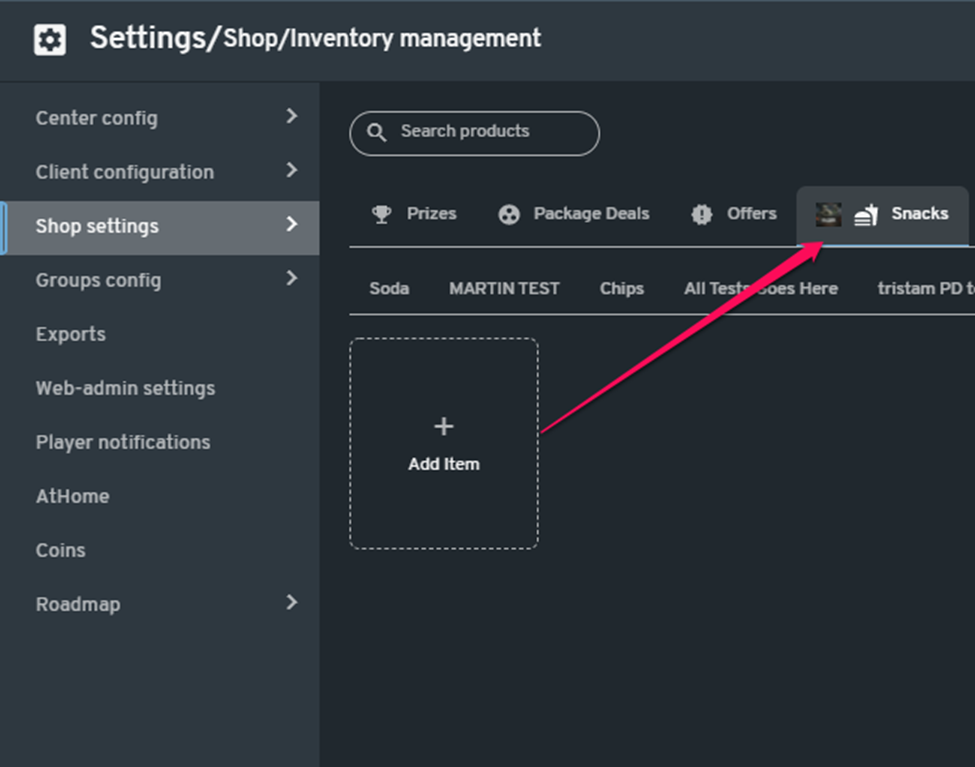
1. Access Inventory Management
Navigate to:
Settings > Shop Settings > Inventory Management
Then click on the "Snacks" category.
2. Organize with Sub-Categories (Optional)
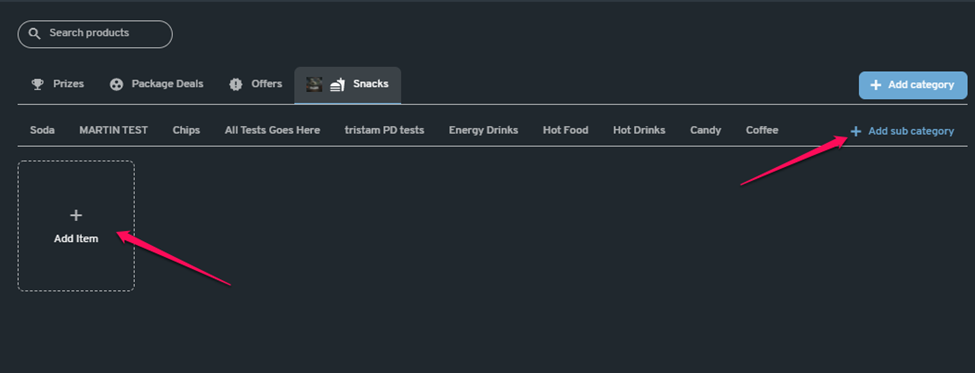
To better manage your snack inventory:
- Click the "+ Add Sub Category" button (top right).
- Name the sub-category (e.g., Chips, Drinks, Candy).
3. Add a New Snack/Product
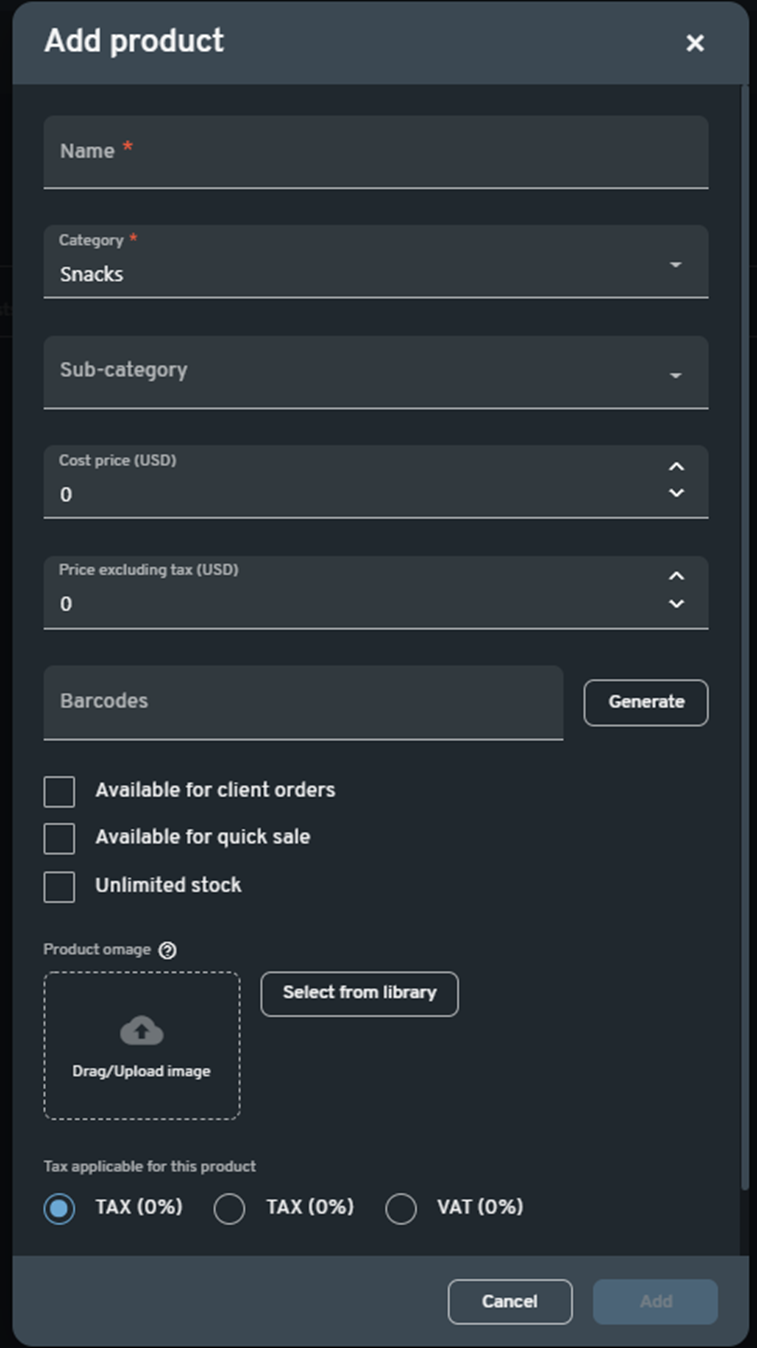
- Click "+ Add Item" to open the product entry window.
- Fill in the product details (name, price, image, etc.).
- Click "Add" to finalize and save the product to your inventory.