

 Español
 中文
 العربية
Player notifications
Location: Settings ▶ Player notifications
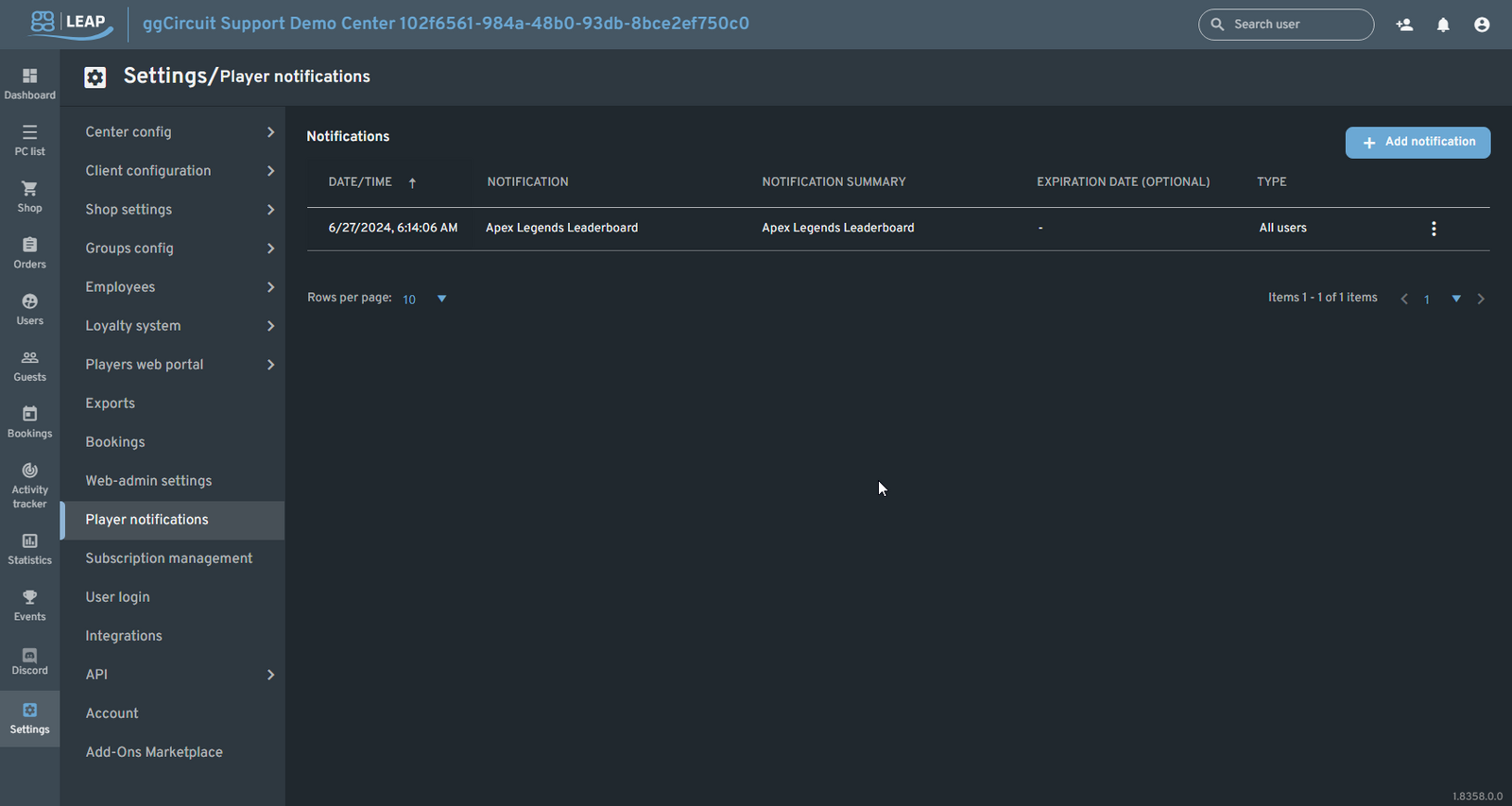
Send in-client announcements, promotions, or reminders directly to your players. Notifications appear on their ggLeap client homepage.
Notifications List
| Date/Time | Notification | Summary | Expires | Audience |
|---|---|---|---|---|
| 6/27/2024, 6:14 AM | Apex Legends Leaderboard | Apex Legends Leaderboard live! | (none) | All users |
| … | … | … | … | … |
- Click column headers to sort by Date/Time, Notification, Expires, or Audience.
- Use the filter icon to search by title or date range.
- The ⋮ menu on each row lets you Edit or Delete a notification.
Creating a Notification
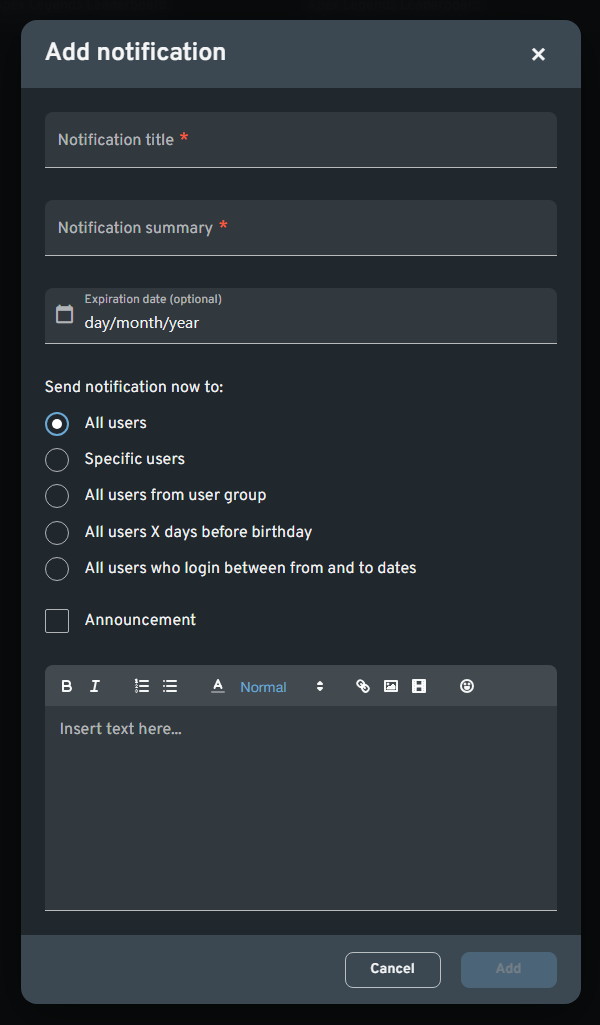
Click + Add notification to open the dialog:
-
Notification title
A brief label shown on clients (required). -
Notification summary
One-line teaser or header text (required). -
Expiration date (optional)
After this date, the notification auto-expires. -
Audience
Choose one of: -
All users
-
Specific users (pick from your user list)
-
All users from user group (e.g. VIP, Free)
-
All users X days before birthday
-
All users who login between [date] and [date]
-
Announcement checkbox
If checked, the notification appears as a modal popup on the client. -
Rich-text editor
Compose your message using formatting, links, images, or emojis.
Click Add to publish immediately; players see the new notification as soon as they log in or refresh their client.
Editing & Deleting
- Edit
From the ⋮ menu, select Edit notification to adjust title, summary, expiration, audience, or content. - Delete
Choose Delete notification to remove it from all clients immediately.
Best practices:
- Keep notifications concise—aim for one or two short sentences.
- Use the Announcement toggle sparingly for truly time-sensitive messages.
- Target specific user groups to promote VIP perks or new membership features.