

 Español
 中文
 العربية
Stock control
Settings → Shop → Stock Control
Path: Settings ▶ Shop settings ▶ Stock control
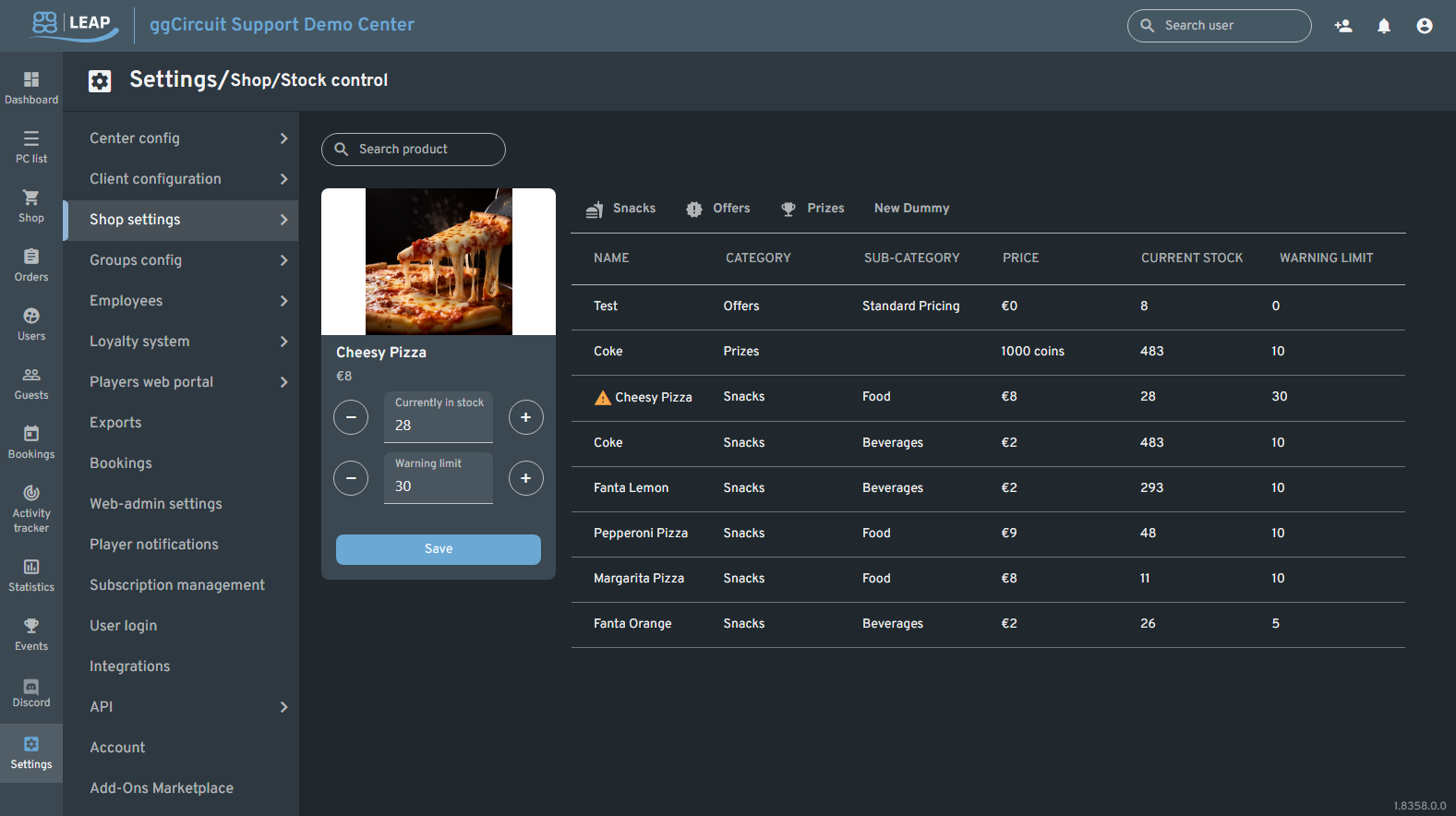
Stock Control Overview
| # | Element | Description |
|---|---|---|
| 1 | Search product | Filter the list by product name. |
| 2 | Category tabs | Switch between top-level categories (e.g., Snacks, Offers). |
| 3 | Stock table | Displays: Name, Category, Sub-category, Price, Current Stock, Warning Limit. |
| 4 | Warning Limit | Low-stock threshold for each product. |
| 5 | Management panel | Controls for adjusting stock levels and warning limits. |
Managing Stock Levels
Use the management panel on the left to update quantities:
| Callout | Control | Description |
|---|---|---|
| A | Product header | Shows image, name, and price of the selected item. |
| B | – (stock) | Decrease current stock by one unit. |
| C | Currently in stock field | Displays the current stock count (editable). |
| D | + (stock) | Increase current stock by one unit. |
| E | – (warning) | Decrease warning limit by one unit. |
| F | Warning limit field | Displays the low-stock threshold (editable). |
| G | + (warning) | Increase warning limit by one unit. |
| H | Save button | Commit updates to stock and warning limit. |
Workflow:
- Locate item: Search or use category tabs to find your product.
- Select row: Click the product in the stock table to open its controls.
- Adjust values: Use the –/+ buttons or directly edit the fields Currently in stock and Warning limit.
- Save: Click Save to apply changes.
⚠️ Products at or below their warning limit will be highlighted with this warning symbol.