

 Español
 中文
 العربية
User groups
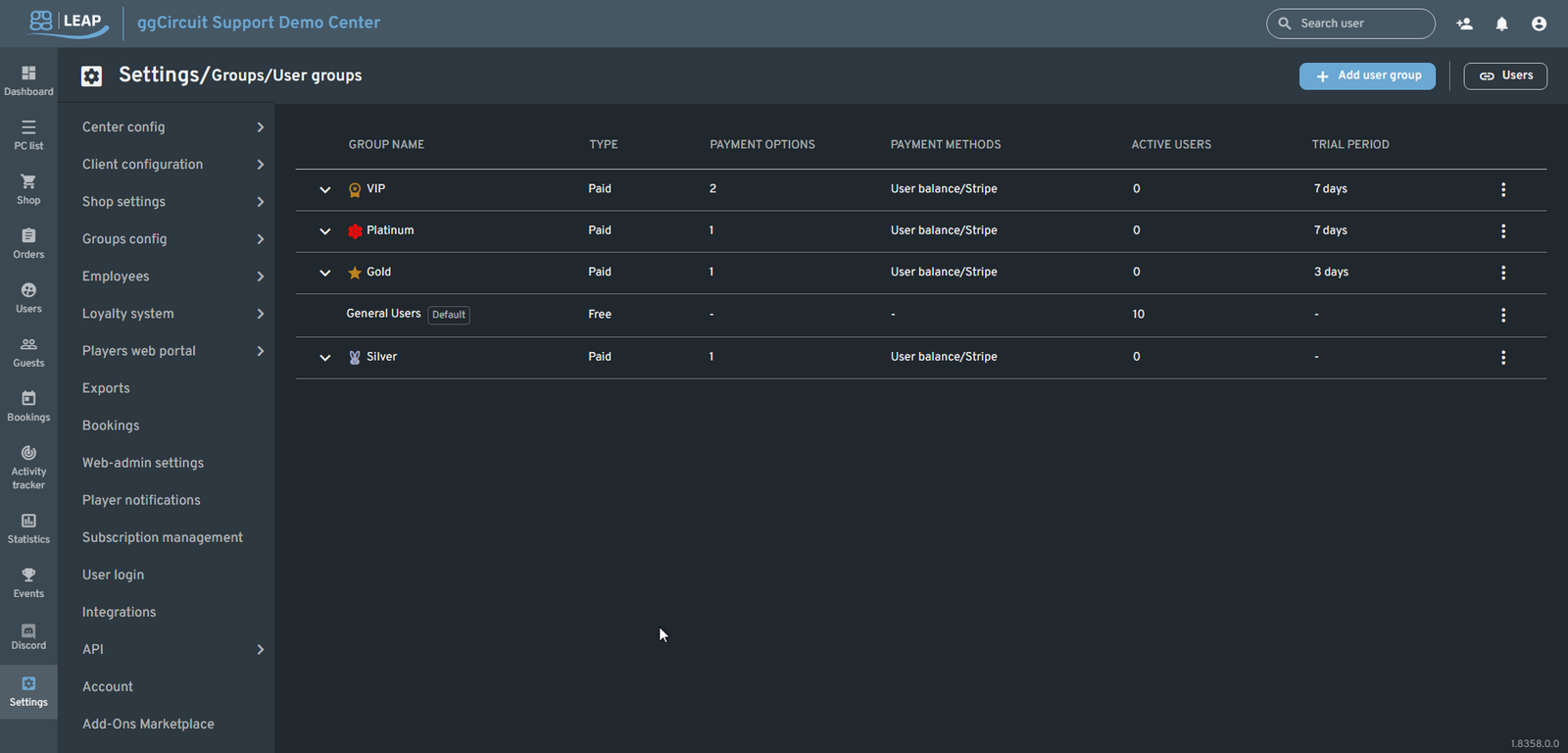
User Groups
Location: Settings ▶ Groups config ▶ User groups
Use User groups to segment your players into Free, Paid, Trial, or VIP tiers—each with its own client-side permissions, trial windows, billing options, and rewards.
Page layout
-
+ Add user group
Opens the “Add user group” dialog to create a new Free or Paid tier. -
Users (top-right)
Quick-link button to jump to the main Users list (/users). -
Group table
Group name Type Payment options Payment methods Active users Trial period VIP Paid 2 User balance / Stripe 0 7 days Platinum Paid 1 User balance / Stripe 0 7 days Gold ⯆ Paid 1 User balance / Stripe 0 3 days General Users (Default) Free – – 10 – Silver Paid 1 User balance / Stripe 0 –
-
Hierarchy: Click the ▾ arrow to expand sub-groups under a paid tier.
-
⋮ menu on each row: Edit, Delete, or View users in group.
Adding a User Group
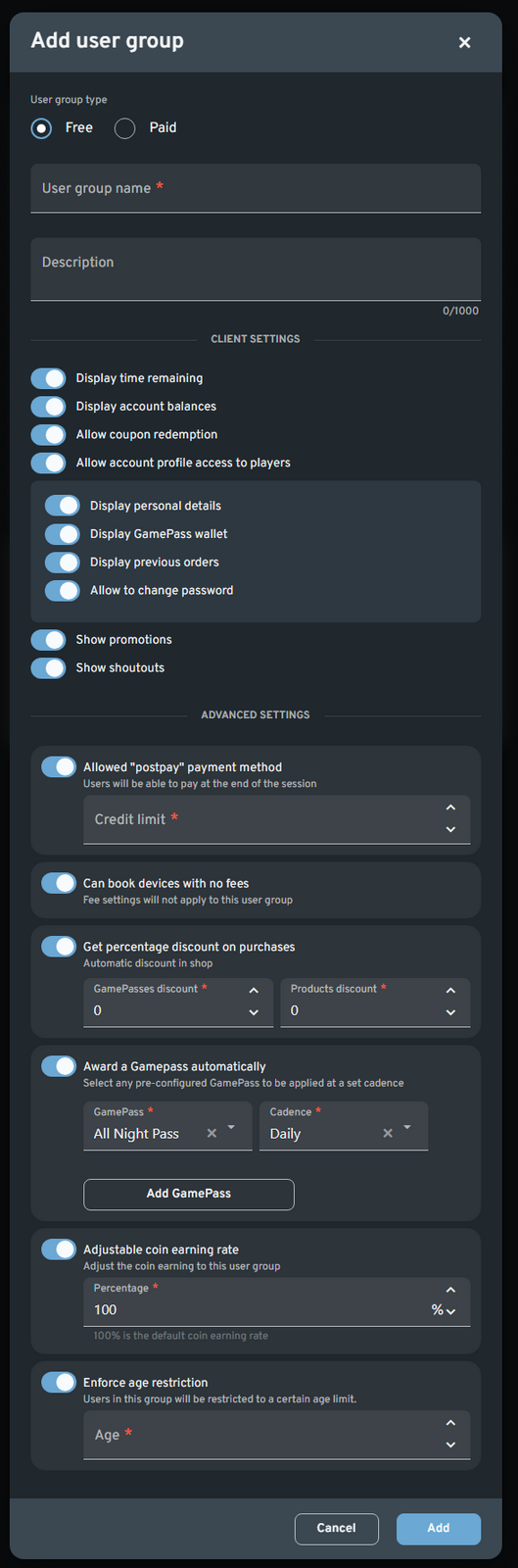
- Click + Add user group.
- User group type: select Free or Paid.
- Enter a User group name and optional Description.
Client Settings
Toggle what members of this group can see or do in the client UI:
-
Display time remaining
-
Display account balances
-
Allow coupon redemption
-
Allow account profile access
-
Display personal details
-
Display GamePass wallet
-
Display previous orders
-
Allow password changes
-
Show promotions
-
Show shoutouts
Advanced Settings
-
Allowed “postpay” payment method
Enable end-of-session billing and set a Credit limit. -
Can book devices with no fees
Exempt this group from standard booking fees. -
Get percentage discount on purchases
-
GamePasses discount %
-
Products discount %
-
Award a GamePass automatically
Choose a pre-configured GamePass and Cadence (e.g., Daily, Weekly). -
Adjustable coin earning rate (%)
-
Enforce age restriction (minimum age)
- Click Add to create the group.
Managing User Groups
- Edit an existing group: click its row’s ⋮ ▶ Edit, adjust settings, then Save.
- Delete a group: ⋮ ▶ Delete (cannot delete the Default group).
- View users in a group: ⋮ ▶ Users, or hit the Users button to see the full user list and apply filters by group.
Tip:
- Use Free groups for casual walk-ins, and Paid groups for subscription or membership levels.
- Trial periods let new users experience premium tiers before committing.
- Combine discount, GamePass, and coin-earning settings to craft unique loyalty programs.