

 Español
 中文
 العربية
Employees Roles
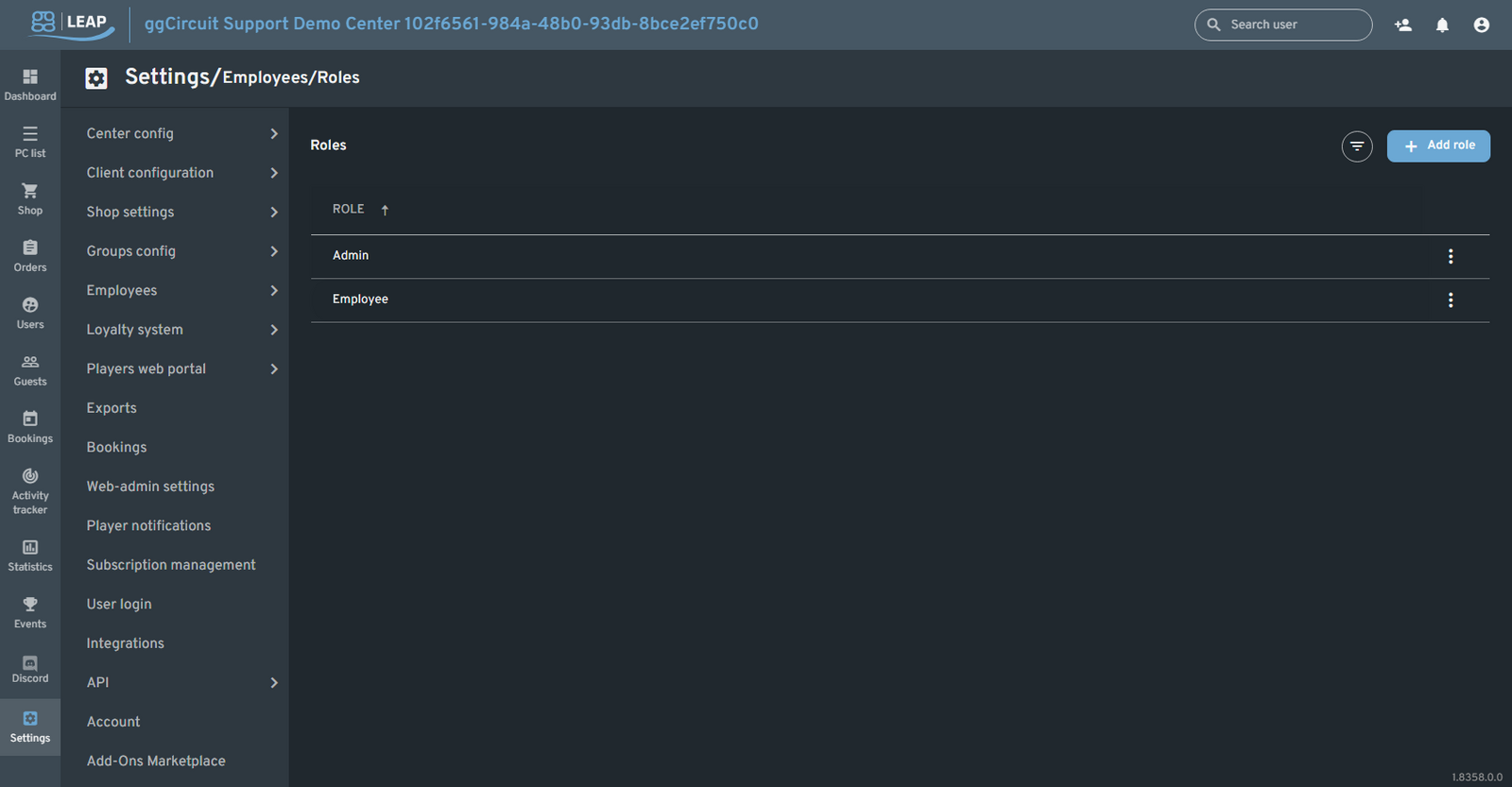
Employee Roles
Location: Settings ▶ Employees ▶ Roles
Define reusable permission sets for your staff—assign roles to employees so you can manage access in one place rather than per user.
Overview
The Roles page shows all predefined roles:
| Role |
|---|
| Admin |
| Employee |
| Custom X |
| … |
- Filter icon for searching roles by name
- + Add role button
Each row’s ⋮ menu lets you Edit or Delete the role.
Searching & Filtering
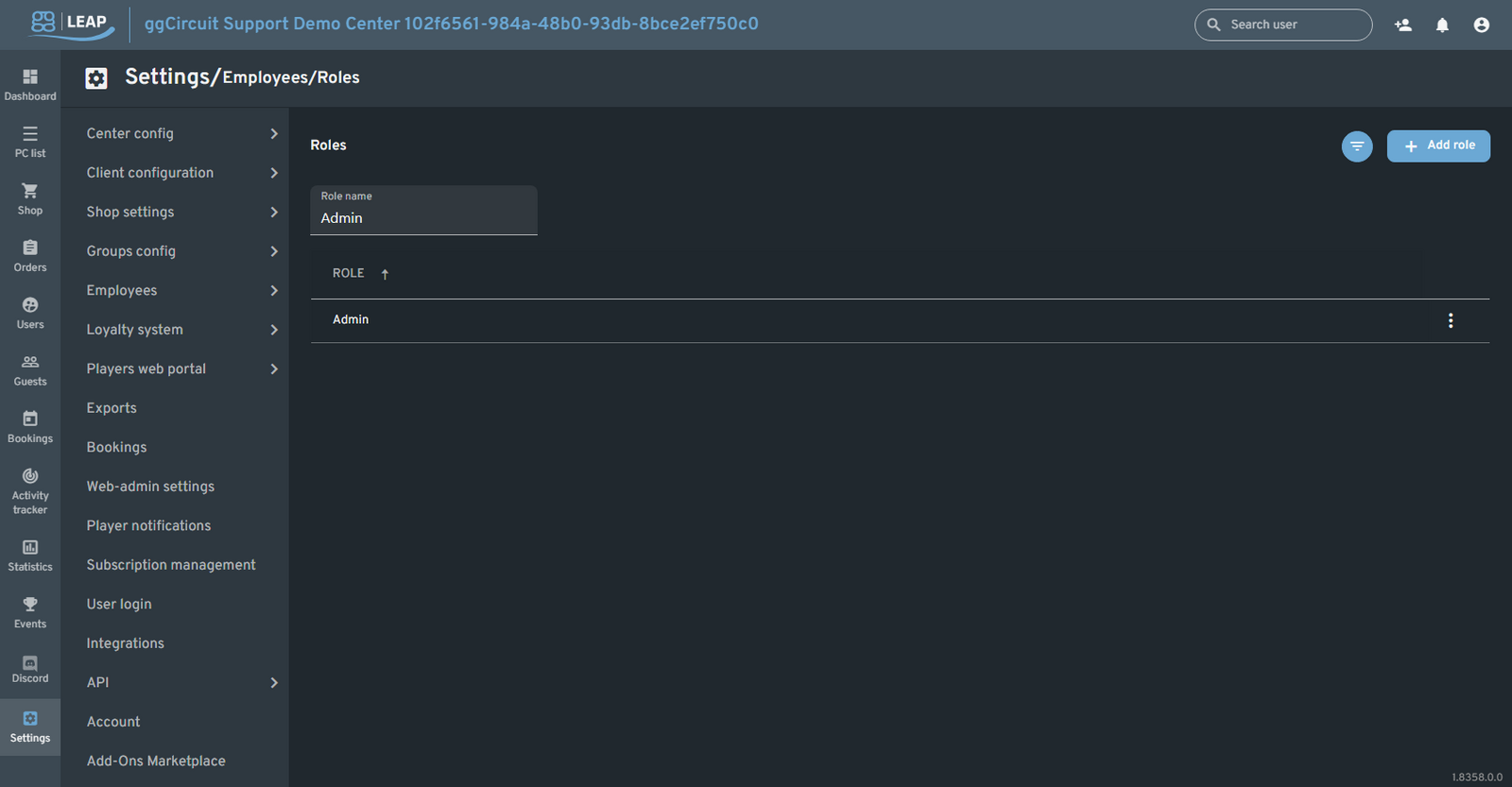
Click the filter icon to reveal a Role name search field. Use it to quickly locate a specific role.
Adding a Role
Click + Add role to open the dialog:

- Role name: give the role a clear, descriptive name.
- Owner permission: check “Can manage employees (All permissions)” to grant full admin rights.
- ggLeap Permissions: toggle individual capabilities (center settings, PC/Console controls, user/shop/licenses management, reports, add-ons).
- PC/Console Permissions: control remote actions (lock, reboot, rename, etc.).
- User Permissions: manage user accounts, passwords, notes, and guest logins.
- Shop Permissions: edit products, stock, refunds, coupons, and ticketing.
- Licenses: view, return, and edit licenses.
- Games & Apps: view, create, or delete titles.
- Reports Visibility: limit how many days of past reports or activity tracker data the role can see.
- Login Guests: allow guest account creation with free/pre/post-pay caps.
- Add-Ons: enable management of enabled add-ins (ProtectMe, iGames, etc.).
- ggRock Permissions: control array, backup, snapshot, boot, and activity-log functions on your ggRock server.
Once you’ve configured all checkboxes, click Save to create the role.
Editing or Deleting a Role
Hover over the role’s row and click the ⋮ menu:
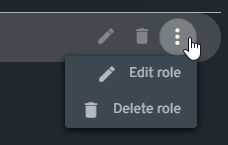
- Edit role: opens the same dialog as “Add role,” pre-filled with the role’s current settings.
- Delete role: removes the role from the system (any employees assigned to it will revert to Default).
Tip:
- Create narrow “read-only” roles for support staff who only need dashboard views, and “operator” roles for onsite technicians who must reboot or lock PCs.
- Use the Owner permission sparingly—reserve it for center managers to avoid accidental wide-scope changes.