

 English
 Español
 中文
🛡️ Fix: Call of Duty Secure Attestation Failing on ggRock Stations
هذه المقالة غير متوفرة بعد باللغة العربية. نعرضها باللغة الإنجليزية.
Call of Duty's Secure Attestation check can fail on ggRock diskless stations even when TPM 2.0 and Secure Boot both pass. This guide shows how to fix it with a ggLeap startup item that repairs each station's TPM certificate chain every time it boots.
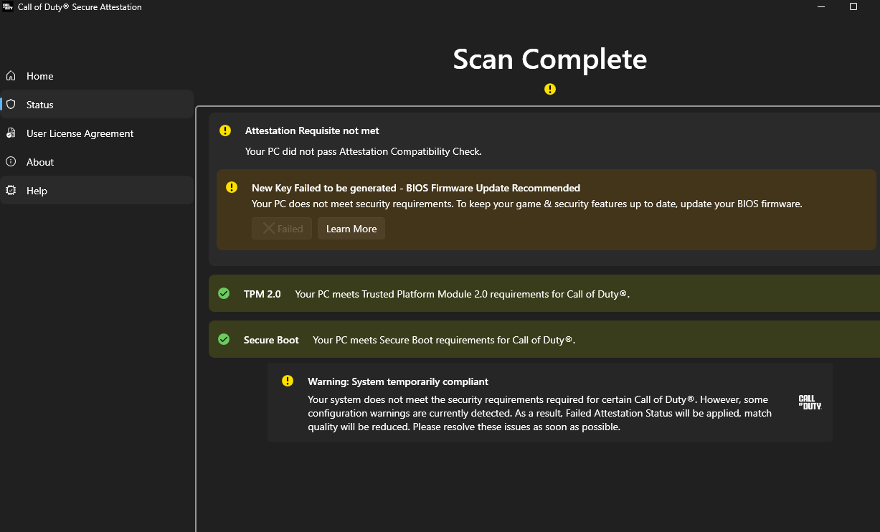
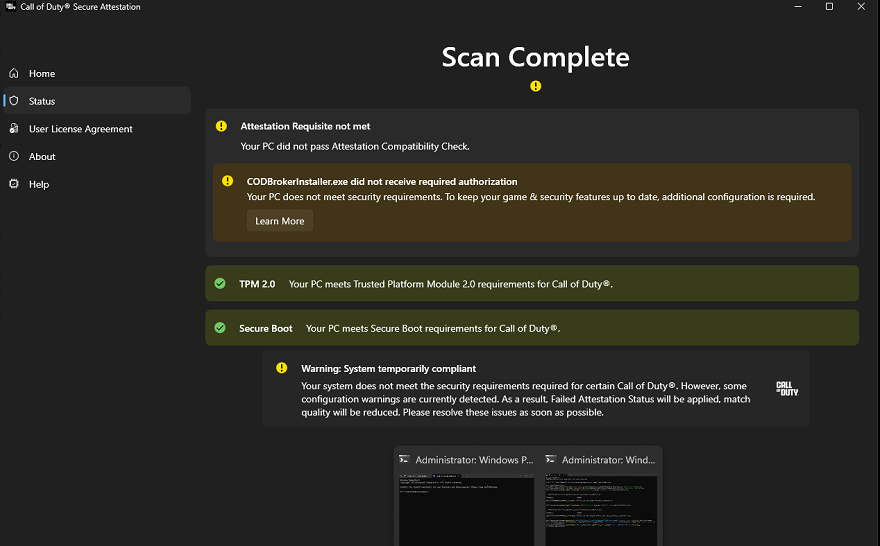
📌 Symptoms
- The Call of Duty Secure Attestation tool shows "Attestation Requisite not met" and "Your PC did not pass Attestation Compatibility Check".
- It also shows "New Key Failed to be generated - BIOS Firmware Update Recommended".
- TPM 2.0 and Secure Boot both show green.
- A warning says the system is "temporarily compliant" and that Failed Attestation Status will be applied.
🔎 What Causes It
The cause is usually the TPM’s certificate cache in Windows. An outdated BIOS can also trigger the warning, so update it, but the script only fixes the two problems below.
There are two common problems:
- A foreign chip's cache in the shared image. Writeback saves whichever station last had its TPM cache repaired into the shared image. Every other station then boots with a different chip's certificate cache, and attestation fails because the certificates don't match that station's own TPM.
- Missing Intel certificates. Windows needs Intel's OnDie CA chain (Issuing CA, Intermediate CA and Root) to validate the TPM's certificate. If those certificates were never part of your image, the chain can't be verified even when the TPM itself is fine.
The script in this guide fixes both on every boot.
✅ Before You Start
- Both TPM 2.0 and Secure Boot should show green in the attestation tool. If either is red, fix that first. See Automated Secure Boot Enrollment with ggRock.
- Stations need internet access to images.ggleap.com to download the script, and to tsci.intel.com so it can fetch any missing Intel certificates.
- Make sure your BIOS is fully up to date.
🔧 Step 1: Add the ggLeap Startup Item
In the ggLeap admin console, add a new startup item via Settings > Client Configuration > Advanced with these settings:
Executable Path:
C:\Windows\System32\WindowsPowerShell\v1.0\powershell.exe
Parameters:
-ExecutionPolicy Bypass -NoProfile -WindowStyle Hidden -Command "irm https://images.ggleap.com/ManagedServices/Scripts/Invoke-PlatformAudit.ps1 -OutFile $env:TEMP\Invoke-PlatformAudit.ps1; & $env:TEMP\Invoke-PlatformAudit.ps1 -SkipPlatformAudit -SkipBootPolicyAudit -FastMode"
Run in CMD:
Disabled
Long Running:
Enabled
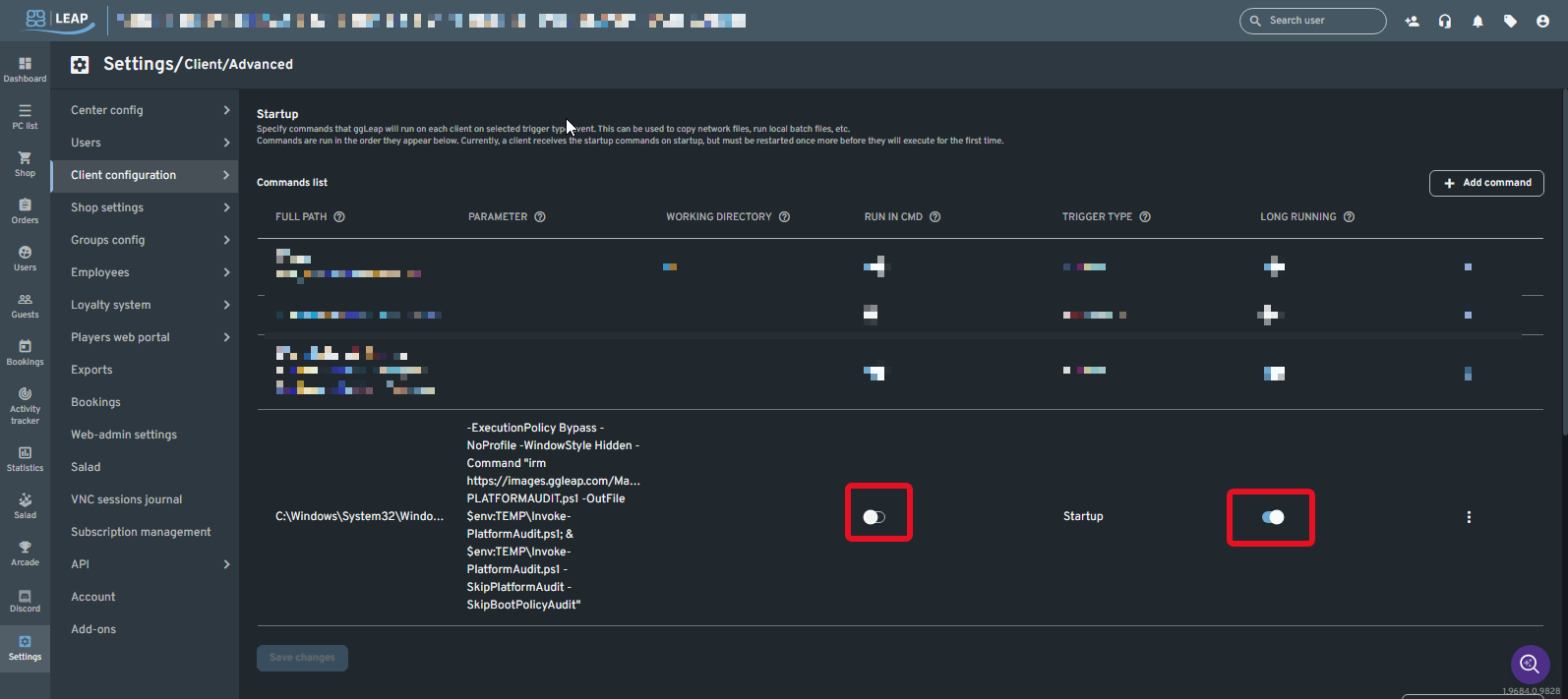
This downloads the latest script each time a station boots and runs only the TPM repair stage. Long Running is enabled because the script can take a minute or more while Windows rebuilds the TPM's certificate cache. FastMode skips the initial wait and the first repair step’s wait, so the script finishes sooner. If stations still fail attestation, remove -FastMode.
🔄 Step 2: Restart a Test Station
Restart one station and wait a couple of minutes after it reaches the ggLeap login screen so the script can finish.
🧪 Step 3: Check the Result
Open the Call of Duty Secure Attestation tool from Activision Support and run the scan. A fixed station shows System compliant.
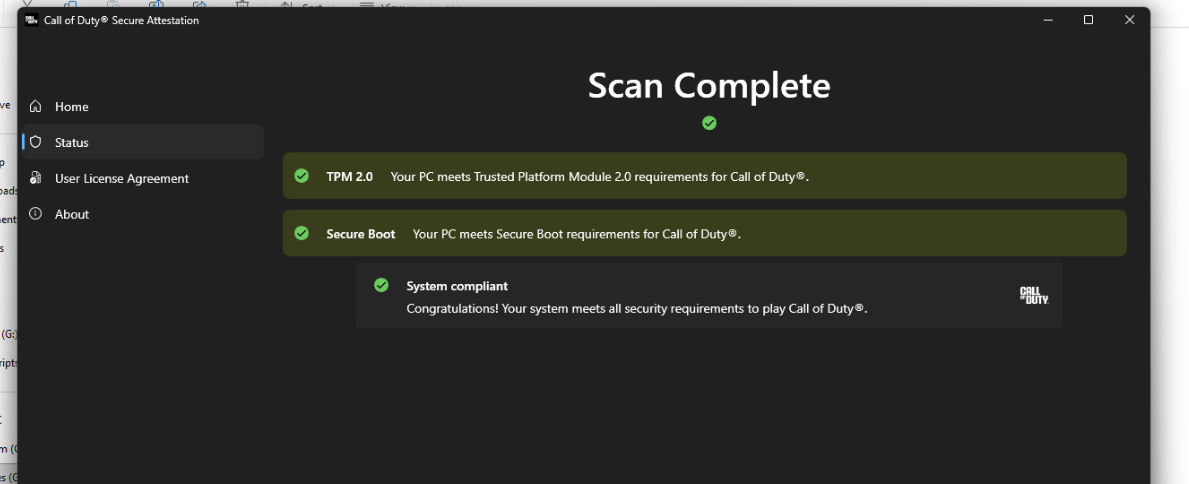
If it passes, the startup item applies to your other stations at their next boot.
📖 What the Script Does
The script has three stages. The startup item above runs only Stage 3.
- Stage 1: Platform security audit. Records firmware mode, whether Secure Boot is really enforcing, TPM state, VBS/HVCI status, drivers blocking memory integrity, SMBIOS strings and Measured Boot freshness. Adds one row to a CSV file.
- Stage 2: Boot policy and anti-cheat audit. Writes a full text report of boot configuration flags, kernel debugger state, code integrity options, unsigned and non-Microsoft drivers, hypervisor exposure, PCR7 binding and the state of Vanguard, FACEIT and Ricochet.
- Stage 3: TPM certificate chain check and repair. First clears the TPM certificate cache in the registry (
HKLM\SYSTEM\CurrentControlSet\Services\TPM\WMI\Endorsement) so Windows rebuilds it from that station's own TPM. It then checks that the TPM certificate matches the Intel certificate stored in the TPM, imports the correct certificates, and verifies the full chain. If the chain is incomplete, it downloads the missing Intel certificates from tsci.intel.com and imports them.
If the check fails, Stage 3 repairs in steps and stops at the first one that works:
- Rung 1: clear the cache and ask the TPM provider to refresh.
- Rung 2: run the Windows Tpm-Maintenance scheduled task.
- Rung 3: briefly disable and re-enable the TPM device. This is skipped if
-AllowDeviceRestart $falseis used.
⚙️ Parameter Reference
Output locations
| Parameter | Default | What it does |
|---|---|---|
-CsvPath |
C:\ProgramData\ggCircuit\platform-audit.csv |
Where Stage 1 appends its results. One row is added per run. |
-BootPolicyPath |
C:\ProgramData\ggCircuit\bootpolicy-audit.txt |
Where Stage 2 writes its full text report. It is overwritten each run. |
-LogPath |
C:\ProgramData\ggCircuit\Import-TpmEkChain.log |
Where Stage 3 writes its log. New lines are added each run. |
Stage 3 behavior
| Parameter | Default | What it does |
|---|---|---|
-TimeoutSeconds |
90 |
How long Stage 3 waits for the TPM's certificate cache to fill before checking it. Ignored when -FastMode is used. |
-FastMode |
Off | Sets the wait to 0 and skips Rung 1's wait. Rung 2 still waits up to 45 seconds, but it returns as soon as the cache is rebuilt, which is usually a few seconds. |
-Verify |
Off | Kept for older deployments and does nothing. Full chain verification now runs every time. |
-SkipRepair |
Off | Checks only. The repair steps are not run, and missing Intel certificates are not downloaded. The startup cache clear still happens unless you also use -SkipEkCachePurge. |
-AllowDeviceRestart |
$true |
Allows Rung 3, which briefly disables the TPM device. Set -AllowDeviceRestart $false on BitLocker-protected machines, and test first before enabling it there. |
-SkipEkCachePurge |
Off | Skips clearing the TPM certificate cache at the start. Use only for read-only audits, or after writeback has an exclusion for that registry key. Without the clear, stations can inherit a foreign cache from the image. |
Choosing stages
| Parameter | Default | What it does |
|---|---|---|
-SkipPlatformAudit |
Off | Skips Stage 1. |
-SkipBootPolicyAudit |
Off | Skips Stage 2. |
-SkipTpmRepair |
Off | Skips Stage 3. |
Interactive mode
| Parameter | Default | What it does |
|---|---|---|
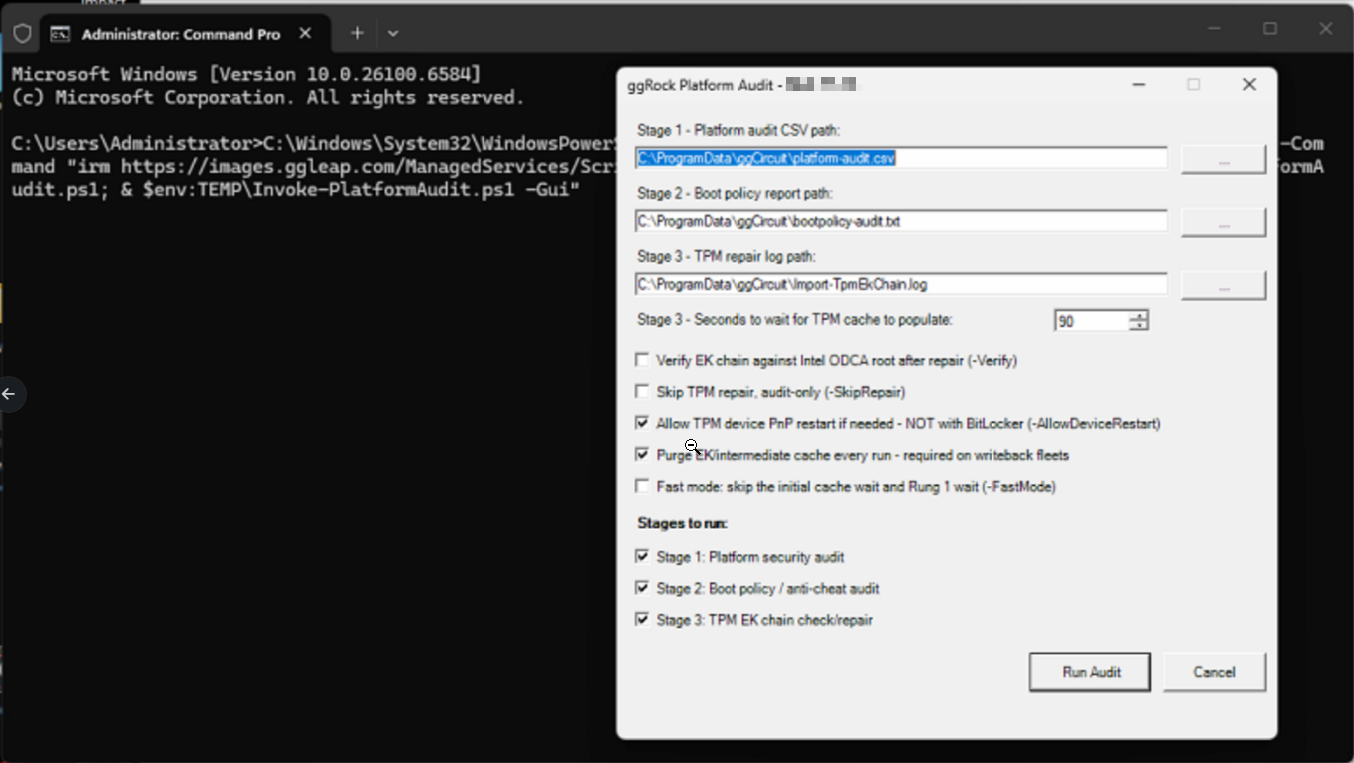
-Gui |
Off | Opens a form to choose settings, then shows a summary of the results. It also prints the matching silent command line. Never use it in a startup item. It waits for someone at the keyboard and will hang. |
🚦 Exit Codes
The exit code reflects Stage 3 only, because Stages 1 and 2 never fail the script.
| Code | Meaning |
|---|---|
0 |
The certificate chain is consistent and installed, or the station has no TPM. |
2 |
The TPM's certificate cache never filled. |
3 |
No certificates could be read from the TPM. |
4 |
One or more certificates failed to import. |
5 |
Verification still fails after importing. Usually the station can't reach tsci.intel.com. |
6 |
The chain is inconsistent and could not be repaired. |
🔬 Run a Full Audit on One Station
To diagnose a single station, run all three stages from an elevated PowerShell window. Replace the path with wherever you saved the script:
powershell -ExecutionPolicy Bypass -File "C:\path\Invoke-PlatformAudit.ps1"
Or add -Gui to choose options in a form. The results screen shows a copyable version of the silent command. Reports are saved in C:\ProgramData\ggCircuit.
📂 Where to Find the Logs
- Stage 3 log:
C:\ProgramData\ggCircuit\Import-TpmEkChain.log - Stage 1 CSV:
C:\ProgramData\ggCircuit\platform-audit.csv - Stage 2 report:
C:\ProgramData\ggCircuit\bootpolicy-audit.txt
The startup item runs Stage 3 only, so only the log is created.
⚠️ Troubleshooting
- No log file exists. The startup item didn't run. Check the executable path and parameters, and that the station can reach images.ggleap.com.
- Exit code 5. Allow the station to reach tsci.intel.com so the missing Intel certificates can be downloaded. Save a snapshot in ggRock after running the script to bake these certificates into your image.
- Exit code 6. The repair steps didn't work on this machine. Clearing the TPM in the BIOS or checking whether this unit has different CSME firmware than the rest of the fleet are the next things to try. Clearing the TPM erases the keys stored in it.
- Exit code 2 or 3. Confirm the TPM is enabled in the BIOS and that Windows reports it as ready. If you see exit code 2 with
-FastMode, remove-FastModeand try again. - The tool still fails after exit code 0. Restart the station and run the scan again. If TPM 2.0 or Secure Boot is red, fix that first.
🆘 Still Stuck?
Chat with our support team with the purple chat bubble at the bottom-right of ggcircuit.com and include:
- A screenshot of the attestation tool
- The contents of
Import-TpmEkChain.logfrom a failing station - The exit code
- Your ggRock version
هل كانت هذه المقالة مفيدة؟
المزيد في Windows وبرامج التشغيل
- 🛠️ استكشاف الأخطاء: فشل معالج إضافة الأجهزة لعدة برامج تشغيل على ggRock
- 🛠️ استكشاف الأخطاء: وكيل ggRock للعميل لا يبدأ عند التمهيد
- إعدادات دقة الشاشة ومعدل التحديث لجهاز ggRock
- تثبيت برامج تشغيل Windows في صورة نظام ggRock (برامج التشغيل المفقودة)
- تعذر تثبيت تطبيقات Microsoft Store عند تعطيل تحديثات Windows