

 Español
 中文
 العربية
How to edit or delete a console
To edit a console in the ggLeap web admin:
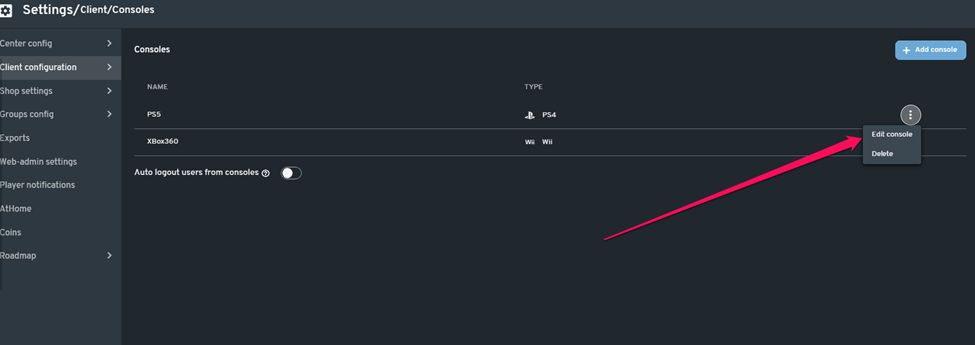
- In the Webadmin, go to Settings > Client Configuration > Consoles, then select "Edit console".
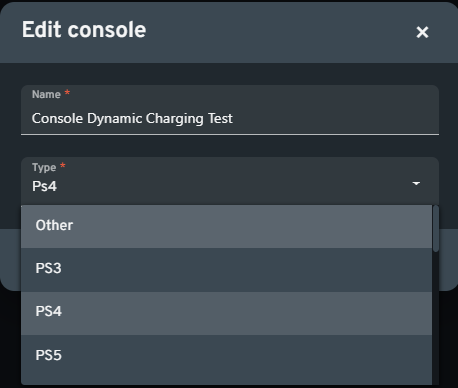
- In the pop-up window, you can edit the name of the console as well as the type.
-
Click the "Save" button.
-
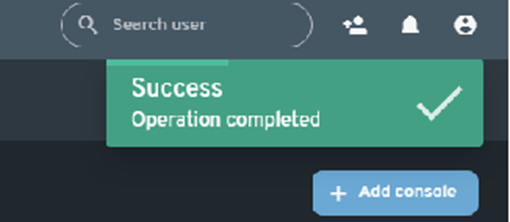
A notification will pop up in the upper right corner of the web admin, depicting that you have saved your changes.
2 Methods to delete a console in the ggLeap web admin:
Method 1
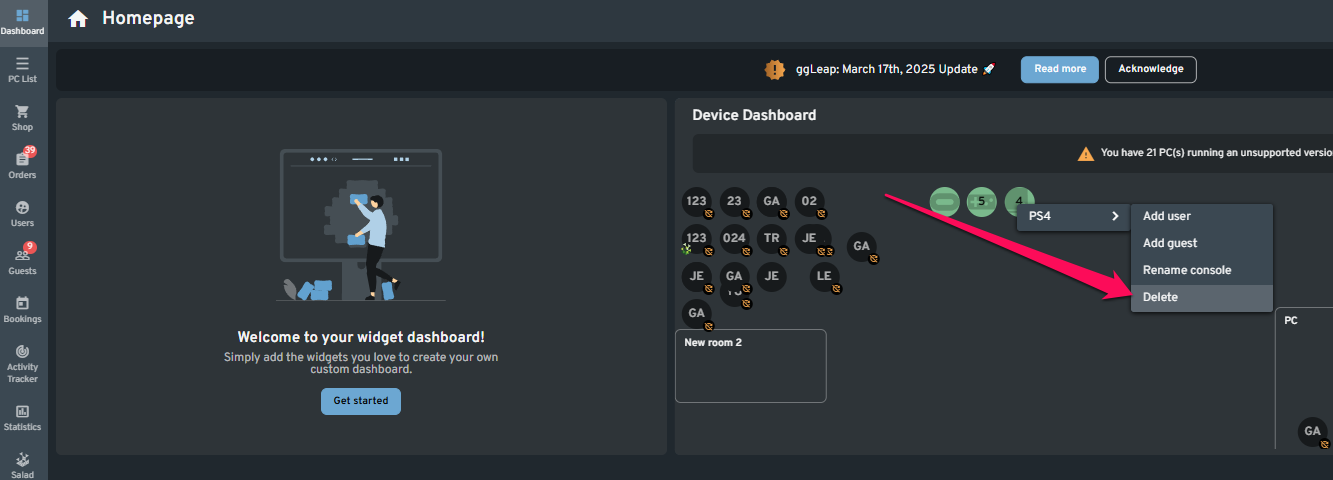
- In the list view: scroll down the page in the Dashboard area to see the Consoles section. Click on the three-dot button on the rightmost side of the console to open a drop-down menu and select "Delete".
In the graphical view: click the console node that you want to delete, then select "Delete" from the menu.
List view

Graphical view
- In the pop-up window, click "Delete" to remove the console from the list.
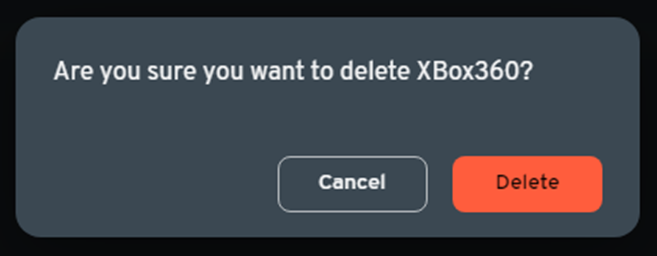
- A notification will pop up in the upper right corner of the web admin depicting that you have saved your changes.
Method 2
- In web admin, go to Settings > Client Configuration > Consoles then click on the three dots button on the rightmost side of the console to open a drop-down menu.
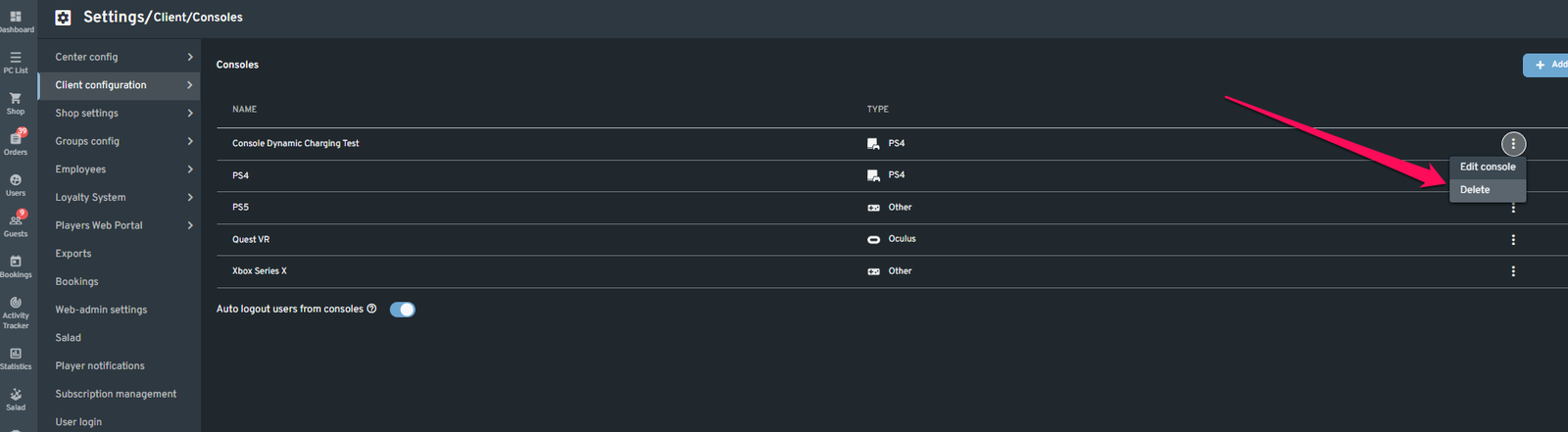
- In the pop-up window, click "Delete" to remove the console from the list.
- A notification will pop up in the upper right corner of the web admin depicting that you have saved your changes.