

 Español
 中文
 العربية
Remote PC access from the web admin
Access a client PC through the ggLeap web administrator.
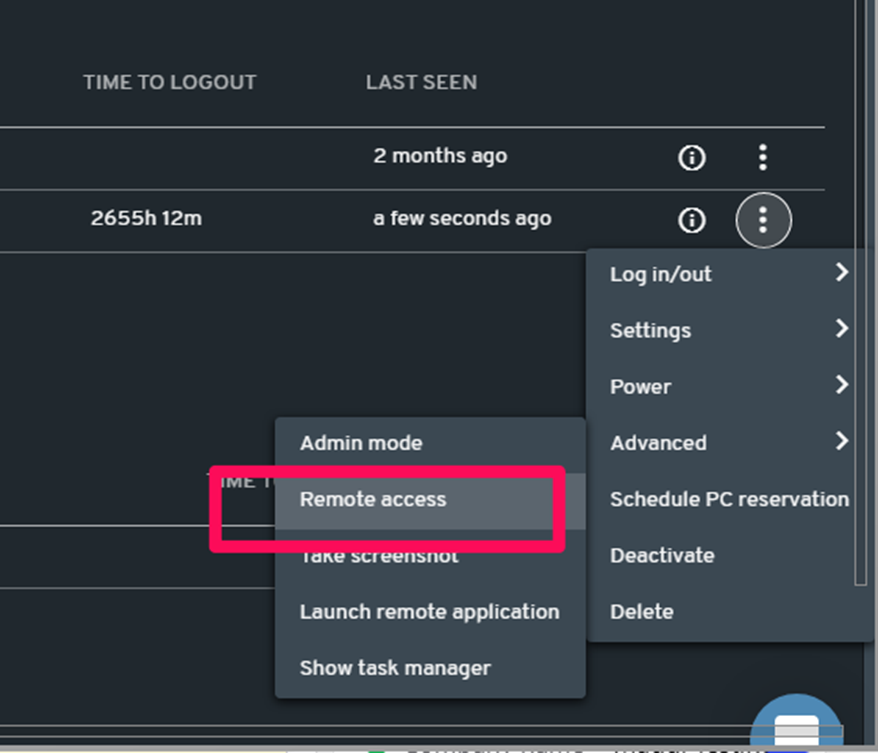
-In the list view, select the PC to be remoted in Dashboard then click the three-dot button on the far right side of the chosen PC. On the menu, select Advanced > Remote access.
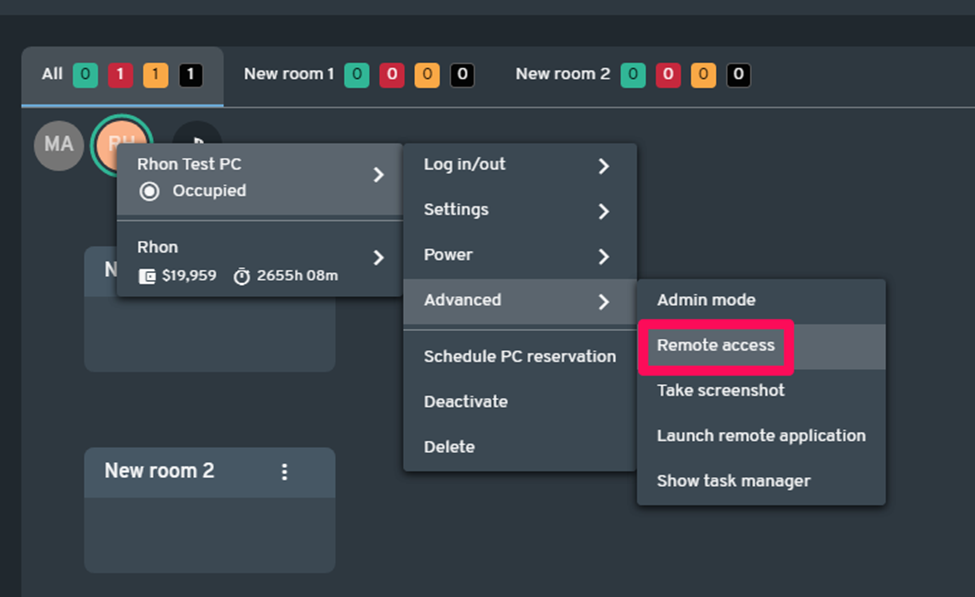
-In graphical view, click the PC to be remoted. On the menu, select the PC Name > Advanced > Remote access.
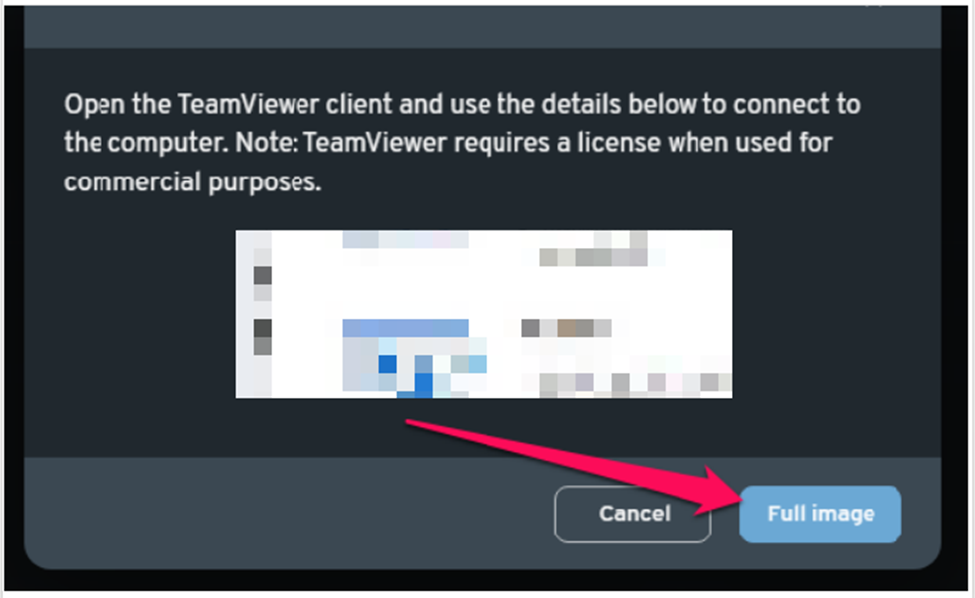
-The Remote access window will pop-up, click "Full Image" to view the TeamViewer credentials.
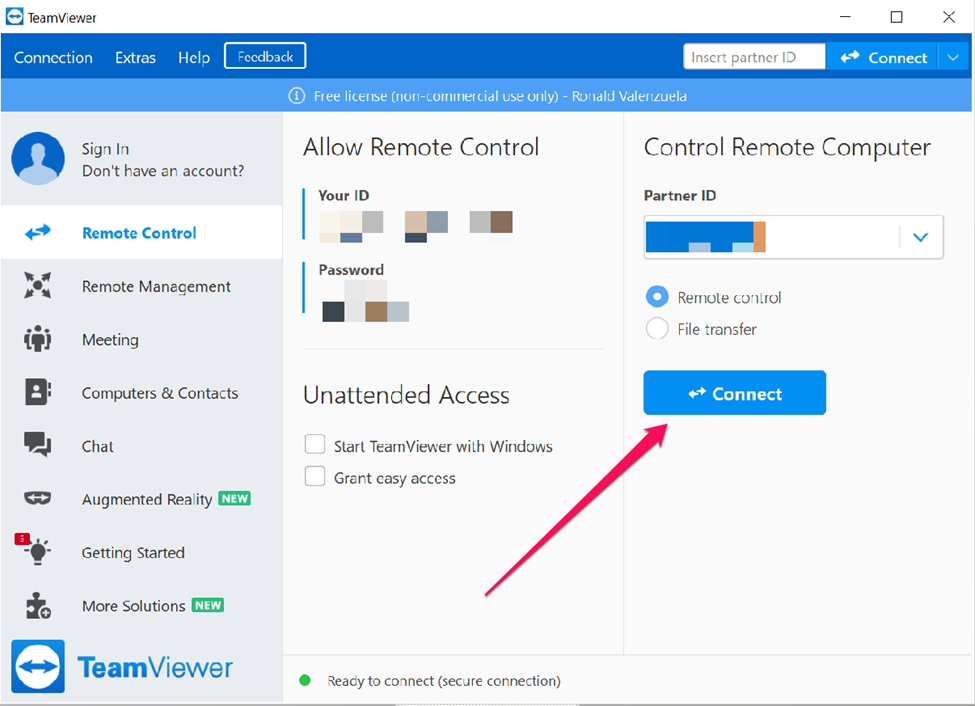
-Open your TeamViewer and enter the Partner ID then click "Connect".
-The TeamViewer Authentication window will appear. Enter the password and click "Log On".
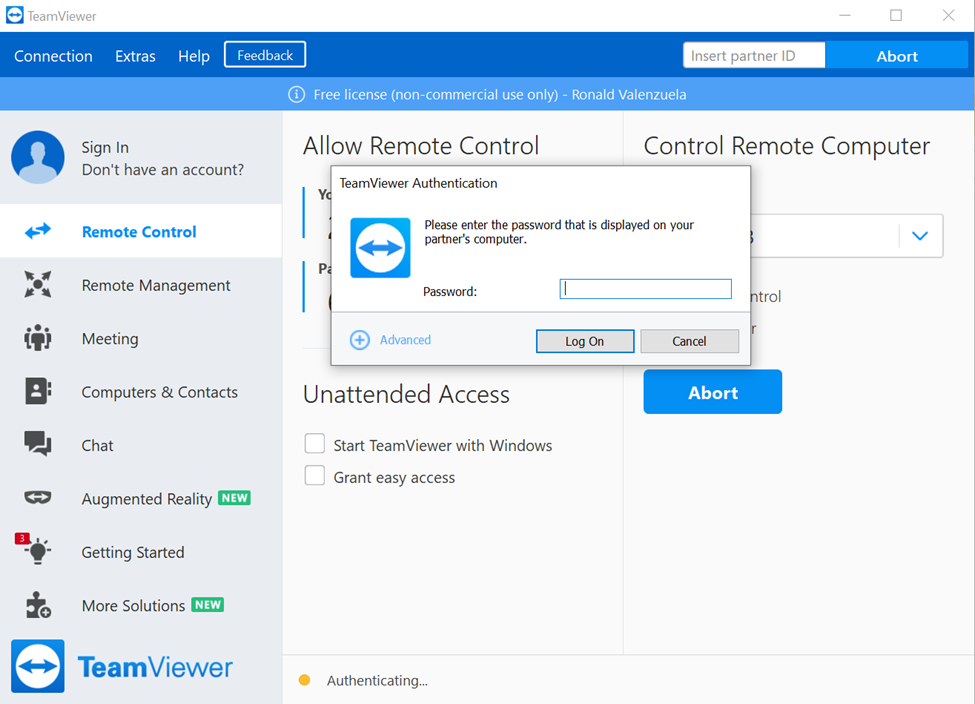
- Now you have remote access to the client PC using TeamViewer.

NOTE: You must have a TeamViewer subscription to fully use the Remote Access feature.
You must also have TeamViewer installed on the client PC for this feature to work.