Español
 中文
 العربية
How to put a client PC in Admin mode (Windows desktop)?
This article provides different approaches on how to put a client PC in Admin mode.
Admin mode via the web admin
List view
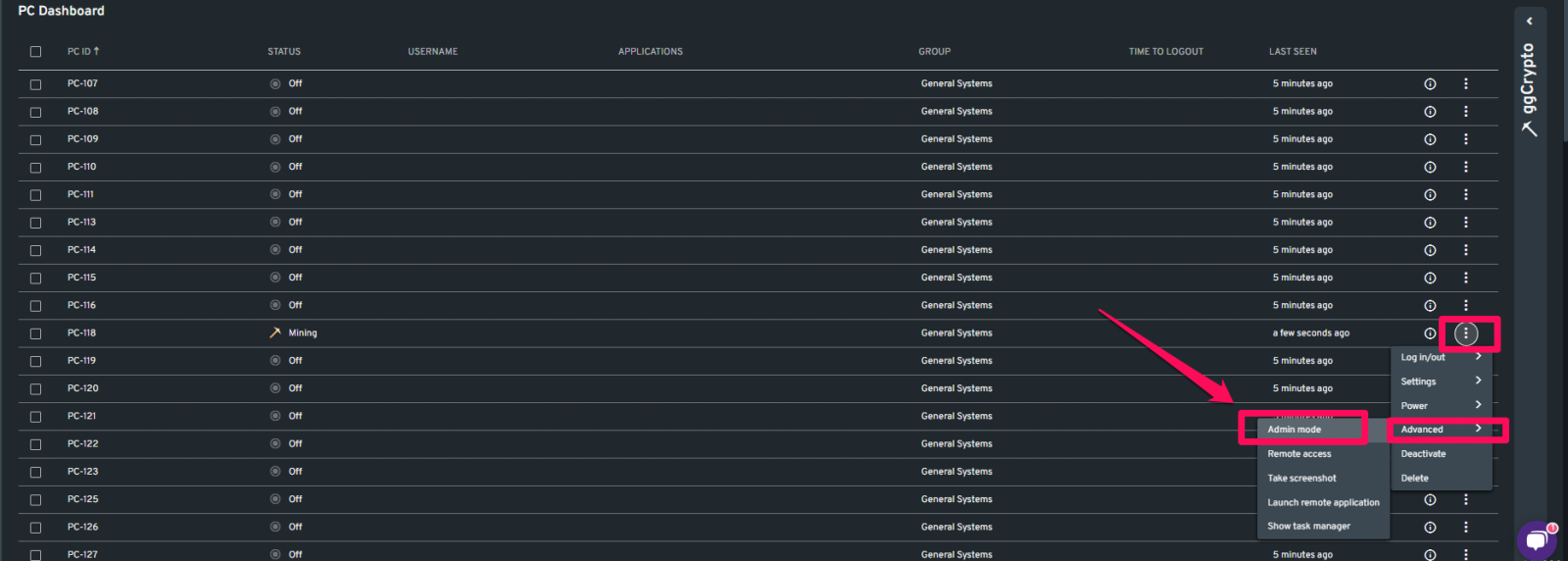
- In the PC Dashboard section, look for the PC that you want to put into Admin mode.
- Click the three dots button on the right side and select Advanced > Admin mode in the drop-down menu.
Graphical view
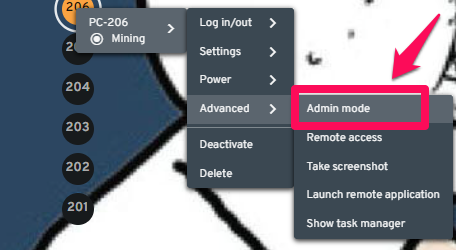
- Look for the PC that you want to put into Admin mode (the layout of the graphical view will vary).
- Click the PC node and hover your mouse on "Ready". This should open the drop-down menu where you can select Advanced > Admin mode.
Admin mode via keyboard combination
- If the web admin is inaccessible, you can go directly to the client PC and press the keyboard combination: Ctrl, Alt, Shift, and U
- A login prompt will open and you will need to enter your web admin login credentials to put the PC in Admin mode.