

 Español
 中文
 العربية
V. - 🚀 First-time Setup and Accessing the ggRock Server Application
🖥️ Access the Server Console
- Connect to the server via one of the following methods:
- Direct keyboard/mouse/monitor connection
- SSH
- Debian Control Panel
- Retrieve the Server IP Address displayed on the login banner:

🔍 Note: Your Server IP will be unique to your LAN configuration.
🌐 Open the ggRock Server Web UI
- On any PC within the same network, open a web browser and enter your Server IP. Press Enter.
🌟 Tip: It's recommended to use Chrome or Firefox for best results.
- If you encounter a security warning, click "Advanced" and then "Proceed to [Your Server IP] (unsafe)":
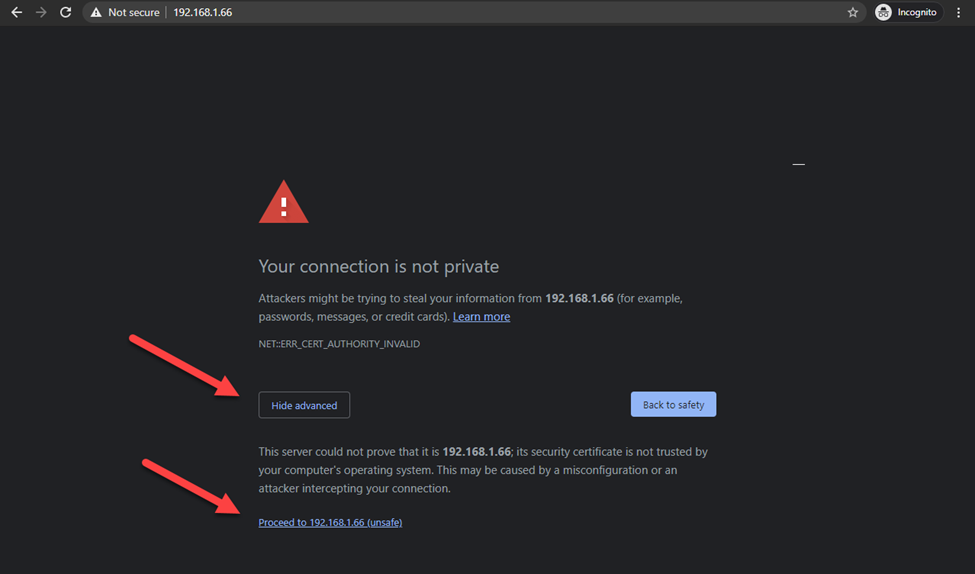
🔐 Note: This is safe if you've followed official setup steps.
🔑 Log into ggRock for the First Time
-
Navigate to your ggLeap Webadmin at https://admin.ggleap.com and log in with the credentials provided by your sales manager.
-
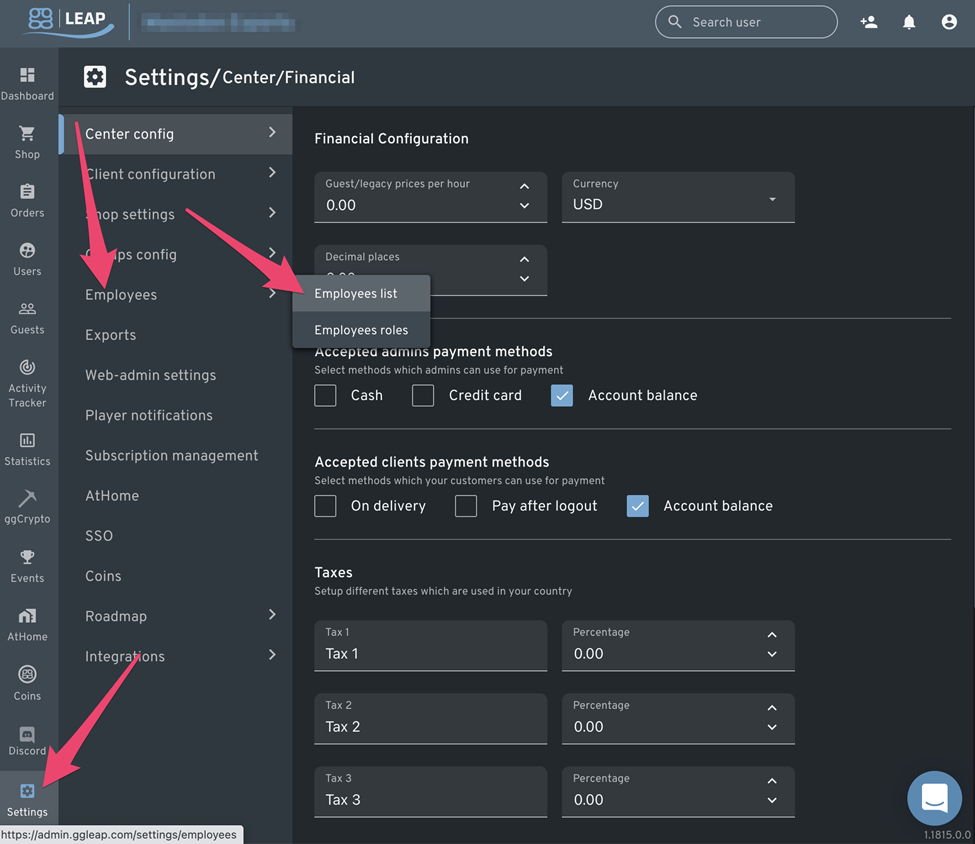
Settings > Employees > Employees list
-
Click "Add employee"

-
Set a username and password
-
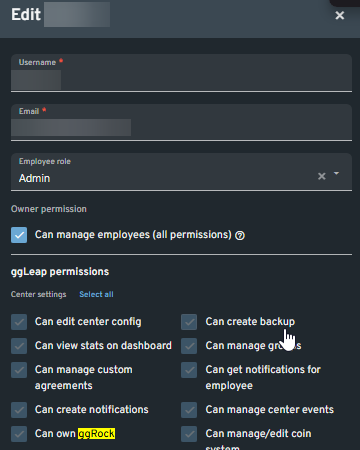
Enable the permission "Can own ggRock"
/
🛡️ Note: The first ggLeap account used in ggRock becomes the owner.
- Log into the ggRock Web UI:
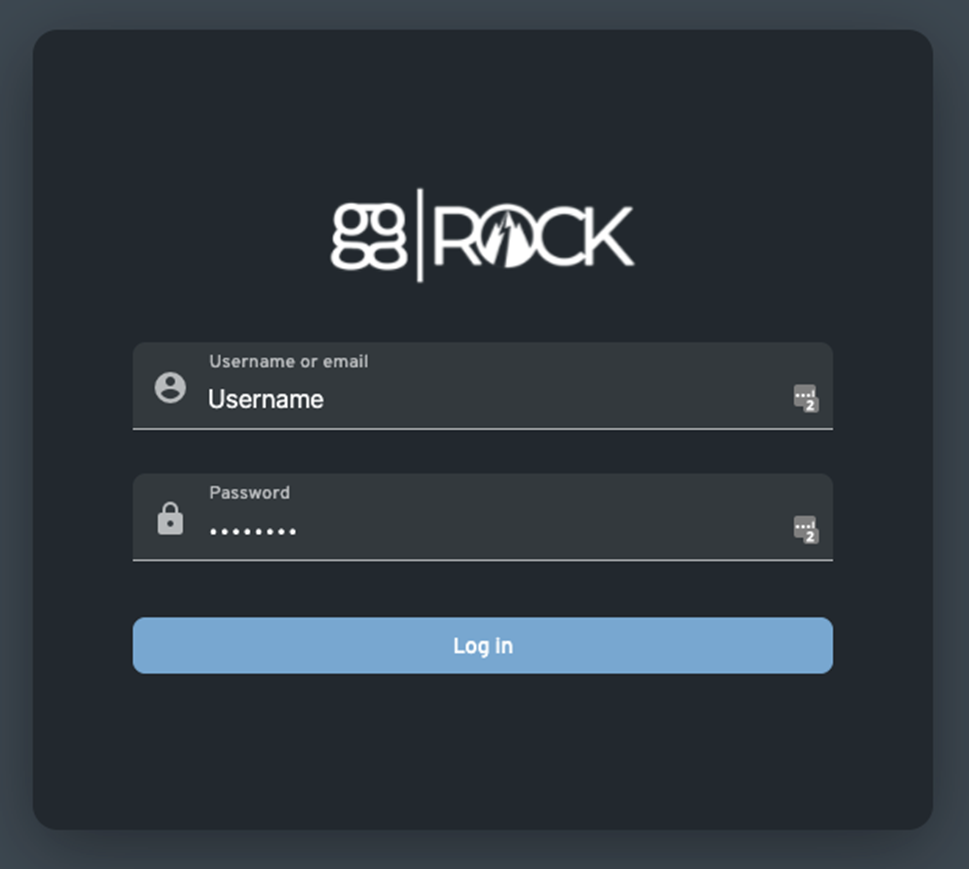
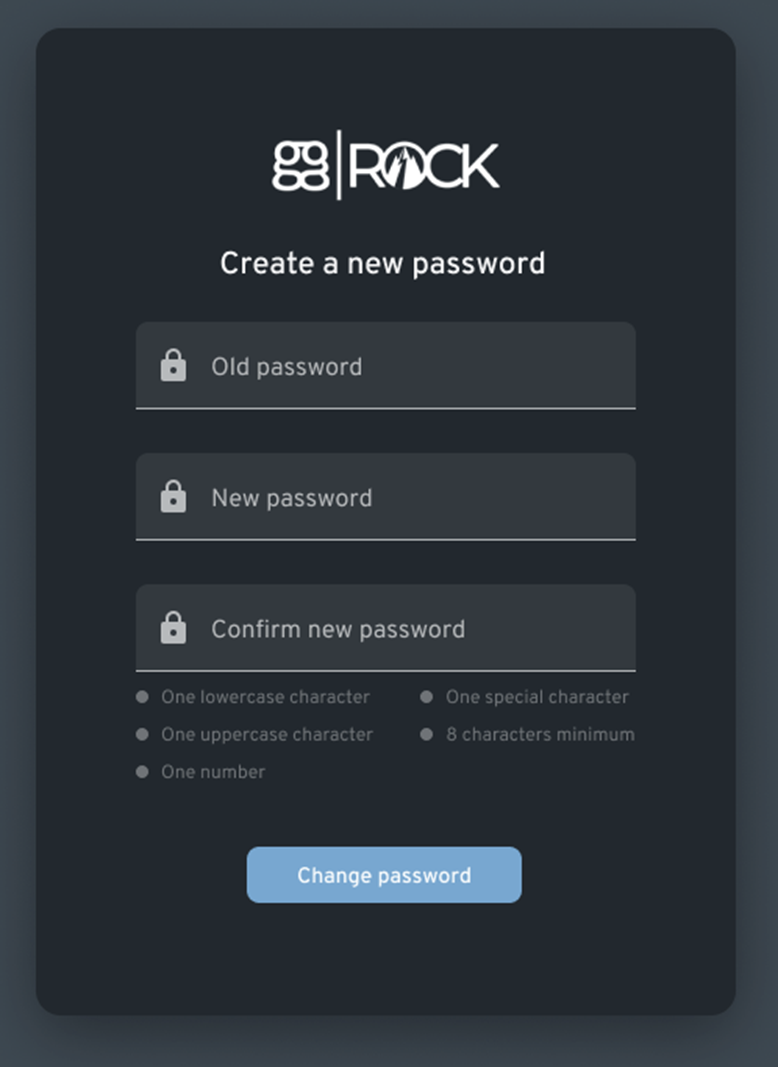
- On first login, you’ll be prompted to change your password:
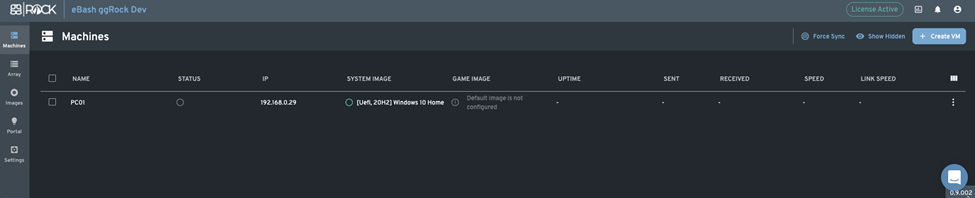
✅ Confirm Successful Login
- You should see the Machines page (initially empty):
🎉 Congratulations! You've successfully accessed ggRock!
You may now proceed with the "Configure the ggRock Array" guide.
Installation path · Step V of VIII