

 English
 Español
 العربية
🛠️ Fix: "Failed to Connect to Server" When Opening a VM Console (noVNC)
本文暂无中文版本,现以英语显示。
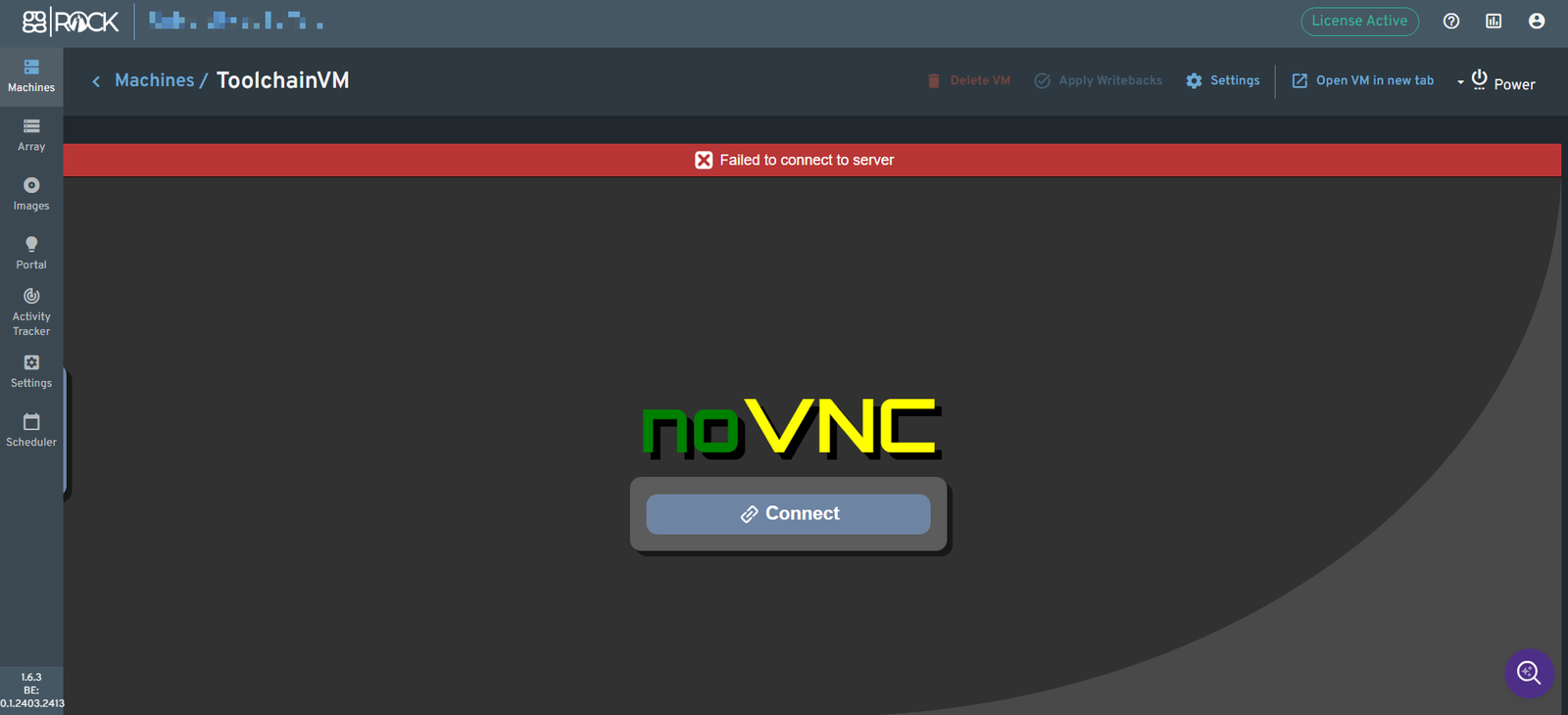
When you open a VM from the ggRock admin panel, such as ToolchainVM or an image VM, the noVNC screen shows a red banner reading "Failed to connect to server", and the console never loads.
📌 Who This Affects
Servers updated to Debian 12 or Debian 13 that are running a recent version of ggRock.
🔎 What Causes It
The console connects through a WebSocket path that changed from /websockify to /vnc/websockify. On affected servers, the new path is handled by an nginx rule that doesn't pass the WebSocket headers, so the connection fails. The fix adds a matching rule for the new path.
✅ Step 1: Run the Fix
Open the Debian Control Panel terminal, SSH, or the server console as root, and run:
wget -O - https://images.ggleap.com/ManagedServices/Scripts/fix-novnc-websockify.sh | bash -
The script:
- Backs up
/etc/nginx/conf.d/ggrock.confwith a timestamp - Adds the new rule, copied from the working
/websockifyrule - Tests the nginx configuration before applying it
- Restores the backup automatically if the test fails
When it succeeds, it prints:
OK: /vnc/websockify block in place; nginx tested and reloaded.
Want to read the script first? Download it and run it yourself:
wget https://images.ggleap.com/ManagedServices/Scripts/fix-novnc-websockify.sh
less fix-novnc-websockify.sh
bash fix-novnc-websockify.sh
🧪 Step 2: Test the Console
- Refresh the ggRock admin panel.
- Open the VM and click Connect in the noVNC window.
- The VM's screen should appear.
🔁 If the Script Says a Block Already Exists
If someone added a /vnc/websockify rule by hand, the script shows it and makes no changes. Those rules are sometimes missing headers or use a short timeout. To replace it with the correct rule, run:
wget -O - https://images.ggleap.com/ManagedServices/Scripts/fix-novnc-websockify.sh | REPLACE=1 bash -
↩️ Undo the Fix
The script prints a rollback command at the end. It looks like this, with your own backup file name:
cp -a /etc/nginx/conf.d/ggrock.conf.bak.YYYYMMDD-HHMMSS /etc/nginx/conf.d/ggrock.conf && systemctl reload nginx
⚠️ Troubleshooting
| Message | What it means |
|---|---|
run as root |
Run the command as root or with sudo. |
config not found |
/etc/nginx/conf.d/ggrock.conf doesn't exist on this server. Contact support. |
no 'location /websockify' block found |
The config doesn't look like a standard ggRock install. Contact support. |
nginx -t FAILED - reverting |
The script restored your original config. Contact support with a copy of the output. |
🧰 Workaround
You can still control VMs from the Debian Control Panel. See Using Cockpit Virtual Machines on ggRock (Advanced).
🆘 Still Stuck?
Chat with our support team with the purple chat bubble at the bottom-right of ggcircuit.com and include:
- A screenshot of the error
- Your ggRock version (shown at the bottom-left of the admin panel)
- Your Debian version