Español
 中文
 العربية
🖥️ Accessing the Debian Control Panel
For the smoothest setup experience—including copy-paste support and visual configuration—we recommend using the Debian Control Panel. Here’s how to access it from a web browser on your local network.
🪪 Step 1: Determine Your Server IP
Boot or reboot your server. On the console login screen, you’ll see the server IP address displayed.

Example:
192.168.1.66
🌐 Step 2: Open the Control Panel in Your Browser
From any PC on the same LAN as your server, open a browser and enter:
https://SERVERIP:9090
Example:
https://192.168.1.66:9090
⚠️ Step 3: Bypass SSL Certificate Warning
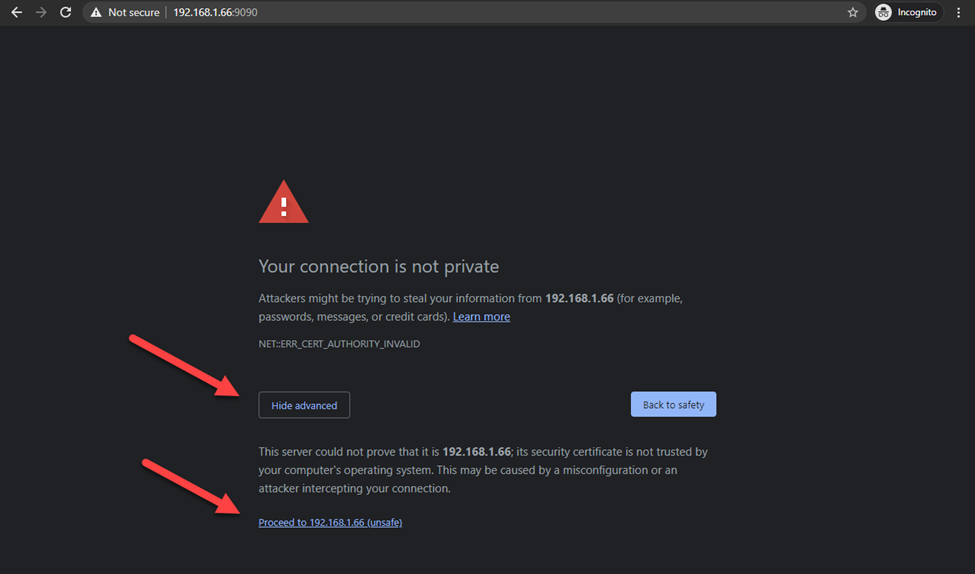
When you first connect, your browser may display a warning about a self-signed SSL certificate. This is normal and safe, as ggRock uses a self-signed certificate by default.
In most browsers:
- Click “Advanced”
- Click “Proceed to (unsafe)”
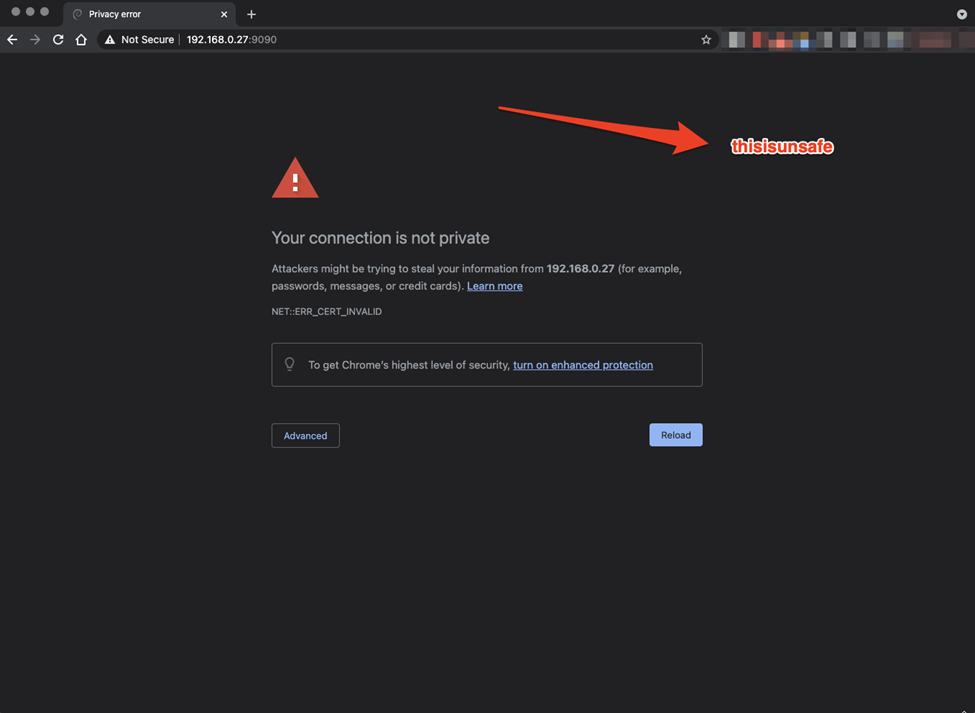
In newer Chrome versions:
- Click anywhere on the page (not the address bar)
- Type:
thisisunsafeto proceed
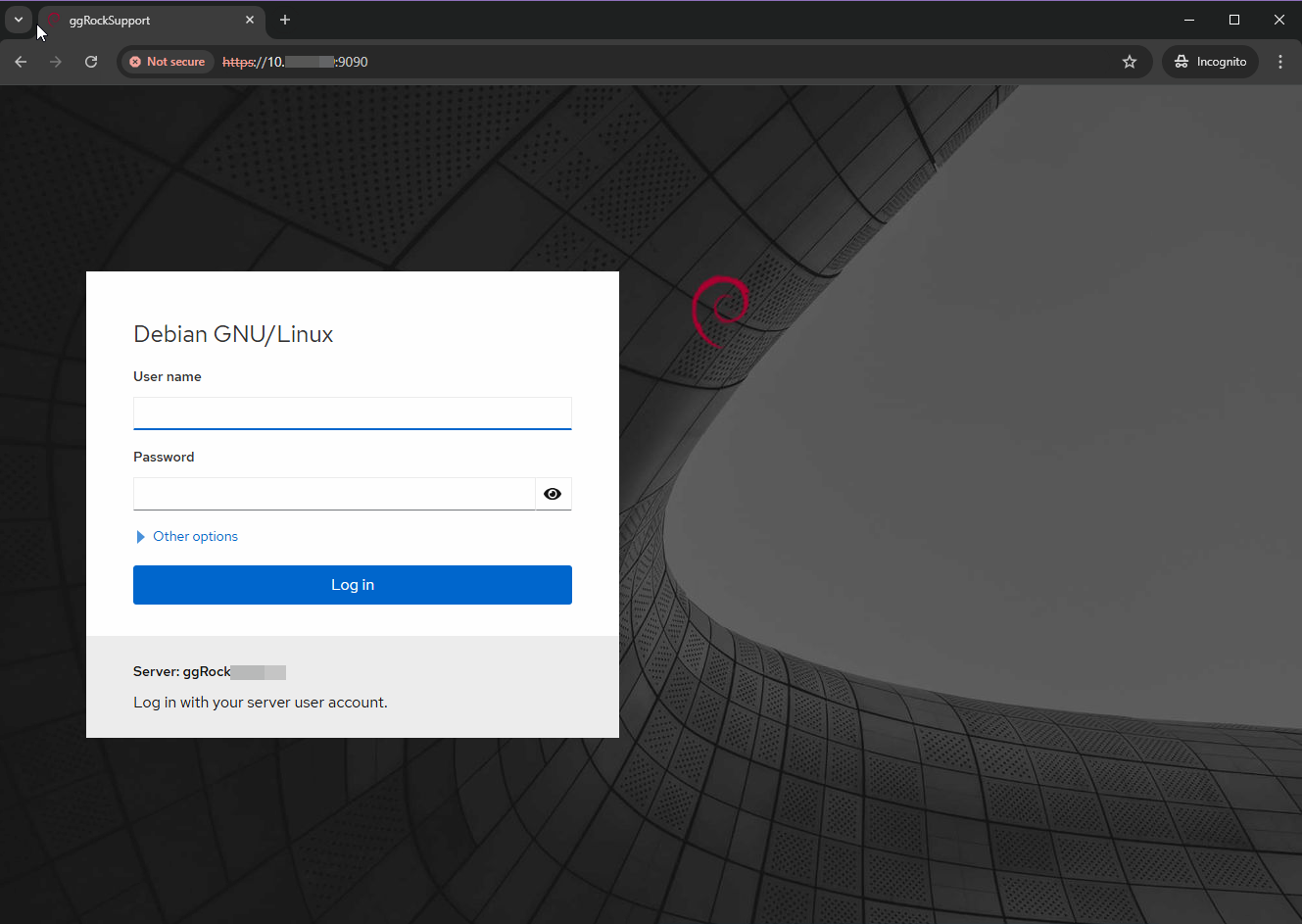
🔐 Step 4: Log in as Root
Use the credentials you created during installation:
- Username:
root - Password: (the one set in Step 7 of installation)
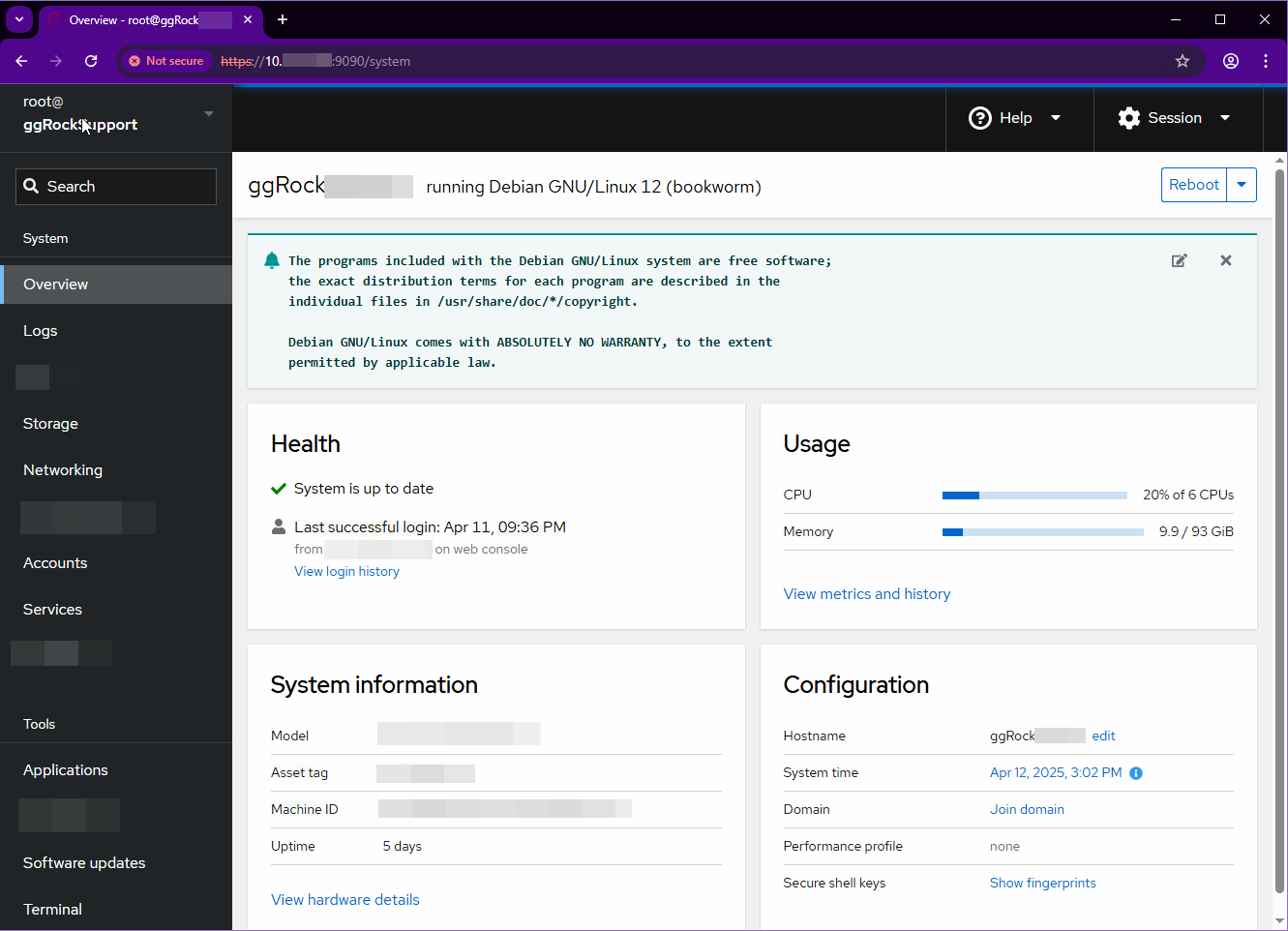
✅ Step 5: Confirm Successful Login
After logging in, you should see the Debian Control Panel dashboard.
🖱️ Step 6: Open the Terminal
Navigate to Terminal in the Control Panel’s menu.
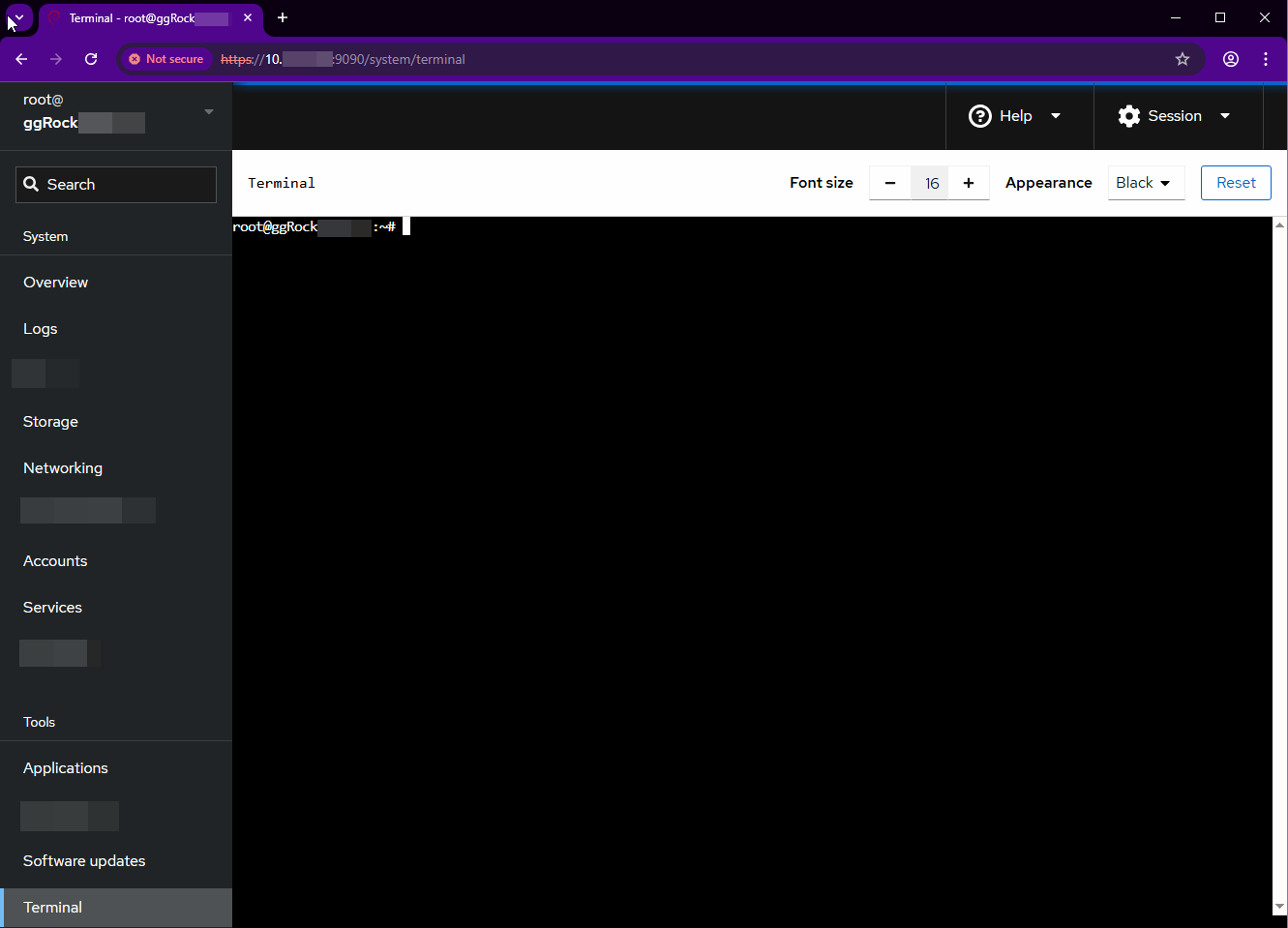
You’ll land in a root-authenticated shell, ready for command input.
Advanced Users: see Using Cockpit Virtual Machines on ggRock (Advanced)
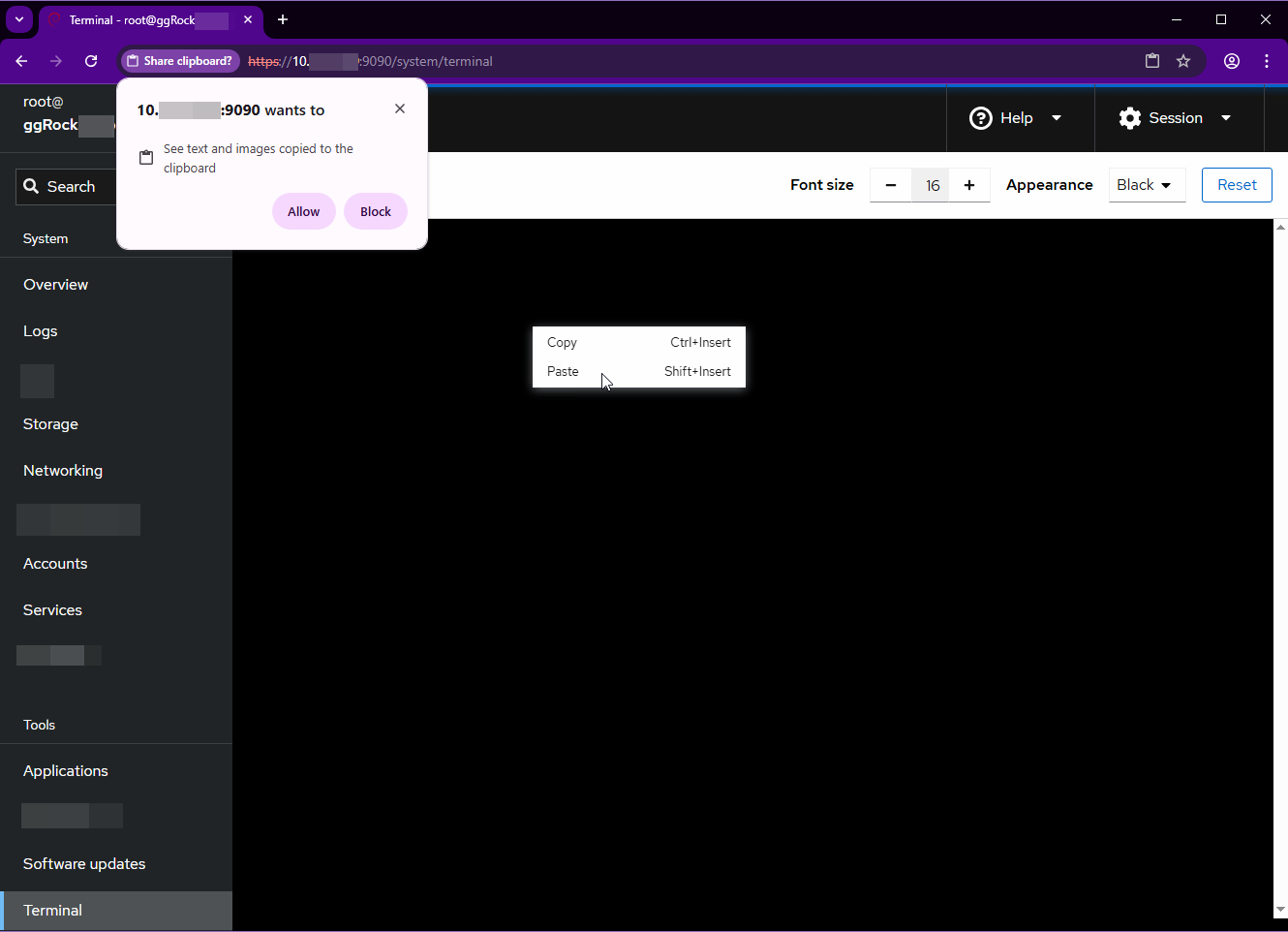
📋 Step 7: Enable Clipboard Access
To paste text into the terminal:
- Press Shift + Insert
or - Right-click inside the terminal and choose Paste
Your browser will prompt you for clipboard permissions—click Allow.