

 Español
 中文
 العربية
Using Cockpit Virtual Machines on ggRock (Advanced)
The Debian Control Panel can manage virtual machines, but the Virtual Machines tab is not installed by default. This guide shows how to add it and how to use it for one common task: changing a VM's CPU type.
📌 When You Need This
Some tasks can't be done from the ggRock admin panel. A common one is a newly imported image that PXE boots and runs its setup scripts, then shows a black screen or returns to the BIOS splash screen instead of loading Windows. Support may ask you to change the VM's CPU type to broadwell-notsx-ibrs.
🔐 Step 1: Log In to the Debian Control Panel
Open the Debian Control Panel and log in as root. If you haven't done this before, see:
- 🖥️ Accessing the Debian Control Panel
- 🔓 Enabling Root Login in Debian Control Panel (Debian 12 and 13)
📦 Step 2: Install the Virtual Machines Module
Open Terminal in the Control Panel's menu and run:
apt update
apt install cockpit-machines
When it finishes, refresh the page. A Virtual Machines tab will appear in the left menu.
🛑 Step 3: Shut Down the VM
In the ggRock admin panel, shut down the VM you want to change. Make sure it is fully powered off before editing it.
⚙️ Step 4: Change the CPU Type
- In the Debian Control Panel, open Virtual Machines.
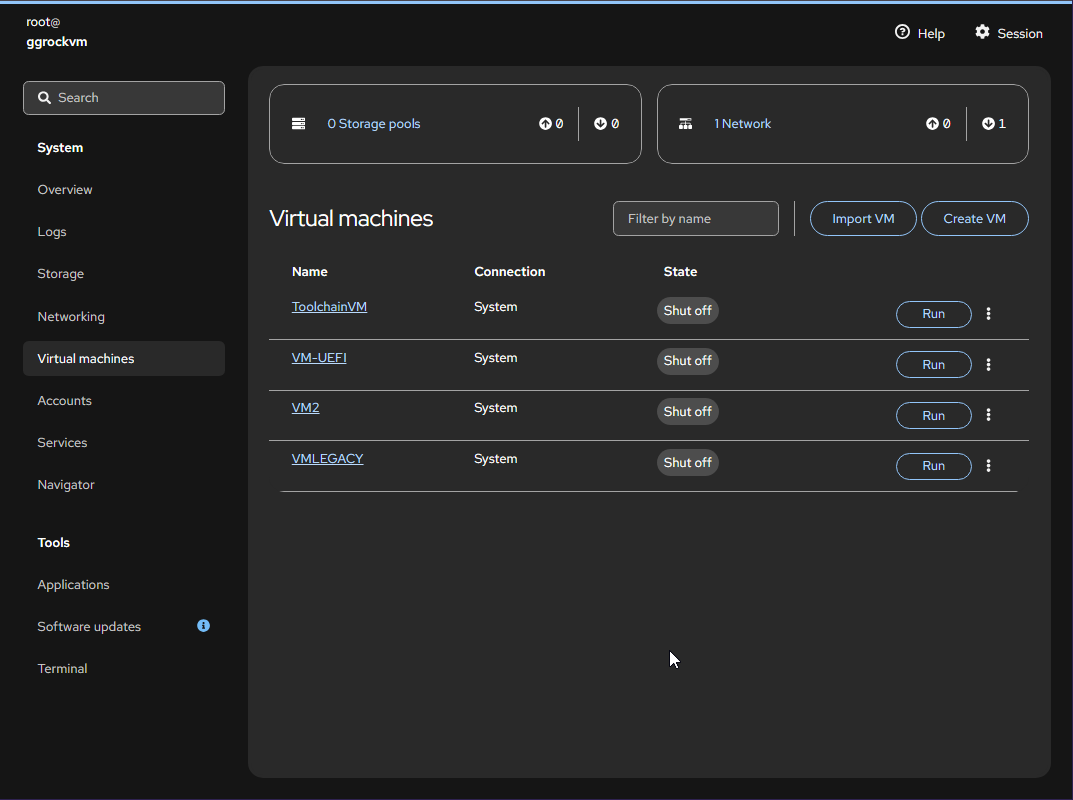
- Select the VM you shut down in Step 3.
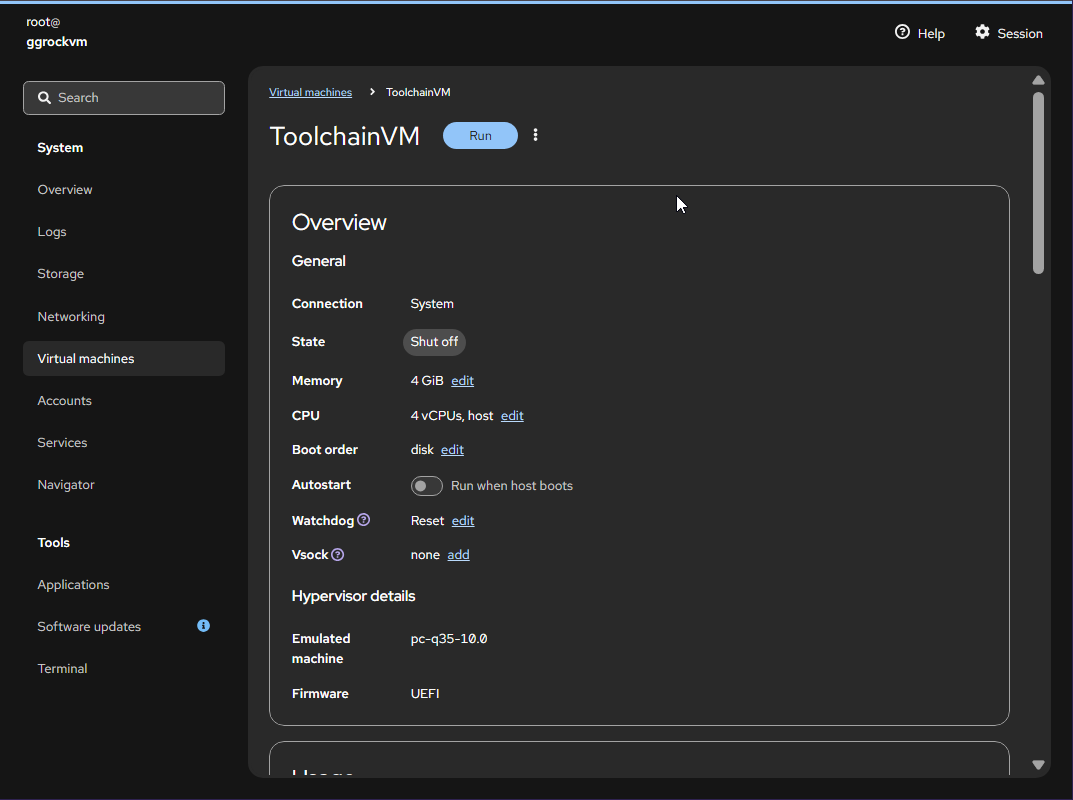
- Open the VM's CPU settings (the CPU edit link on the Overview card).
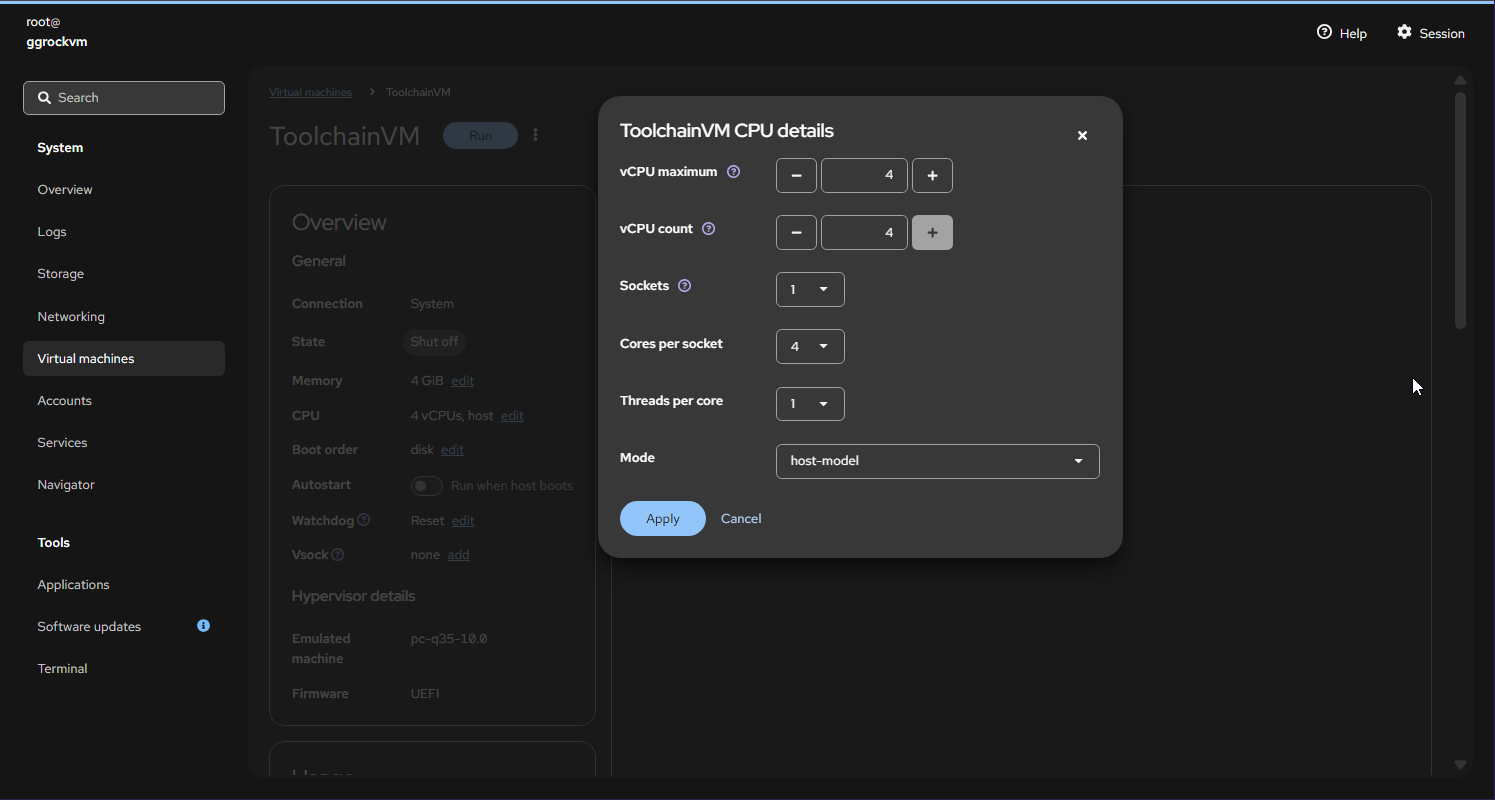
- Set the CPU type to
broadwell-notsx-ibrs.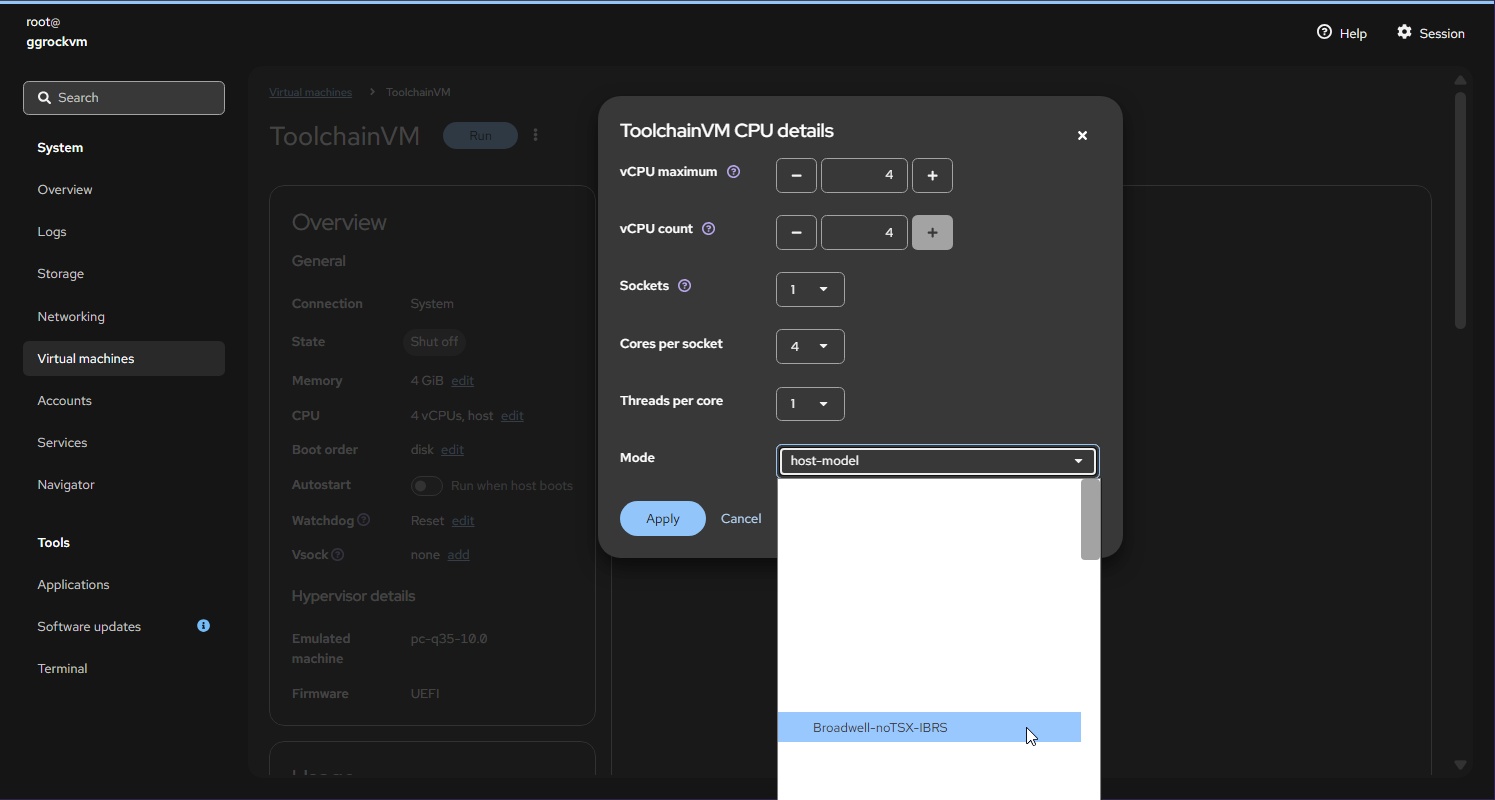
- Save your changes.
▶️ Step 5: Start the VM From ggRock
Go back to the ggRock admin panel and start the VM from there, not from Cockpit. Open the VM console from ggRock and confirm it boots to Windows.
✅ Step 6: Finish Your Image Setup
Once the VM boots to Windows:
- Check that BitLocker is turned off on the image.
- Save a snapshot.
- Run Add Hardware again.
For the full process, see VII. Create, Configure, and Test ggRock Images.
🚫 Things to Avoid
- Don't create a virtual network. ggRock already creates vmbr0 for you.
- Don't create or delete VMs in Cockpit. Use the ggRock admin panel.
- Don't worry about log noise. Errors in the server monitor are often harmless. If they persist, send a screenshot to support.
🆘 Still Stuck?
Chat with our support team with the purple chat bubble at the bottom-right of ggcircuit.com and include:
- A screenshot of the VM console
- A screenshot of the CPU settings in Cockpit
- Your ggRock version