

 English
 Español
 العربية
ggRock Secure Boot shim chain
本文暂无中文版本,现以英语显示。
Replace ggRock's stock ipxe.efi PXE path with a shimx64 → grubx64 chain compatible with stock Microsoft factory keys.
No sidecar files needed — the wrapper downloads everything.
Boot chain (before → after)
firmware → ipxe.efi becomes firmware → shimx64.efi → grubx64.efi → iPXE → Windows
Quick start
Two oneliners — install and revert. Both download from the hosted bundle, run in a temp directory, and clean up after themselves.
Install
wget -O - https://images.ggleap.com/ManagedServices/Scripts/shim-bundle/install.sh | bash -
Revert
wget -O - https://images.ggleap.com/ManagedServices/Scripts/shim-bundle/revert.sh | bash -
What the wrapper does
- Creates a temp directory and registers a cleanup trap — nothing is left on disk after exit.
- Downloads all five bundle files from
images.ggleap.com:install-shim-chain.sh,shimx64.efi,mmx64.efi,grubx64.efi, andMOK.cer. - Runs
install-shim-chain.sh, which verifies the MOK fingerprint, stages binaries in/var/lib/tftp/, patches/etc/dnsmasq.d/pxe.conf, and restarts dnsmasq. - Temp directory is removed automatically on exit. The revert wrapper only downloads the installer script — EFI sidecars are not needed for undo.
Before you run: BIOS requirements
On each client machine before deploying:
- Enter BIOS → Secure Boot settings.
- Set Secure Boot mode to Standard (sometimes labelled Setup or Factory).
- Use Restore Factory Keys (or equivalent) to load the default Microsoft keys into db/dbx.
- Save and exit. The machine is now ready to enroll the MOK via MokManager on first PXE boot.
Post-install steps
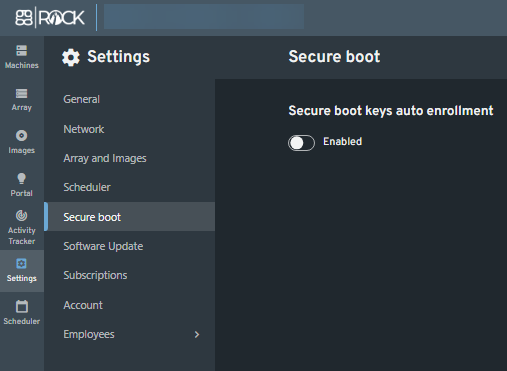
Step 1 — disable Secure boot keys auto enrollment
In the ggRock UI: Settings → Secure boot → Secure boot keys auto enrollment → toggle OFF
Step 2 — enroll the MOK on each client (one-time)
- Copy MOK.cer to a FAT-formatted USB stick.
- On first PXE boot, MokManager will appear automatically.
- Select Enroll key from disk, navigate to
MOK.cer, and confirm.
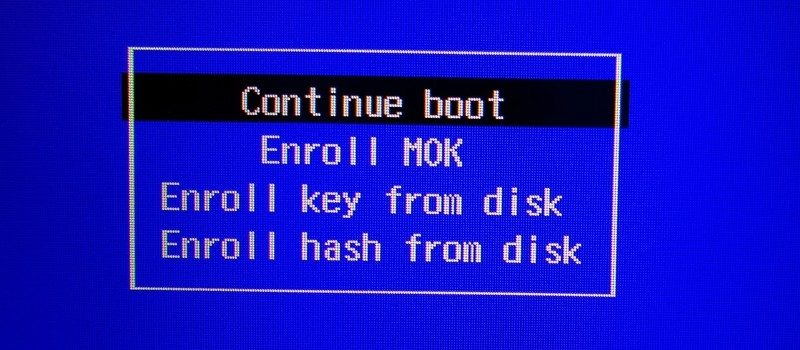
- Verify the SHA-256 fingerprint shown on screen matches the expected value before accepting.
Step 3 — validate
Reboot the client and confirm the full chain: firmware → shim → grubx64.efi → iPXE → Windows.
In PowerShell on the booted client:
Confirm-SecureBootUEFI
Should return True.
Hosted bundle
All files are served from https://images.ggleap.com/ManagedServices/Scripts/shim-bundle/
| File | Purpose |
|---|---|
install.sh |
Wrapper — downloads bundle and runs installer |
revert.sh |
Wrapper — downloads installer and runs with --revert |
install-shim-chain.sh |
Core installer / revert logic |
shimx64.efi |
MS-signed shim (Debian shim-signed) |
mmx64.efi |
MS-signed MokManager (Debian shim-signed) |
grubx64.efi |
iPXE binary pre-signed with MOK private key |
MOK.cer |
DER-encoded MOK public cert — clients enroll this |
Reverting
Run the revert oneliner. It restores the original dnsmasq config and removes the shim/grub/MOK binaries from TFTP.
wget -O - https://images.ggleap.com/ManagedServices/Scripts/shim-bundle/revert.sh | bash -
Restoring ggRock custom certificates after revert
If your ggRock setup uses custom Secure Boot certificates (rather than the Microsoft factory keys), restore them after reverting:
- Enter BIOS on each client → Secure Boot settings.
- Delete all Secure Boot keys (clears db, dbx, KEK, PK — puts firmware into Setup mode).
- In the ggRock UI, re-enable Secure boot keys auto enrollment (Settings → Secure boot → toggle ON).
- PXE boot the client — ggRock will re-enroll its custom certificates via LockDown.efi automatically.
Troubleshooting
| Symptom | Likely cause / fix |
|---|---|
| MOK.cer fingerprint mismatch | Bundle on the host has a different cert than the pinned SHA-256. Verify with openssl x509 -inform der -in MOK.cer -noout -fingerprint -sha256. |
| Download failure during install | Verify the server can reach images.ggleap.com. The wrapper exits immediately on any failed wget. |
| dnsmasq not active after install | Config syntax error. Run journalctl -u dnsmasq -n 30. The installer runs dnsmasq --test before restarting. |
| Script aborts: "config in unexpected state" | The dnsmasq config was hand-edited between runs. Inspect /etc/dnsmasq.d/pxe.conf manually. |
| Client hangs at shim | grubx64.efi signature doesn't match the enrolled MOK. Re-sign, re-upload to the bundle host, then re-run the install oneliner. |
| MokManager doesn't appear on first boot | Secure boot keys auto enrollment is still enabled, or BIOS is not in Standard mode with factory keys. Check both. |
| Clients still attempting LockDown.efi enrollment | Secure boot keys auto enrollment is still enabled in the ggRock UI. Disable it (see Step 1 above). |
| Secure Boot not active after boot | MOK not enrolled on the client. Repeat the USB enrollment step. |
| BIOS rejects shim on boot | BIOS is in User/Custom mode — factory keys not restored. Reset to Standard mode with factory keys and retry. |