Español
 中文
 العربية
🧑💼 SAML SSO - How to Set Up Google Workspace
1. Add Custom SAML App
- Go to your Google Admin Console.
- Navigate to:
Apps > Web and mobile apps > Add app > Add custom SAML app
2. Enter App Details
- Provide an app name (e.g.,
ggLeap SSO) - Optionally upload an app icon.
- Click Continue.
3. Set Up SAML Configuration
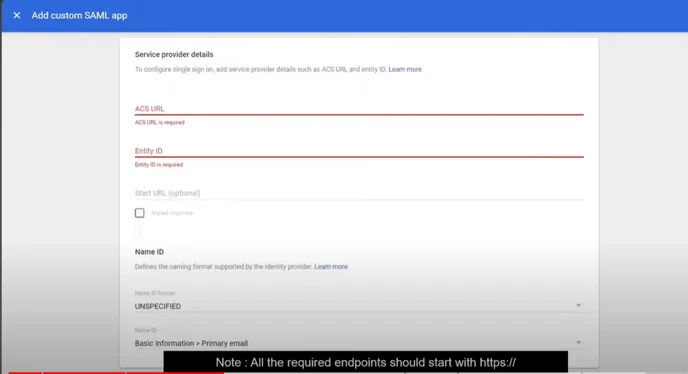
Fill in the following fields:
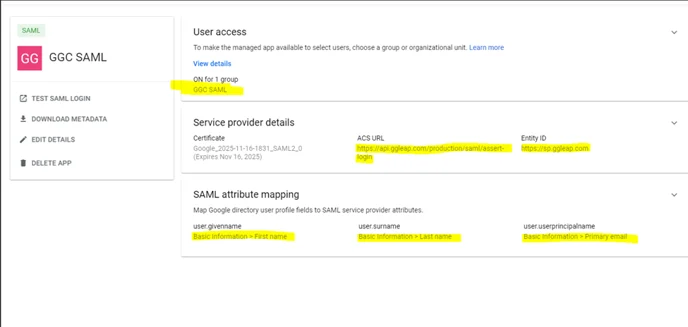
- ACS URL:
https://api.ggleap.com/production/saml/assert-login - Entity ID (Exactly as shown, NO trailing slash):
https://sp.ggleap.com - Leave the rest as default unless specific requirements are given.
- Click Continue.
4. 👥 Attribute Mapping
Add the following SAML attribute mappings:
| Google Directory Attribute | App Attribute |
|---|---|
| First name | FirstName |
| Last name | LastName |
| Primary email | Email |
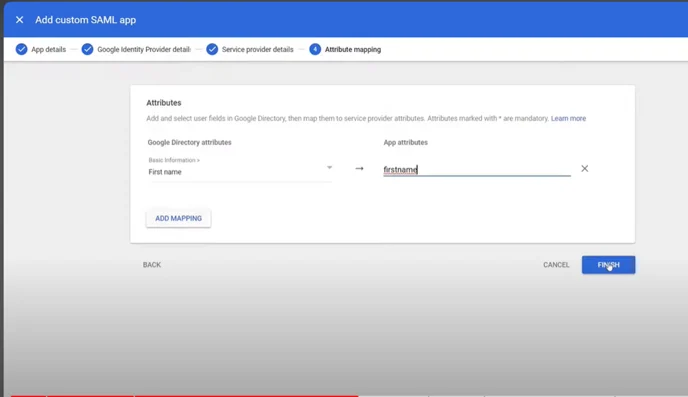
To do this:
-
Click Add Mapping for each.
-
Choose the corresponding Google directory attribute.
-
Enter the exact app attribute name (case-sensitive).
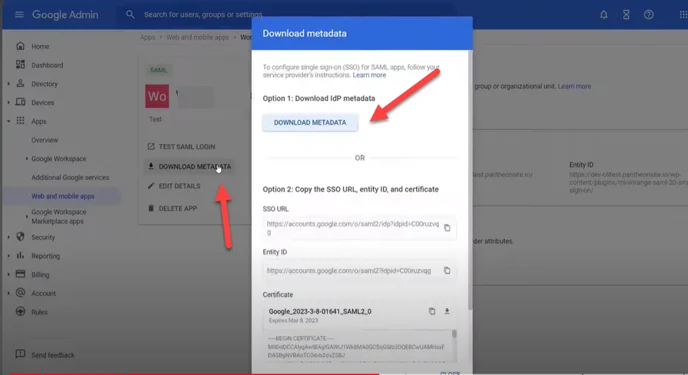
5. Download the IdP Metadata
- After setup, download the Metadata XML file from Google.
6. Host the Metadata XML
- Upload the XML file to a publicly accessible hosting service (e.g., your website, Google Drive with public sharing, AWS S3, etc.)
- Copy the public link to the hosted metadata file.
7. Complete Integration
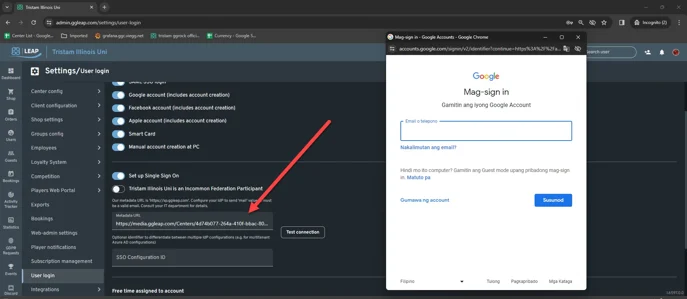
- In your app’s SSO settings (e.g., within ggLeap), paste the Metadata URL.
- Test the connection to verify the SSO integration.
- Click Save once successful.