

 Español
 中文
 العربية
Installing ggLeap to ggRock Machine
This article describes steps necessary to install the ggLeap client to a ggRock Machine.
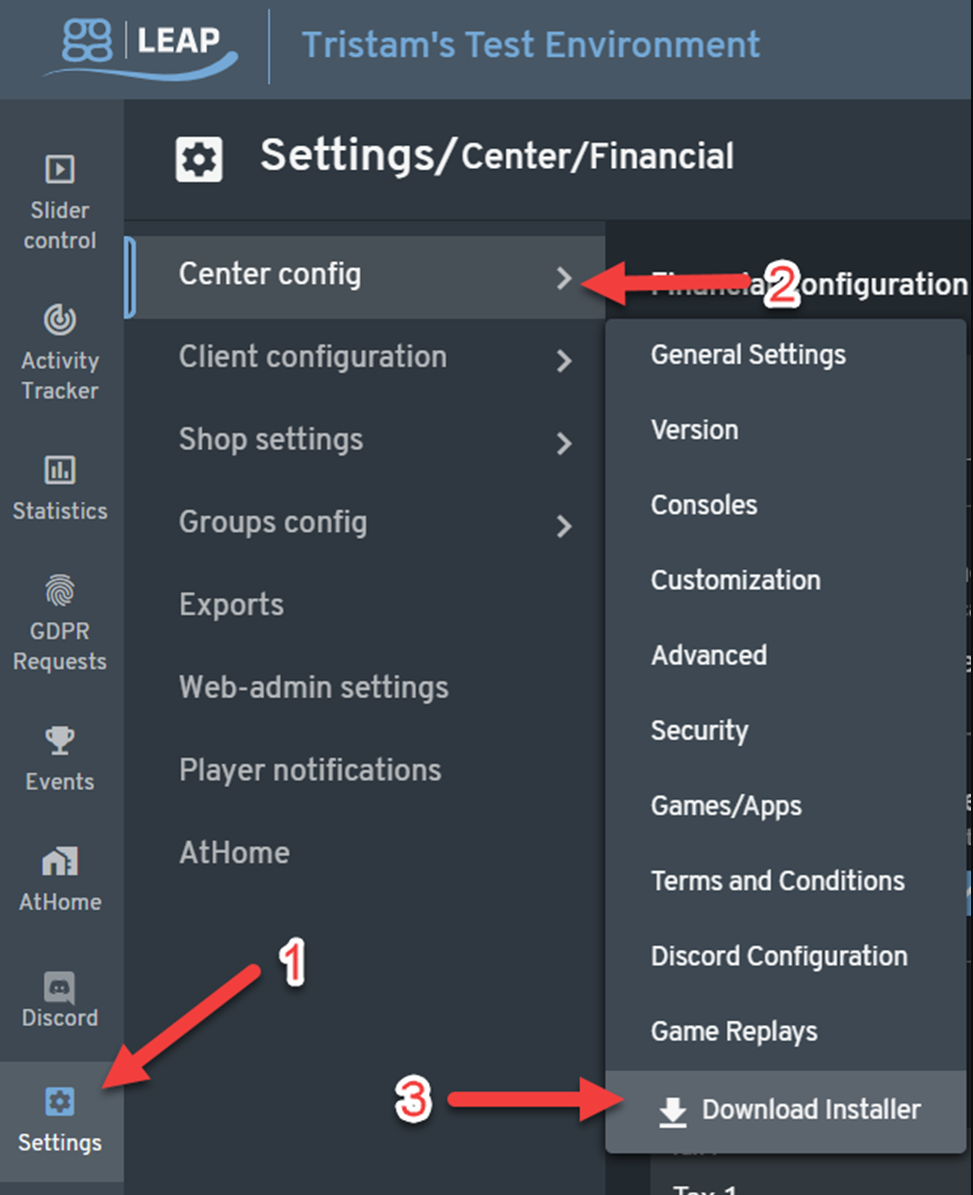
Login to the ggLeap webadmin and download the ggLeap installer.

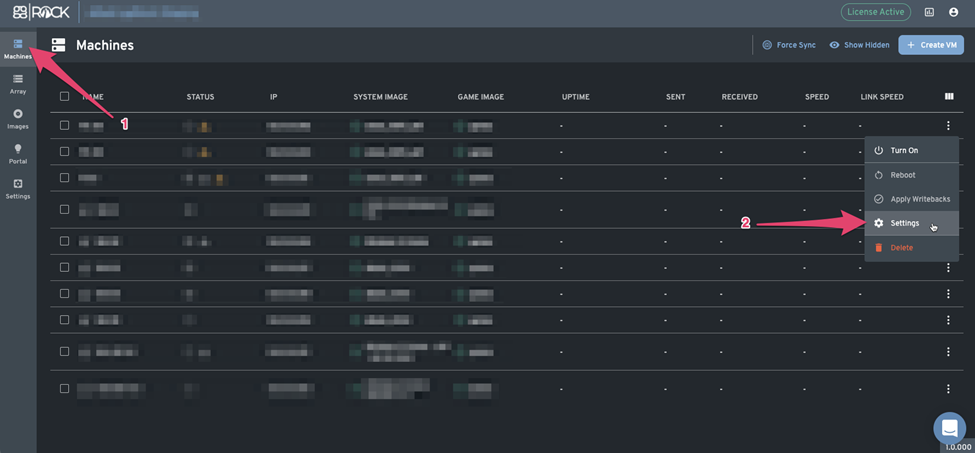
the ggRock Web UI and enable the "Keep Writebacks" setting on the machine where we are going to install ggLeap.
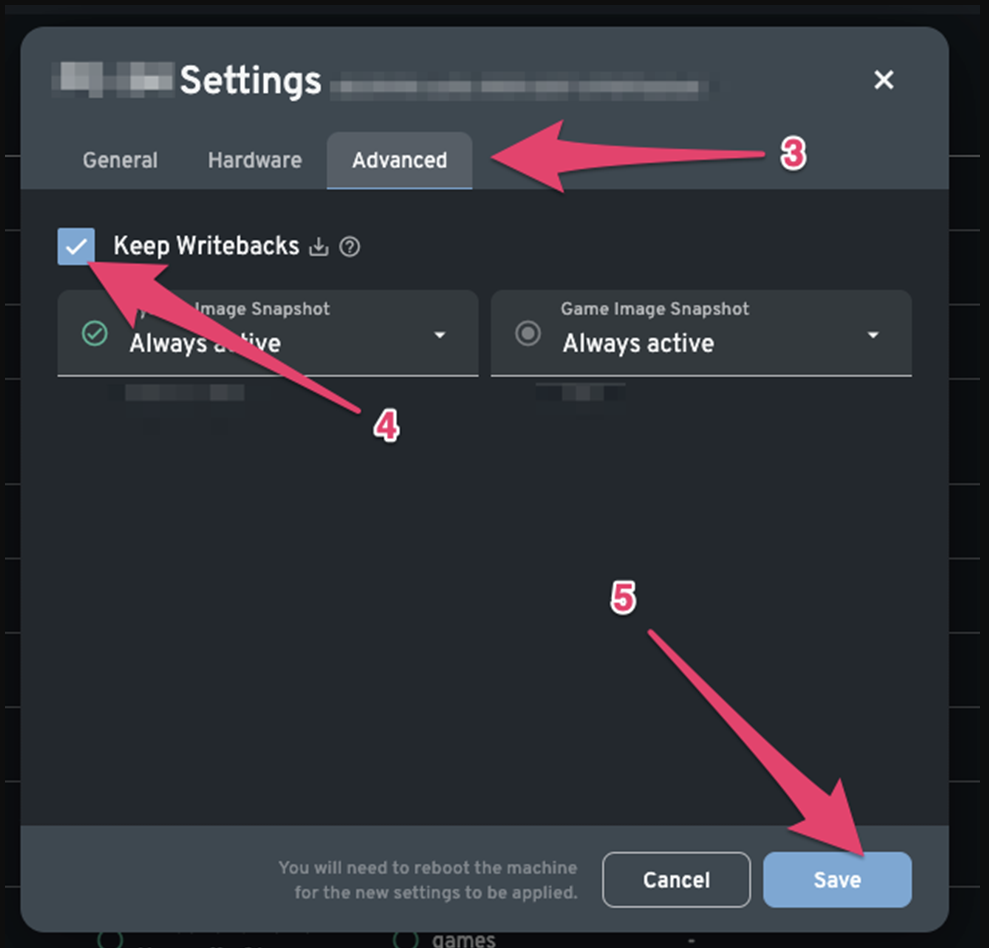
- Turn on the machine
- Run the ggLeap installer that was downloaded from the webadmin
- Enter your webadmin employee credentials (employee should have Can connect machines permission)

- You will be asked to assign a name to this PC
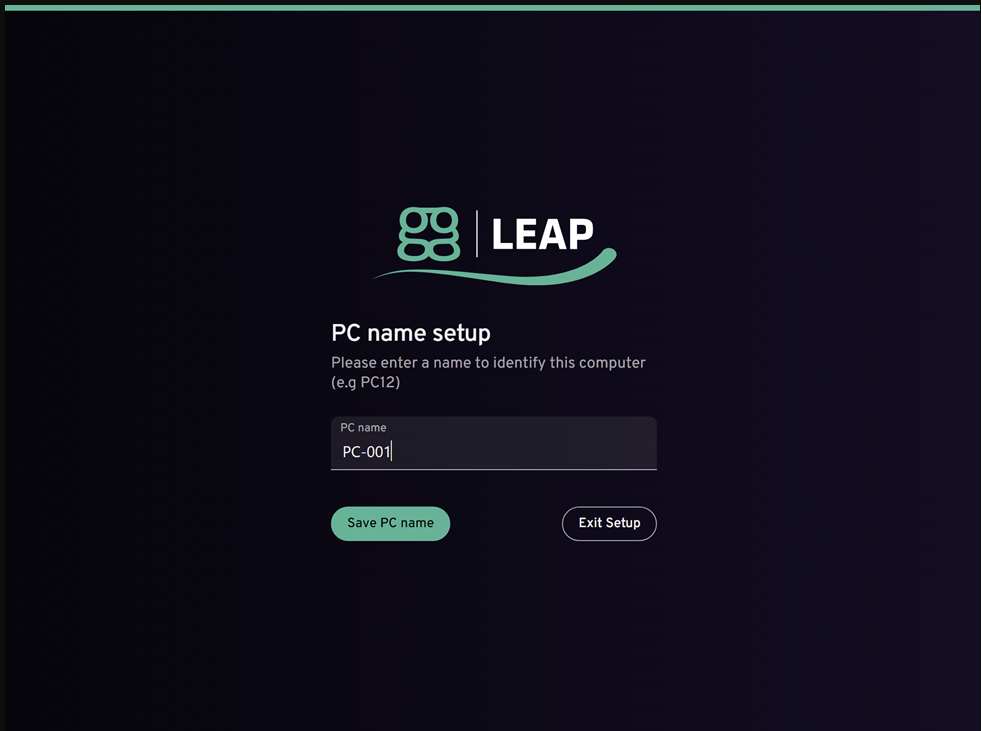
- The PC will connect to ggLeap servers
- This PC should now show up in your webadmin dashboard, then the PC will reboot.
- ggLeap will now start in shell mode, and will download all the required files.
- You may shutdown the machine when you see the login page.
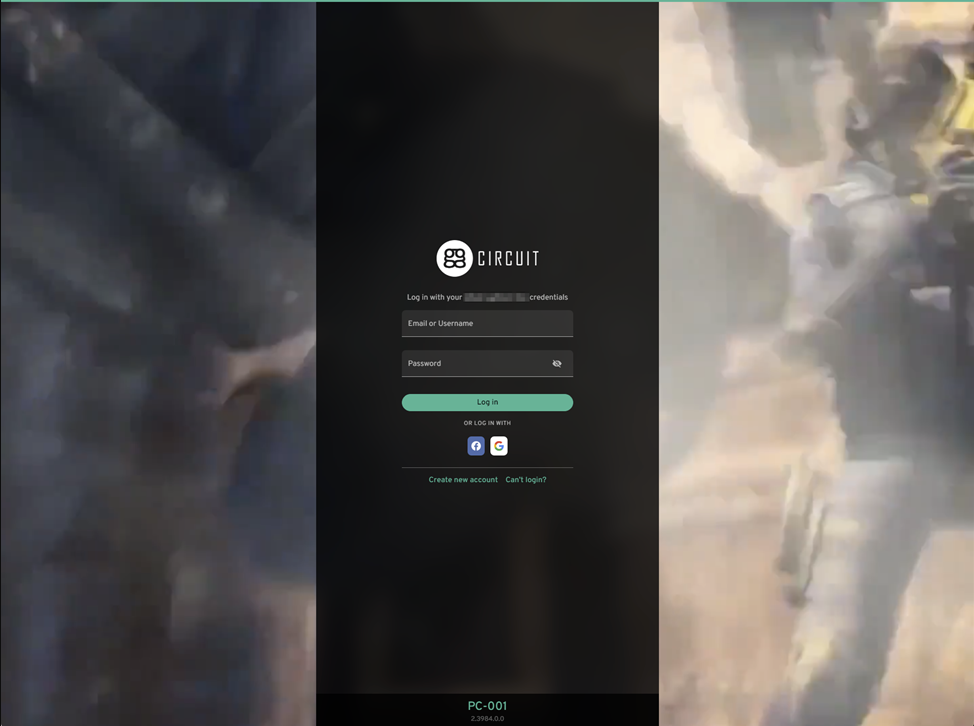
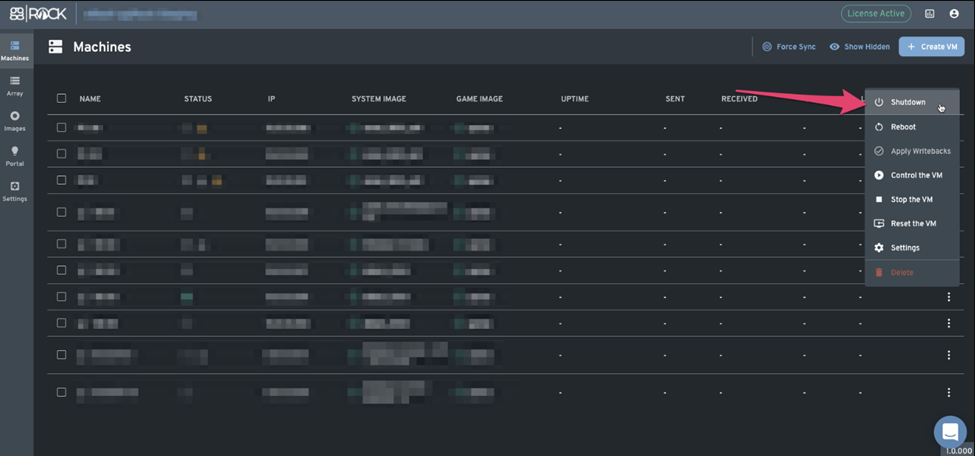
- Go back to ggRock UI, or Webadmin and shut down this machine.
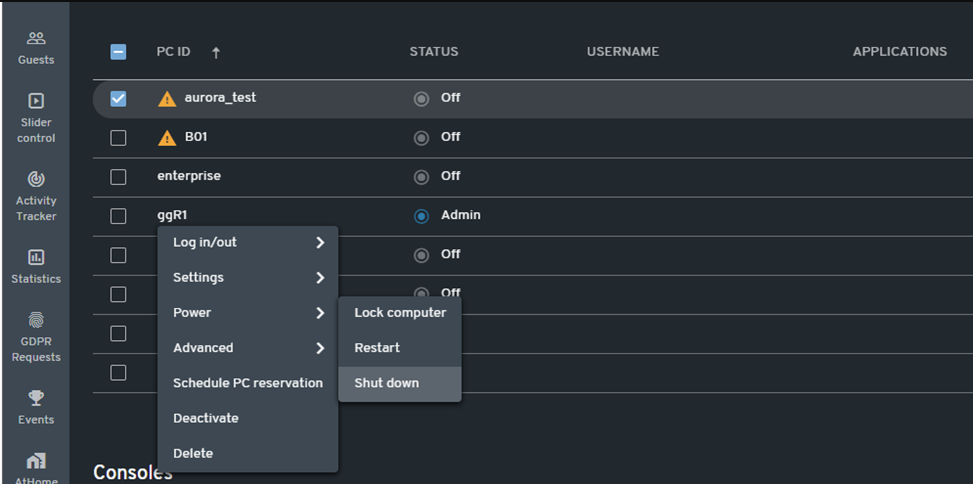
You can also shut down the PC via the ggLeap web admin.
- From the ggRock Web UI, select apply writebacks in the context menu of the system you just shut down
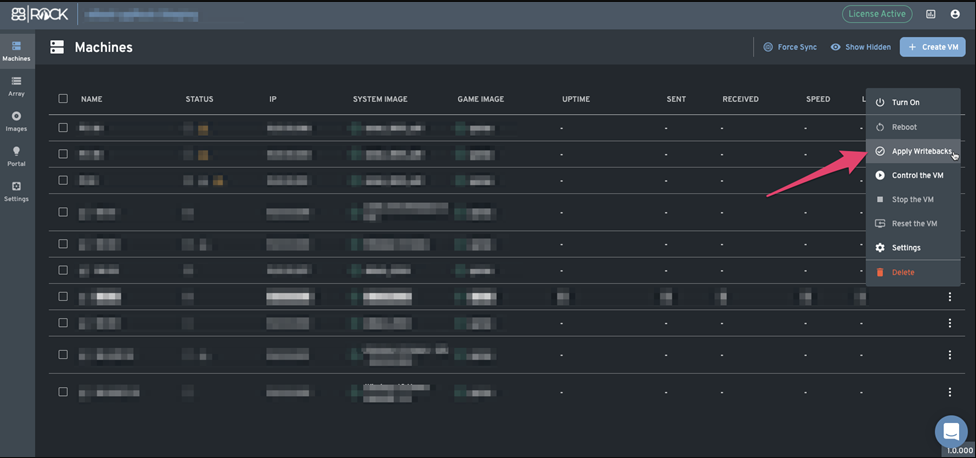
Add comment to the writeback and click apply.
Was this article helpful?
More in Creating & updating images
- Adding a New Machine Type to a ggRock Image using the ggRock IC Tool (Legacy Process)
- Adding a New Machine Type to a ggRock Image using the ggRock Image Creation Tool (Deprecated)
- Adding a New Machine Type to a ggRock Image using the ggRock Seamless Boot Procedure
- ggLeap Startup Commands with Diskless Boot
- ggRock Image Creation Tool Manual (Deprecated)