

 Español
 中文
 العربية
🛠️ Troubleshooting Client PC Performance Issues
🧪 Step-by-Step Diagnostic Procedure
When a client machine is reported to be sluggish or underperforming, follow these steps to investigate:
1. 🌐 Check Network Connection in ggRock
A machine operating at a 100 Mbps link speed instead of 1 Gbps (or higher) will experience slow boot times and UI lag.
- Log in to the ggRock Web UI
- Navigate to Machines
- Locate the affected machine (e.g., PC25)
- Confirm the Link Speed displayed
⚠️ If the machine is linked at 100 Mbps, inspect the switch port, Ethernet cable, or NIC. Consider:
- Swapping ports or cables
- Restarting the switch
- Ensuring auto-negotiation is enabled on the switch
2. 🧠 Run Windows Memory Diagnostic
Faulty RAM can lead to intermittent performance issues. Here’s how to test for memory problems:
- Press
Win + Rand typemdsched - Select Restart now and check for problems
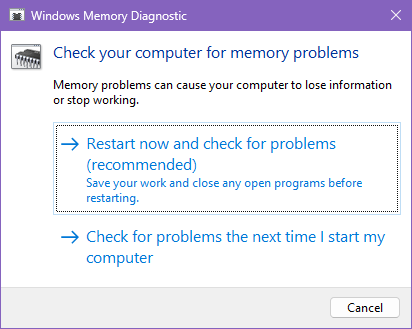
- The system will reboot and automatically run the test
- After the test:
- Open Event Viewer
- Go to Windows Logs > System
- Search for "MemoryDiagnostics-Results"
🔁 Note: Be sure to enable “Keep Writebacks” for the machine in ggRock before starting this test to avoid data loss.
3. ✅ Run Benchmarking Tools
Use the following tools to assess disk, network, CPU, and GPU performance:
- CrystalDiskMark
→ Tests read/write speed of the local storage
→ Download: CrystalDiskMark - iPerf3
→ Measures network throughput
→ Run against a local iPerf3 server for best accuracy
🌐 Using iPerf3 for Network Speed Testing (Windows & Linux)
Applies to: ggRock servers, client machines, general LAN troubleshooting
Last Updated: April 2025
Use Case: Measuring network performance between a server and a client (e.g., to troubleshoot slow diskless boot or sluggish in-game performance).
📘 What is iPerf3?
iPerf3 is an open-source network performance measurement tool that creates TCP or UDP traffic streams between two machines (a "client" and a "server") and reports the throughput.
This is especially useful for:
- Measuring maximum network bandwidth
- Troubleshooting latency or packet loss
- Identifying network bottlenecks in LAN environments
⚔️ TCP vs UDP in iPerf3
| Protocol | Description |
|---|---|
| TCP | Reliable, connection-based (uses a 3-way handshake). Good for measuring stable throughput. |
| UDP | Unreliable, connectionless. Better for testing jitter, packet loss, and streaming scenarios. |
✅ Tip: Use TCP for most scenarios unless you're specifically testing real-time applications like VoIP or game streaming.
🐧 Installing iPerf3 on Linux (Debian)
- Log in to your Debian system.
- Install iPerf3:
   sudo apt-get update
   sudo apt-get install iperf3
- Confirm installation:
iperf3 --version
🪟 Installing iPerf3 on Windows
- Download the iPerf3 Windows build from:
https://files.budman.pw/ - Extract the ZIP archive to a known location (e.g., Desktop).
- Open Command Prompt and navigate to the extracted folder:
cd "C:\Users\YourName\Desktop\iperf-3.x.x"
🚀 Running iPerf3 Tests
🖥️ On the Server (Debian/Linux):
- Run in server mode:
iperf3 -s
The terminal should say:
Server listening on 5201
💻 On the Client (Windows):
- Open Command Prompt in the iPerf3 folder.
- Run a client test against the server’s IP:
iperf3.exe -c [Server_IP]
Example:
iperf3.exe -c 192.168.1.100
📊 Understanding the Output
During the test, the client sends data to the server.
- Sender = Client → Upload test from client to server
- Receiver = Server → Download test on server from client
[ ID] Interval Transfer Bandwidth
[ 4] 0.00-10.00 sec 112 MBytes 94.0 Mbits/sec sender
[ 4] 0.00-10.00 sec 111 MBytes 93.1 Mbits/sec receiver
📌 Want to test download performance from server to client? Use the reverse flag:
- Server:
iperf3 -s - Client:
iperf3.exe -c [Server_IP] -R
- GPU Benchmark
→ Use Unigine Heaven or GPU driver tools (e.g., NVIDIA Control Panel) - CPU Burn Test
→ Run a short stress test (cpuburnor similar) for 60 seconds to evaluate CPU stability
📝 Notes
- Compare test results with a known healthy machine running the same image.
- Keep screenshots or logs of results for documentation or support tickets.
Still having issues?
Contact ggSupport or submit a ticket from your ggRock dashboard.