

 Español
 中文
 العربية
Disabling Defragmentation
This article describes steps necessary to disable defragmentation in Windows.
Lang
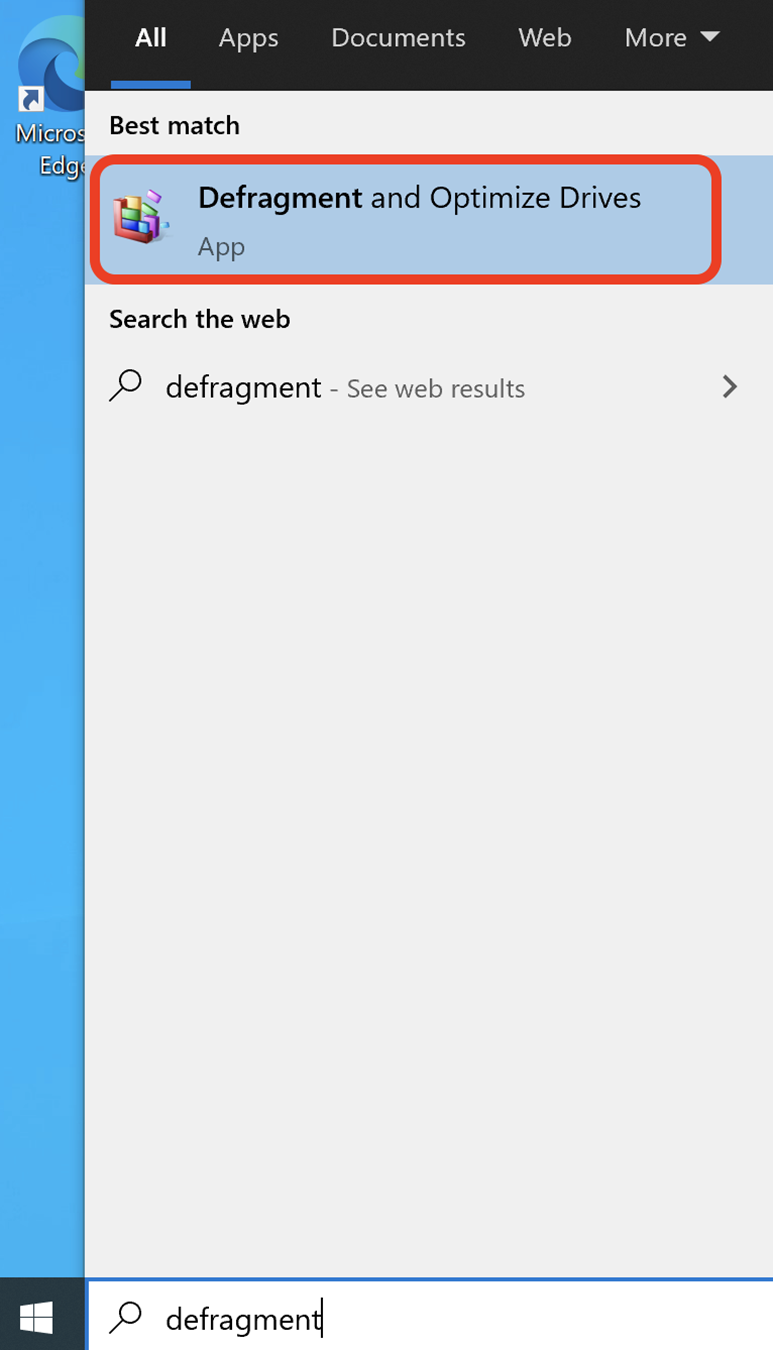
- In the Start Menu, search for the "Defragment and Optimize Drives" application and launch it.
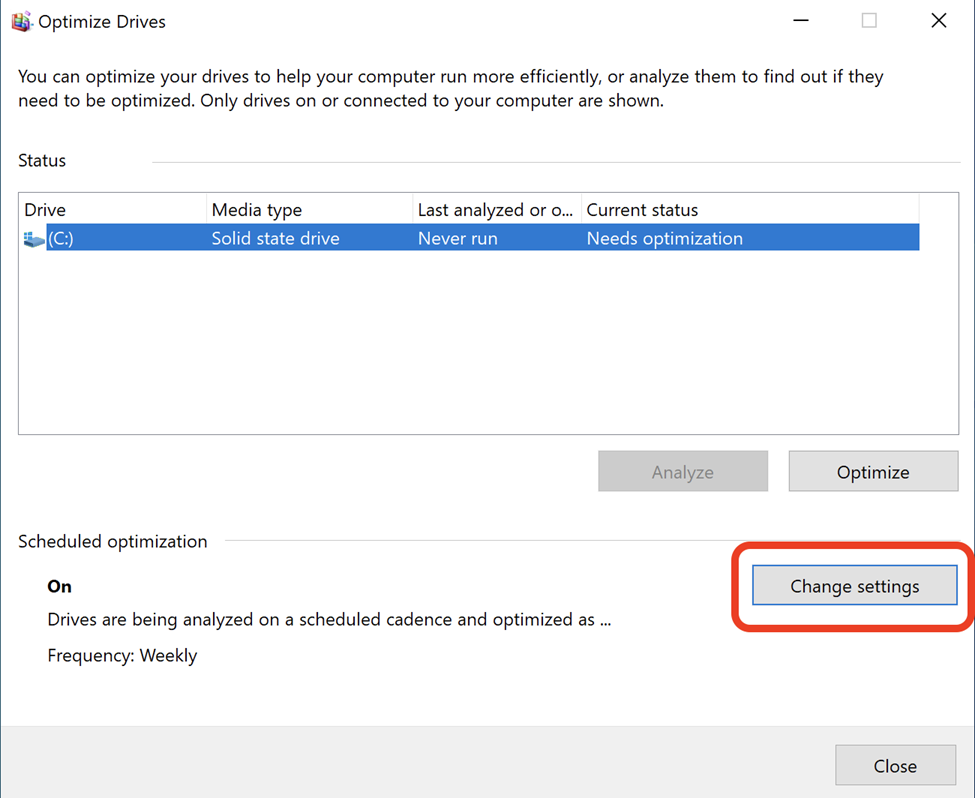
- In the "Optimize Drives" window, click the "Change Settings" button.
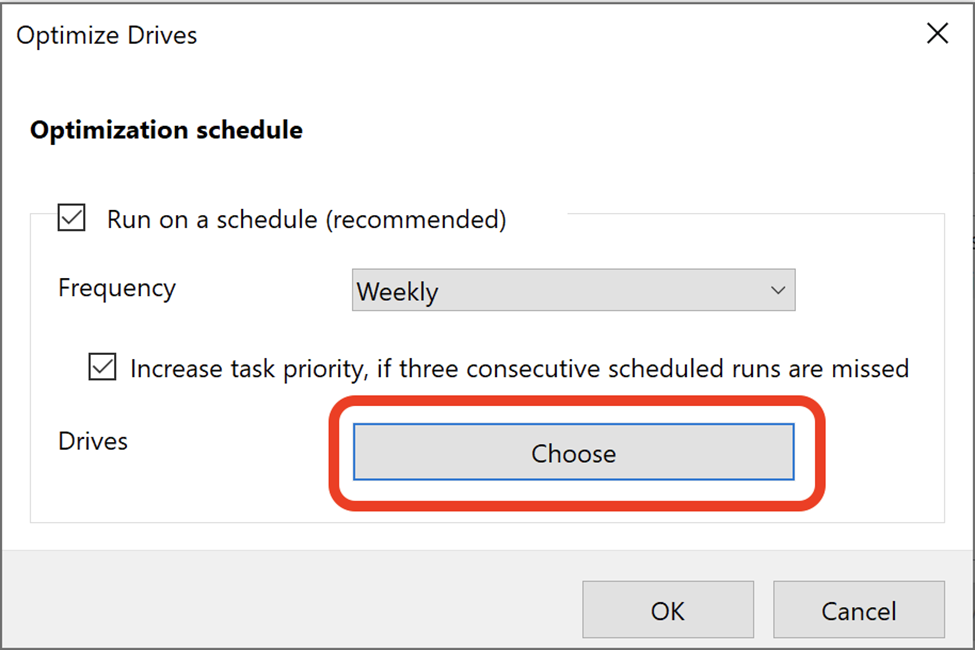
- In the "Optimize Drives" dialog, click the "Choose" button.
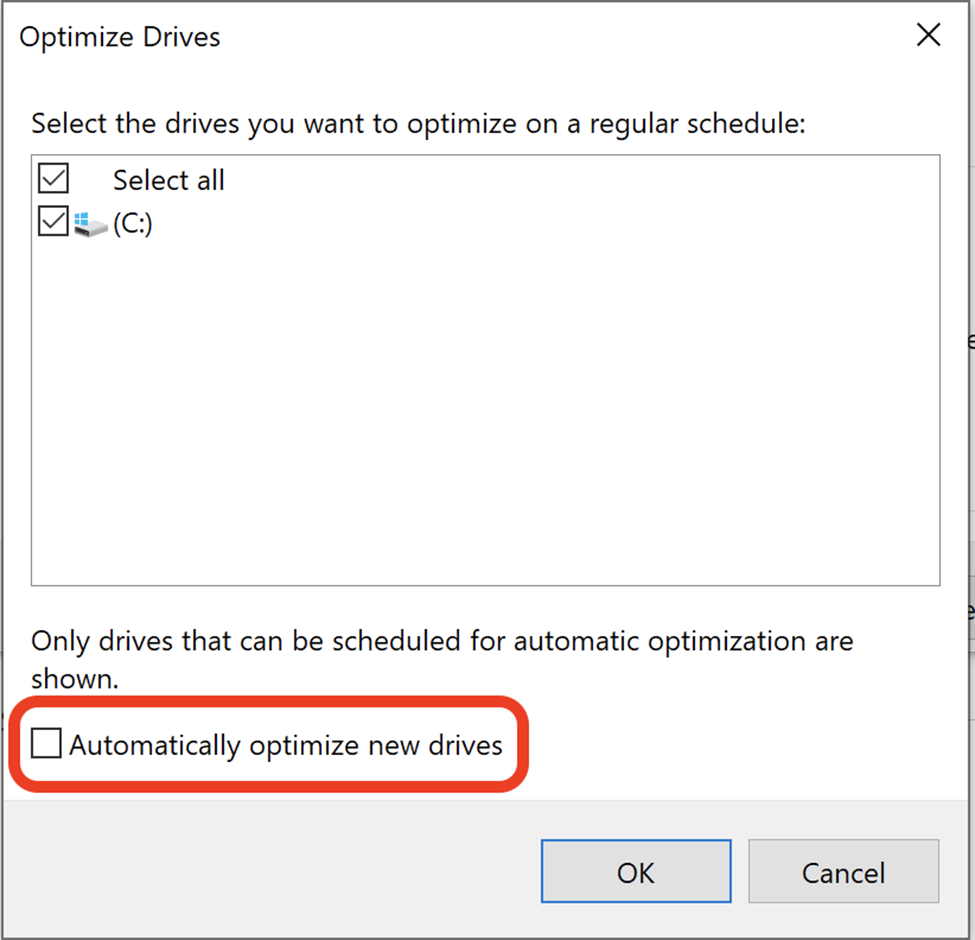
- In the "Optimize Drives" dialog, uncheck the "Automatically optimize new drives" checkbox.
- In the "Optimize Drives" dialog, click the "OK" button.
In the "Optimize Drives" dialog, uncheck "Run on a schedule (recommended)".
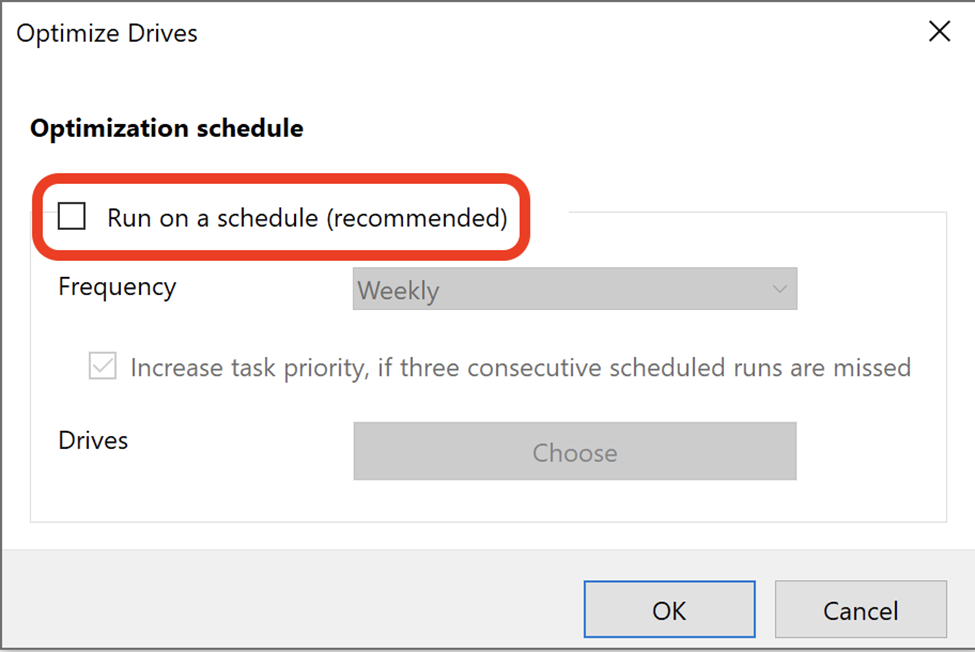
- In the "Optimize Drives" dialog, click the "OK" button.
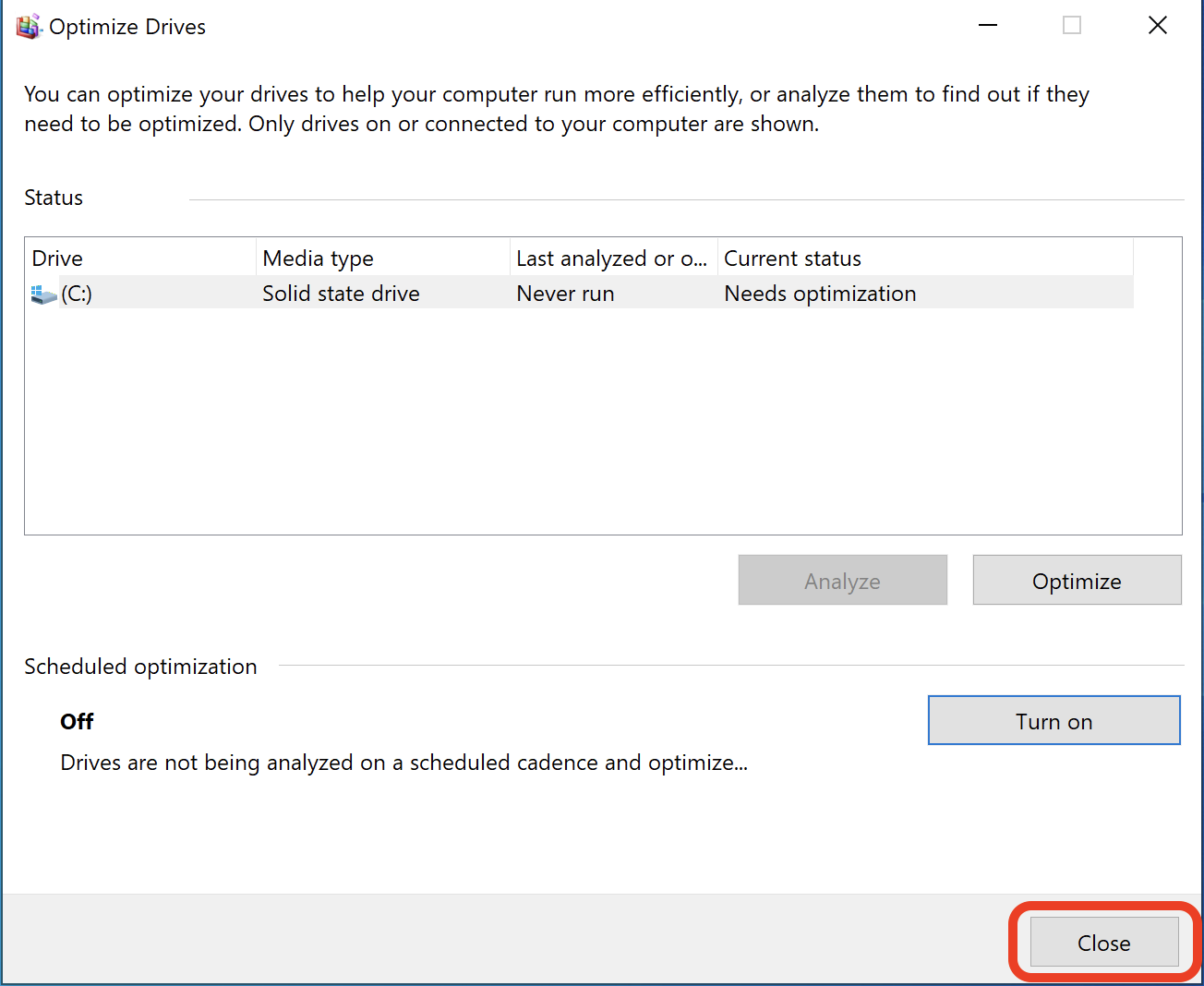
In the "Optimize Drives" window, click the "Close" button.