

 Español
 中文
 العربية
🔧 How to Enable or Disable Windows Updates
(With Sordum WUB, Group Policy, or Windows Settings)
🛠️ Method 1: Use Sordum Windows Update Blocker
(Best for All Editions – Quick & Simple)
✅ Disable Updates
- Download from Sordum.org
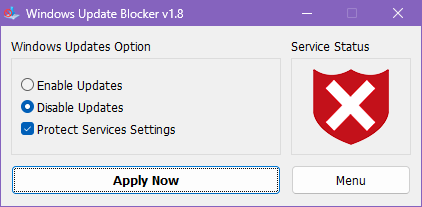
Extract and runWub.exeas Administrator. - Select “Disable Updates” and (optionally) check “Protect Service Settings”.
- Click “Apply Now”.
The icon will turn red 🛑 to show updates are disabled.
🔁 Enable Updates
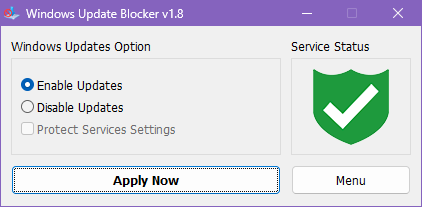
To turn updates back on, select “Enable Updates” and click “Apply Now”.
⚙️ Optional: Ensure Microsoft Store Works by Enabling dosvc
The dosvc (Delivery Optimization Service) is needed for Microsoft Store apps to download and update. WUB may block this by default.
You can fix that by modifying the service list:
🛠 Edit Wub.ini:
- Open the
Wub.inifile in a text editor. - Find the
[Service_List]section. - Change:
dosvc=2,4
to:
dosvc=2,2,2
This makes sure dosvc is always enabled, regardless of WUB’s state. ✅
🖱️ Or Use the WUB UI:
- Click the ≡ menu → Service List Options
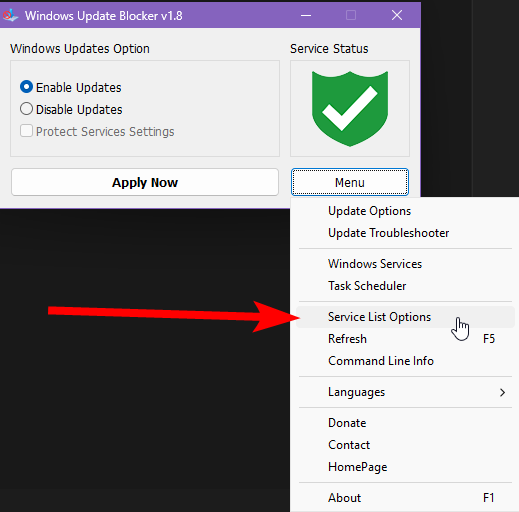
- (1) Click
dosvcand change the (2) default service type and (3) disabled service type to “Automatic”.
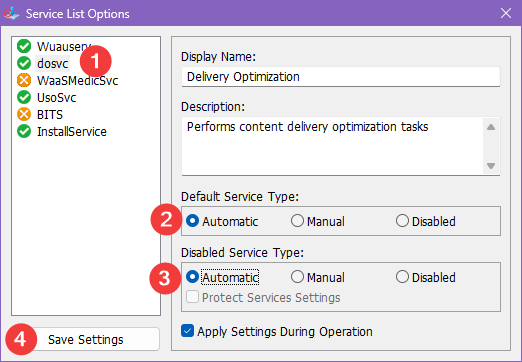
- (4) Save and reapply settings in the WUB main UI Window
🧱 Method 2: Using Group Policy Editor
(Windows Pro, Enterprise, Education only)
🛑 Disable Automatic Updates
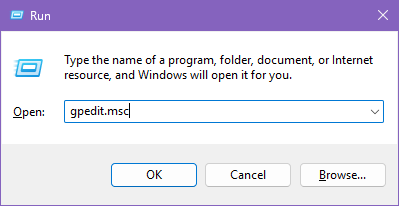
- Press
Win + R, typegpedit.msc, and hit Enter.
- Navigate to:
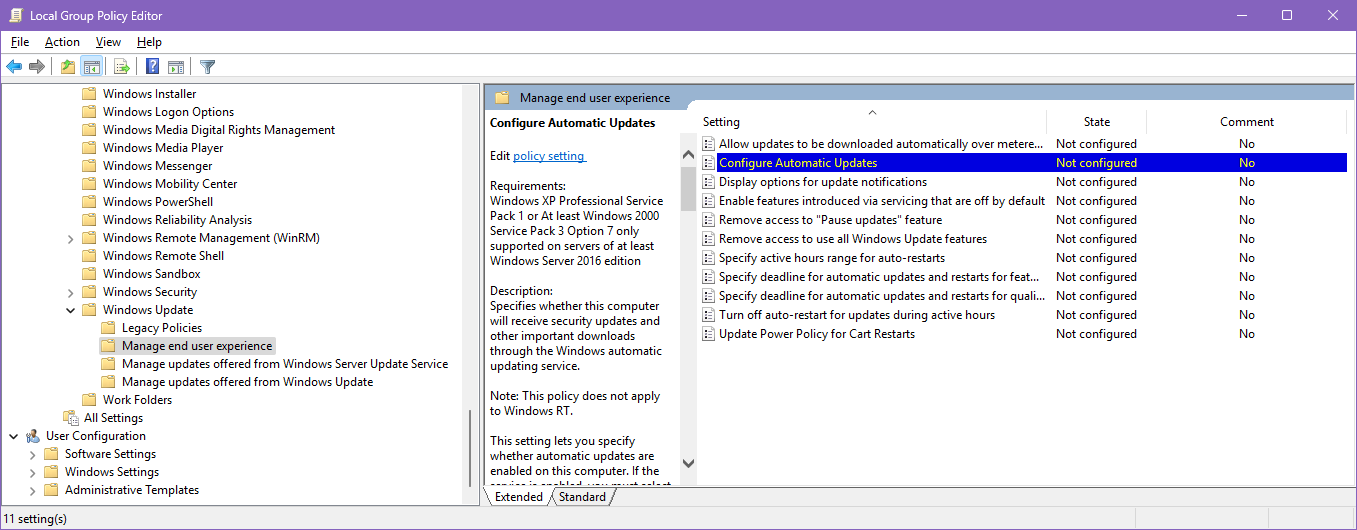
Computer Configuration > Administrative Templates > Windows Components > Windows Update > Manage end user experience
- Double-click Configure Automatic Updates.
- Set it to Disabled → Click Apply and OK.
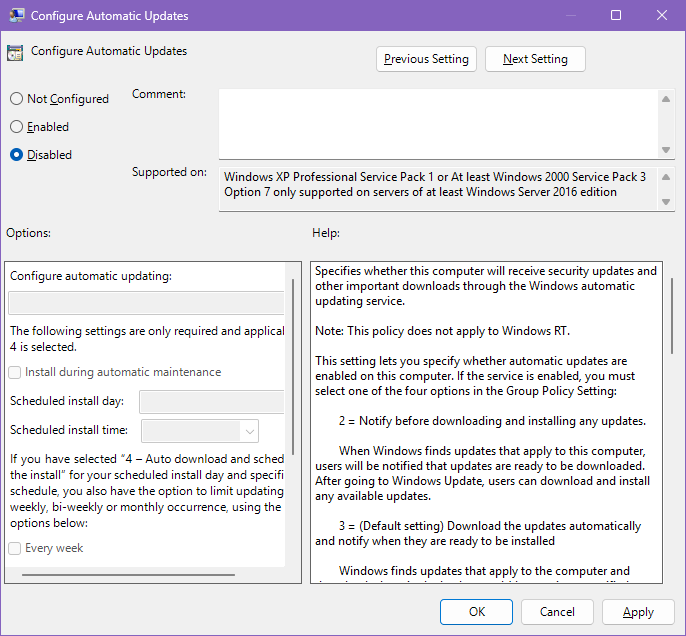
💡 Or select Enabled and pick:
- “2 - Notify for download and auto install” (for more control)
⏸️ Method 3: Using Windows Settings UI
(All Editions – Temporary Delay Only)
📆 Pause Updates
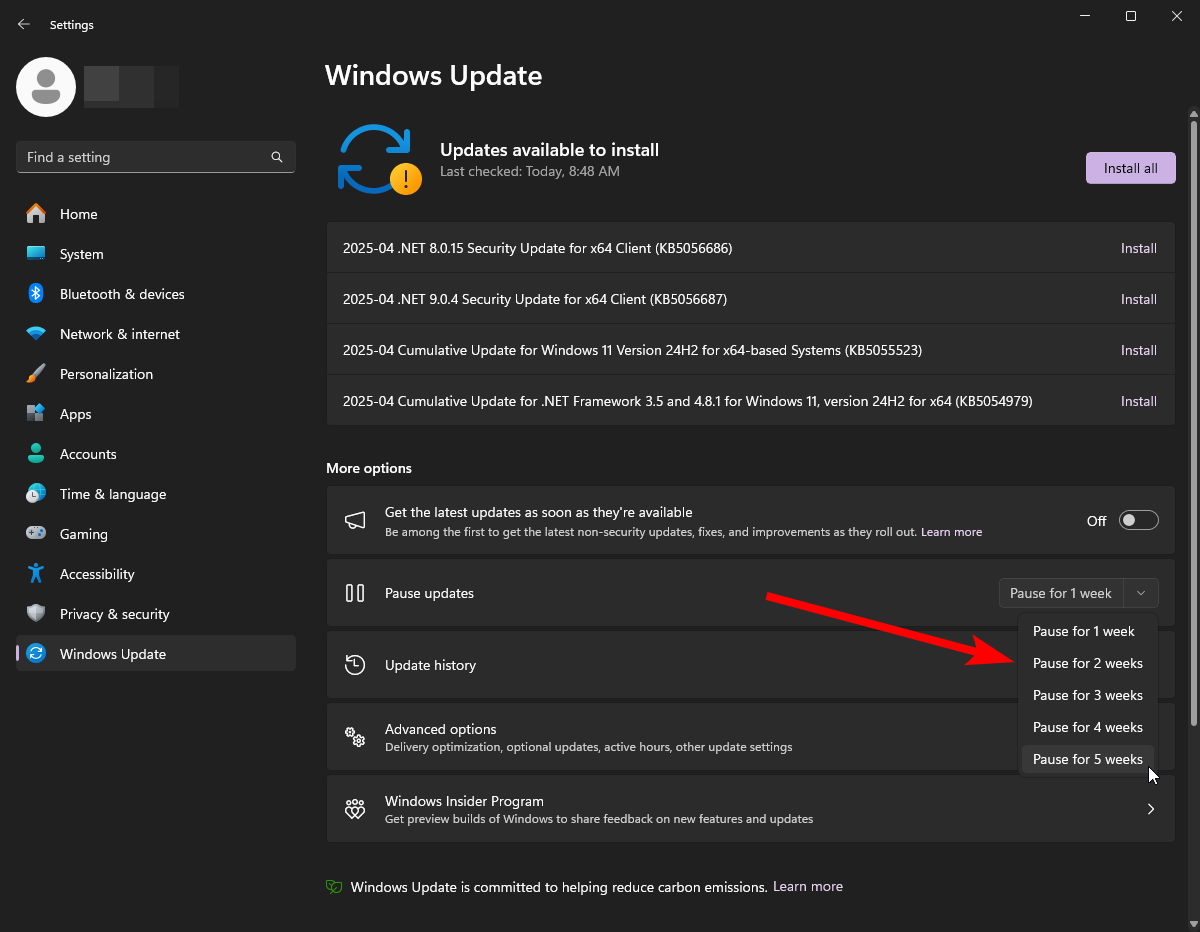
- Open Settings → Windows Update.
- Click “Pause for 1 week”, or up to 5 weeks as desired.
⌛ Delay Feature/Quality Updates
(Windows Pro, Enterprise, Education)
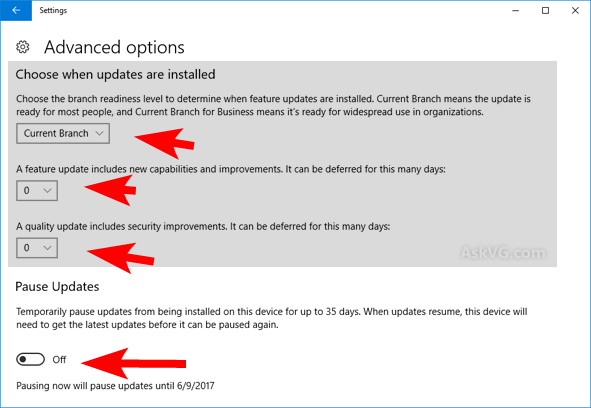
- Go to Settings → Windows Update → Advanced options.
- Scroll to “Pause updates” or set delay under:
- Feature updates: Delay up to 365 days
- Quality updates: Delay up to 30 days
📌 Summary Table
| Method | Editions | Ease | Control | Duration |
|---|---|---|---|---|
| Sordum WUB | All | ⭐⭐⭐⭐ | 🔒 Full Block | Until re-enabled |
| Group Policy Editor | Pro, Enterprise, Education | ⭐⭐⭐ | ⚙️ Fine Control | Persistent |
| Windows Update Settings | All | ⭐⭐ | ⏳ Limited Delay | 1–5 weeks |