

 Español
 中文
 العربية
Changing the Owner of a ggRock Server
This article describes steps necessary to change the owner user of a ggRock server (this is the user that can perform offline actions).
Problem
As a center owner, it may be desirable to adjust which user account has the "owner" permission in ggRock.
Solution
-
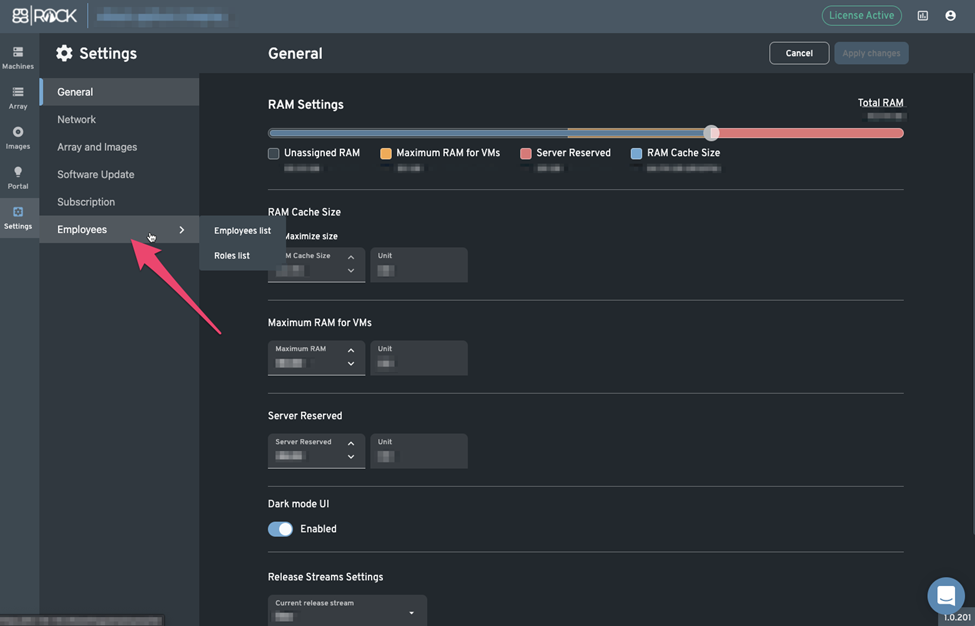
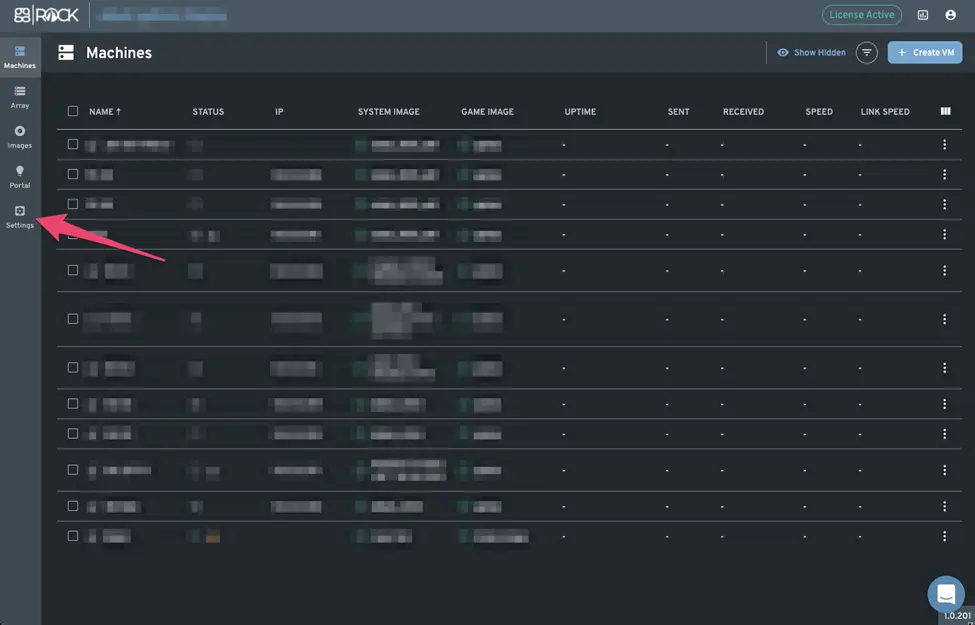
From the ggRock Web UI, click the "Settings" button at the bottom of the buttons in the left column.
-
From the "Settings" screen, click the "Employees" link.
-
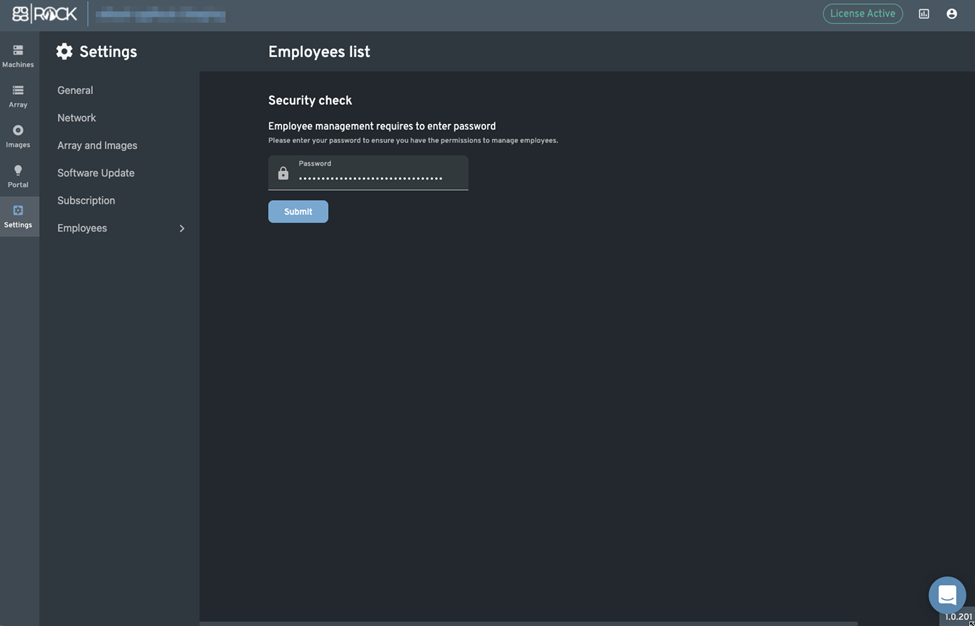
From the "Security check" screen, enter your password, then click the "Submit" button.
-
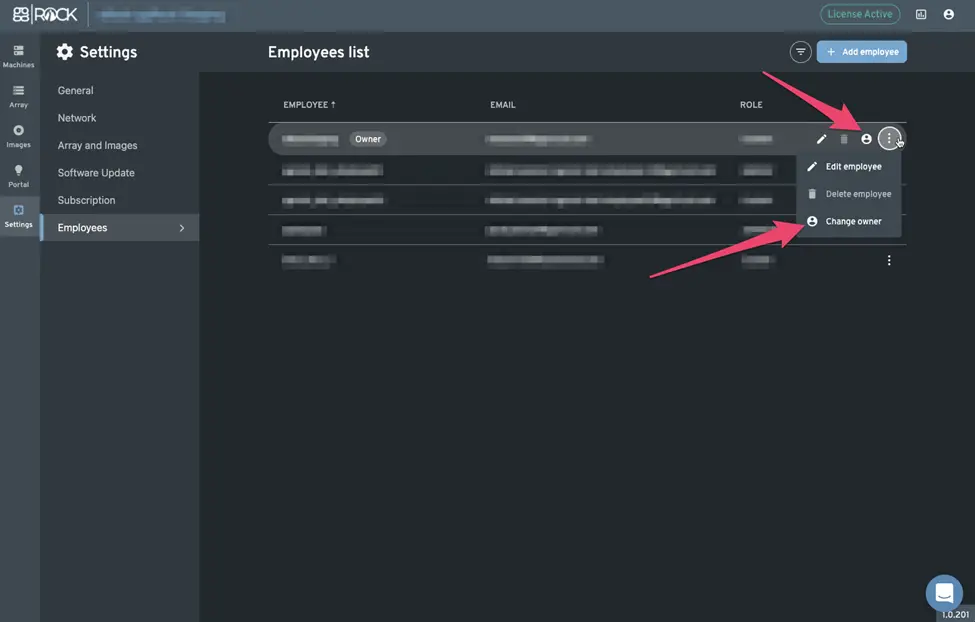
Click the "Employee" menu (three vertical dots) to the right of the user with the "Owner" designation, or use the quick-action button to change the owner.
-
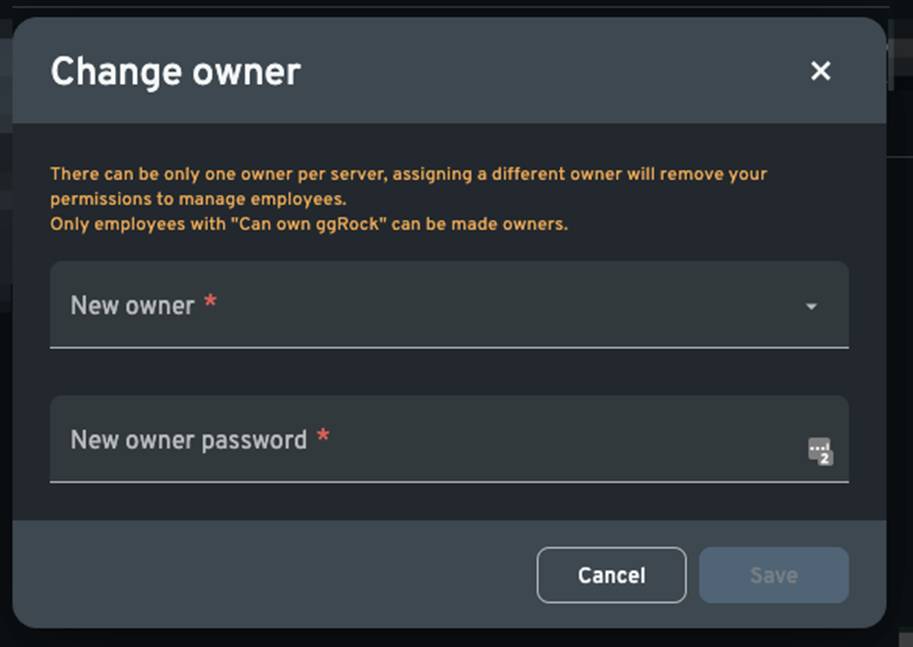
From the "Change owner" dialog, select a new owner user from the "New owner" drop-down, then enter the password for the new owner user, then click the "Save" button.
Additional Information
The account designated as the "owner" is able to log in and perform offline actions within ggRock.