

 Español
 中文
 العربية
🔐 ggLeap Security Policy Overview
The ggLeap client includes built-in security features that help protect your PCs from tampering—whether by users or even employees. However, these default protections don’t cover every possible vulnerability. That’s where Security Policies come in!
By customizing your security policy, you can strengthen the weak points and take full control of what users can (or can’t) do on your systems.
🛠️ Getting Started
To configure your Security Policy, head over to:
Settings → Client Configuration → Security
🖥️ PC Grouping
Security Policy includes a built-in PC grouping feature, allowing you to apply different security settings for specific groups of PCs.
⚠️ Note: These security groups are separate from the PC groups created under the "Groups Config" section and must be managed independently.
➕ Creating a Security Group
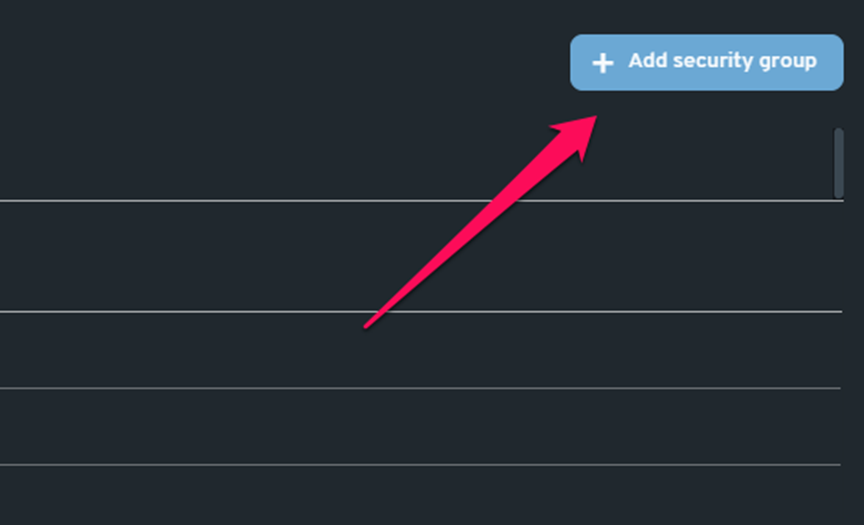
- Click "+ Add security group" to create a new group.
👈 Assigning a PC to a Group
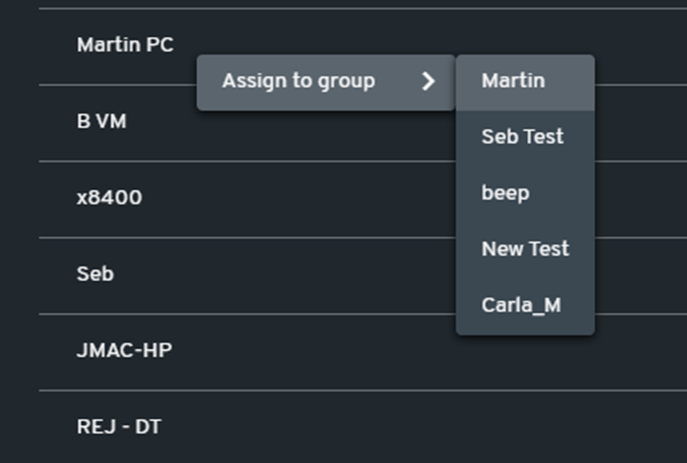
- Right-click on the desired PC.
- Select the appropriate Security Group from the menu.
🔧 Security Settings
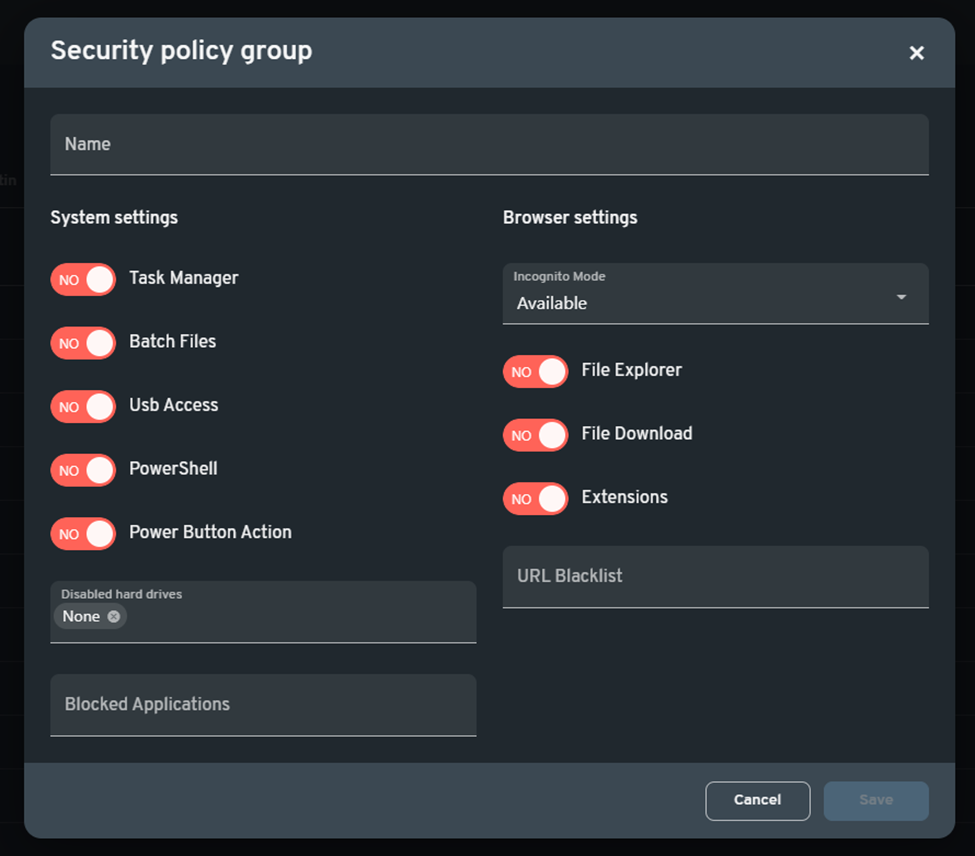
Security settings are divided into two main categories: System Settings and Browser Settings.
🖥️ System Settings
| Setting | Description |
|---|---|
| Task Manager | Enable/disable access to Task Manager. |
| Batch Files | Enable/disable the use of batch files in startup commands. |
| USB Access | Block or allow USB storage device access. |
| PowerShell | Enable/disable access to Windows PowerShell. |
| Power Button Action | Control whether the PC’s power button performs any action. |
| Disabled Hard Drives | Restrict access to selected hard drives. |
| Blocked Applications | Block specific applications (e.g., notepad.exe) from launching. |
🌐 Browser Settings
🧠 Note: These settings only apply to Google Chrome and Microsoft Edge.
| Setting | Description |
|---|---|
| Incognito Mode | Set how incognito mode behaves:• Available – Normal and Incognito modes allowed• Disabled – Incognito mode is blocked• Forced – Incognito mode is always used |
| File Explorer | Enable/disable the ability to open File Explorer via a web browser. |
| File Download | Block or allow file downloads in the browser. |
| Extensions | Enable/disable the use of browser extensions. |
| URL Blacklist | Add any URLs you wish to block from access in the browser. |
With these customizable tools, you can lock down your gaming center PCs as much or as little as needed. 🛡️ Need help creating a policy that fits your environment? Let us know—we’re here to help!