

 Español
 中文
 العربية
Advanced
Advanced Settings
Location: Settings ▶ Client configuration ▶ Advanced
5.1 Startup Commands
Automate the execution of scripts or executables on each client PC when ggLeap starts. Commands run in the order listed; the client must be rebooted once after adding them to execute for the first time.
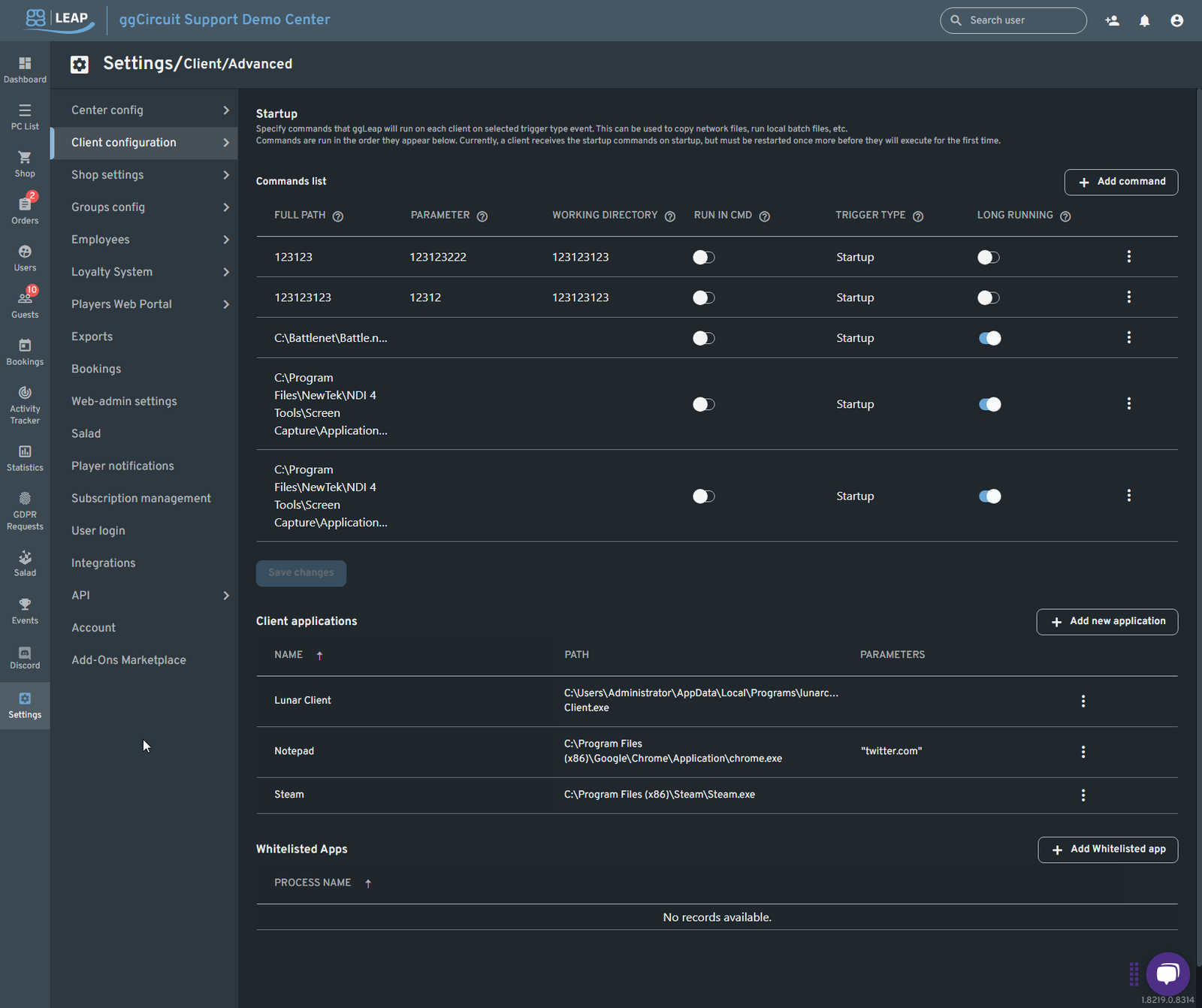
| Full path | Parameter | Working directory | Run in CMD | Trigger | Long running |
|---|---|---|---|---|---|
C:\Scripts\DeployProfiles.bat |
/silent |
C:\Scripts |
⚪︎ / 🔘 | Startup | ⚪︎ / 🔘 |
C:\Program Files\NewTek\NDI 4\Tools\ScreenCapture\Application.exe |
none | default | ⚪︎ / 🔘 | Startup | ⚪︎ / 🔘 |
C:\Battle.net\Battle.net.exe |
none | default | ⚪︎ / 🔘 | Startup | ⚪︎ / 🔘 |
- + Add command — add a new row.
- Run in CMD — wrap your command in
cmd.exe /c "…". - Long running — toggle on if the process continues running (e.g. a background service).
- ⋮ menu — edit or delete an existing command.
- Save changes — enabled once you’ve made edits.
5.2 Client Applications
Define which applications appear on the client UI for quick-launch.
| Name | Path | Parameters |
|---|---|---|
| Lunar Client | …\Programs\lunarclient.exe |
none |
| Notepad | C:\Program Files (x86)\Google\Chrome\Application\chrome.exe |
"twitter.com" |
| Steam | C:\Program Files (x86)\Steam\Steam.exe |
none |
- + Add new application — register an app with path and optional parameters.
- ⋮ menu — edit or remove an entry.
5.3 Whitelisted Apps
Lock down each PC by only allowing specified processes to run. Any non-whitelisted process will be terminated by the client.
| Process name |
|---|
| No records available |
- + Add Whitelisted app — enter the executable name (e.g.
game.exe) to permit it. - Process name — matching is exact; include the
.exe.
Pro tip: Use whitelisting to enforce a kiosk-style environment, preventing unwanted software from launching